This document describes the Car Navigation System for the Hyundai Tucson, an owner's manual providing instructions for operating the device. The manual emphasizes that designs and specifications are subject to change without prior notice, and illustrations may differ from actual screens. It also states that when transferring the vehicle to another individual, the user's manual should be transferred as well.
The device is a car navigation system that integrates various multimedia and communication functionalities. It features a Wide TFT-LCD Display, which provides high-quality video through a Wide TFT-LCD Display using an LED Back Light. The Digital Tuner Feature supports memory for 20 broadcast stations each for AM and FM modes, and it displays broadcast station names for key locations. The system supports various media formats, including Radio, MP3, USB, iPod, AUX, and Bluetooth® Audio Streaming modes. Bluetooth® Wireless Technology allows for convenient use of Bluetooth® handsfree functionality via steering wheel remote control. It also includes Digital Screen Control Features for easy control through touch screen options and a Steering Wheel Remote Controller for maximum convenience over audio features, voice recognition, and Bluetooth® functionality.
Key Technical Specifications:
- USB MP3 Specification:
- MP3 File Specification: Response Specification: MPEG1 AUDIO LAYER3
- Response Sampling Frequency: 32, 44.1, 48 (KHz)
- Response Bitrate: 32, 40, 48, 56, 64, 80, 96, 112, 128, 160, 192, 224, 256, 320 (Kbps)
- ID3 TAG: ID3 v1.1 and ID3 v2.x TAG
- Detailed Specification:
- Max Directory Layers: 15 layers
- Max length of folder names and file names: 255 bytes
- Characters supported for folder/file names: English, Español and numbers
- Max number of files recognized from one USB device: 5000
- Video and Image Specification:
- File Format: AVI(DivX), MPEG
- Image Format: jpg, gif, bmp, png
- Extensions: avi, divx, mpg, mpeg, mp4, wmv
- Supported Image Resolution: Max 4000x3000
- Supported Image File Size: Max 4 Mbytes
- Supported Image zoom in/out: Max 300%
- Video Codec: H.263, MPEG 1/2, MPEG4-ASP, MPEG4-AVC(H.264), VC-1, AVS, VP8
- Video Resolution: 1920 x 1080 (WMV 9: Max 8Mbps, 1280x720, WMV 8: 640x480)
- Audio Codec: MP3, OGG, WMA
- Subtitles: SMI
- Unsupported files:
- Files not compatible with supported specifications
- Modified files (files with modified file formats)
- Transformed files (example: AVI files encoded with WMV video codec)
- Files without indexes
Usage Features:
The system includes a variety of functions accessible through the head unit and steering wheel controls.
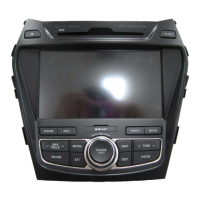
- Head Unit Controls:
- POWER/VOL Knob: Turns the system on/off, adjusts volume, and mutes audio.
- HOME Button: Moves to the home menu screen.
- C Button: Takes the user to the phone screen.
- MEDIA Button: Operates available media (USB, iPod, Bluetooth Audio, AUX). If media is not connected, corresponding modes will be disabled.
- SEEK/TRACK Buttons: In FM/AM mode, searches broadcast frequencies; in Media modes, changes the track, file, or chapter. Pressing these buttons briefly performs a seek/track function, while pressing and holding them performs a fast-forward/rewind function.
- FM/AM Button: Operates FM/AM mode. Each time the key is pressed, the mode is changed in order of FM ▶ AM ▶ FM.
- MAP Button: Displays the map screen of the current location or in a different mode.
- NAV Button: Moves to the navigation menu screen.
- C Button: Turns off the screen.
- Setup Button: Displays the Setup mode.
- TUNE/ENTER Knob: In FM/AM mode, changes the frequency; in Media mode, changes the track, file, or title (except AUX).
- Steering Wheel Controls:
- VOL +/-: Controls the volume.
- SEEK/TRACK Buttons: When pressed shortly, in FM/AM mode, plays previous/next preset channel if it is saved. In Media mode, changes the track, file or chapter. When pressed and held, in FM/AM mode, rewinds or fast forwards the track or file.
- Call Button: When pressed shortly, displays the last call, makes a call, answers an incoming call, or switches a call back to mobile phone (Private). When pressed during a 3-way call, swaps calls. When pressed twice, redials the last call. When pressed and held, during a Bluetooth® Handsfree call, switches call back to mobile phone (Private). When pressed while calling on the mobile phone, switches call back to Bluetooth® Handsfree (Operates only when Bluetooth® Handsfree is connected). When pressed, redials the last call.
- End Call Button: When pressed during a call, ends the phone call. When pressed in the incoming call screen, rejects the call.
- System Startup and Reset:
- Turning the System On/Off: Pressing the PWR key on the head unit will display the safety warning page. Press the Agree button to display the most recent mode. To turn off, press and hold the PWR key.
- AV ON/OFF: Press the PWR key on the head unit. The TUNE/ENTER knob will be disabled when AV is off.
- Resetting the System: Press and hold the RESET key for about 1 second to reset the system.
- FM/AM Radio:
- Basic Screen: Displays current frequency, preset lists, and menu options.
- Listening to FM/AM Radio: Change mode, press HOME key, or press the Radio button.
- Manual Tuning: Use the TUNE/ENTER knob or SEEK/TRACK buttons.
- Auto Tuning: Press the SEEK/TRACK button to automatically search for frequencies.
- Selecting Presets: Press the MENU button, then Preset.
- Saving Radio Frequency: Press the Add to Preset button.
- Saving Manually: Press the MENU button, then Delete all to delete entire presets.
- Using Preset Menu: Press and hold the preset list you want to edit.
- Scan: Press the MENU button, then Scan to scan radio frequencies.
- Scanning Preset Frequency: Press the MENU button, then Preset Scan.
- Sound Settings: Press the MENU button, then Sound settings.
- USB Music:
- Playing USB Music: Connect a USB device. Press the HOME key, then Media, then USB Music.
- Searching USB Music Files: Use SEEK/TRACK buttons or TUNE/ENTER knob to navigate.
- Repeat: Press the Repeat button to repeat current song, folder, or all songs.
- Shuffle: Press the Shuffle button to play songs in random order.
- Scan All: Press the MENU button, then Scan All to scan files in random order.
- Scan Folder: Press the MENU button, then Options, then Scan Folder to search files within the current folder.
- Album Cover View: Press the MENU button to search desired album.
- List: Press the MENU button to display USB Music list screen.
- Sound Settings: Press the MENU button, then Sound settings.
- USB Video:
- Playing USB Video: Connect a USB device. Press the HOME key, then Media, then USB Video.
- Searching USB Video Files: Use SEEK/TRACK buttons or TUNE/ENTER knob to navigate.
- Repeat: Press the Repeat button to repeat current video, folder, or all videos.
- Shuffle: Press the Shuffle button to play videos in random order.
- List: Press the MENU button to display USB Video list screen.
- Display Settings: Press the MENU button, then Display settings to adjust brightness and dimming mode.
- Caption: Press the MENU button, then Caption to display caption on USB Video screen.
- Sound Settings: Press the MENU button, then Sound settings.
- USB Photo:
- Viewing USB Photo: Connect a USB device. Press the HOME key, then Media, then USB Photo.
- Switching to Menu Screen or Full Screen: Press the photo to view with full screen, or press once more to return to the menu screen.
- Searching USB Image Files: Use SEEK/TRACK buttons or TUNE/ENTER knob to view previous/next image.
- Rotating/Slide Show: Press the Rotate button to rotate image. Press the Slide show button to view slide show.
- Using the Menu Buttons: Press the MENU button to set Slide show, Slide time, and Display settings menus.
- Slideshow Interval: Press the MENU button, then Slide time to set interval (5, 10, 20, 30 seconds).
- Display Settings: Press the MENU button, then Display settings.
- iPod Music:
- Playing iPod Music: Connect an iPod device. Press the HOME key, then Media, then iPod Music.
- Searching iPod Music Files: Navigate using previous or next file.
- Using the Menu Buttons: Press the MENU button to set List and options menus.
- Setting Audiobook Playback Speed: Press the MENU button, then Options, then Audiobook to set speed (Slow, Normal, Fast).
- Sound Settings: Press the MENU button, then Options, then Sound settings.
- AUX:
- Playing an AUX Source: Connect an external device. Press the HOME key, then Media, then AUX.
- Using the Menu Buttons: Press the MENU button to set Sound or Display.
- Bluetooth Audio:
- Playing Bluetooth Audio: Press the HOME key, then Media, then Bluetooth Audio.
- Searching Bluetooth Audio Files: Navigate using previous or next file.
- Using the Menu Buttons: Press the MENU button to set Sound settings.
- Getting Started with Navigation:
- Precautions for Safe Driving: Observe traffic rules, avoid distractions, and use phone features only when parked.
- What is GNSS?: Global Navigation Satellite System (GNSS) is a satellite-based navigation system.
- About Satellite Signals: Acquire satellite signals for accurate positioning.
- Acquiring Satellite Signals: Turn on the unit and acquire satellite signals.
- Initial Navigation Screen: Read the caution carefully and then press Agree.
- Bluetooth® Wireless Technology:
- Before Using the Bluetooth Handsfree: Understand Bluetooth® Wireless Technology and its features.
- Precautions for Safe Driving: Drive safely, avoid excessive use, and be aware of potential distractions.
- Cautions upon Connecting Bluetooth Phone: Check mobile phone compatibility and ensure proper connection.
- Bluetooth Connection:
- When no Phones Have Been Paired: Press the C key on the steering wheel or press the OK key.
- Pairing from the Bluetooth® Device: Search from Device, enter passkey.
- Pairing from the Car: Search from Car, enter phone name.
- When a Phone is Already Paired: Press the C key on the steering wheel or press the OK key.
- When your Phone is Connected: Press the C key on the steering wheel to display the phone screen.
- Bluetooth Phone:
- Making/Answering Calls: Dial a number, make a call from speed dial, or call through redial.
- Answering a Call: Press the C button or the C key on the steering wheel.
- Rejecting a Call: Press the C button or the C key on the steering wheel.
- Operating Menus during a Call: End a call, turn the mic on/off, switch voice call to mobile phone, display dial pad, make a 3-way call.
- Switching Call to Bluetooth® Phone: Press the C button or press and hold the C key on the steering wheel.
- Making 3-way Call: Press the C button.
- Using the Menu Buttons: In Phone screen, press the MENU button to use Contacts, Calling list, Favorites, Bluetooth settings.
- Contacts: Update mobile phone contacts, search for contacts.
- Calling List: View calling lists (All, Missed, Received, Dialed).
- Favourites: Press the MENU button to view favorites.
- Saving to Favourite: Press the Add to favourites button.
- Deleting Favourites: Press the MENU button, then Delete all or Delete.
- Changing the Favourites Name: Press the MENU button, then Rename.
- Bluetooth Settings: In Phone screen, press the MENU button, then Bluetooth settings.
- Car Link:
- Before Starting Car Link: Install the Car Link application, connect to Wi-Fi hotspot, ensure Bluetooth Audio is connected.
- Starting Mode: Press the HOME key, then Car Link, then Agree.
- Car Link Connection Wizard: Enter hotspot name and password.
- Using the Quick Menu: Press the MENU button to display the Quick Menu.
- Setup:
- Starting Mode: Press the C key to display the Setup screen.
- Sound: Adjust sound effects for the whole system.
- Sound Balance: Adjust bass, mid, and treble.
- Volume Setting: Adjust phone, navigation, and system volumes.
- Beep: Turn beep sound on/off.
- Display: Adjust brightness and dimming mode.
- Brightness: Adjust brightness level.
- Dimming Mode: Set brightness automatically, day, or night.
- Bluetooth Settings: Manage Bluetooth device list, pairing, connecting or deleting Bluetooth devices.
- Bluetooth Connection: View connected devices.
- Ringtone: Configure ringtone played through vehicle speakers.
- Change Passkey: Change passkey for Bluetooth device authentication.
- Changing Device Name: Enter new device name.
- Auto Connection: Turn Bluetooth® device auto connection on/off.
- System: Access Language, Keyboard, Clock, and Factory settings.
- Keyboard: Change type of keyboard used.
- Language: Set system language.
- Clock: Set GPS Time, Time setting, Format, Standby screen, Standby screen view.
- Factory Settings: Reset settings to default.
Maintenance Features (Troubleshooting):
The manual provides a troubleshooting guide for common issues:
- Screen Issues:
- Small, red, blue, or green dots on the screen: Caused by manufacturing technology; acceptable if within 0.01% of total pixels.
- Sound or image not working: Check if the vehicle has been turned to [ACC] or [ON], or if the SYSTEM has been turned OFF.
- Screen is being displayed but sound is not working: Check if volume has been set to a low level or muted.
- Power is turned on, but corners of the screen are dark: Display appearing somewhat dark after prolonged periods of use is normal with LCD panels. If it is very dark, contact your dealer.
- Audio Issues:
- Sound working from only one speaker: Check positions of Fader or Balance sound controls.
- Sound does not work in AUX mode: Check if the audio connector jacks are fully inserted into the AUX terminal.
- External device is not working: Check if the external device is connected with a standard connector cable.
- Power Issues:
- Power does not turn on: Check if the fuse is disconnected. If so, contact your dealer. If the device is not properly connected, check the device connection.
- System does not play: The vehicle battery is low. Charge the battery.
- Display/Volume Issues:
- Image colour/tone quality is low: Adjust brightness and contrast levels through Display Setup.
- Volume level is set to the lowest level: Adjust the volume level.
- Connection Issues:
- Sound does not work: Check if the connection is not proper.
- Device Operation Issues:
- Device is currently fast-forwarding, rewinding, scanning, or playing in slow mode: The sound will not work when the device is in these modes.
- USB Device Issues:
- Sound or image quality is low: Vibration from conversion switch installation, low image colour/tone quality, or damaged USB memory.
- USB memory has been contaminated: Remove any foreign substances on the contact surface.
- Separately purchased USB HUB is being used: Directly connect the USB memory.
- USB extension cable is being used: Directly connect the USB memory.
- USB is not a Metal Cover Type USB Memory: Use standard USB Memory.
- HDD type, CF, SD Memory is being used: Use standard USB Memory.
- No music files can be played: Only MP3, WMA file formats are supported.
- No titles can be played: Use iTunes to download and save MP3 files.
- iPod Recognition Issues:
- iPod is not recognized even though it has been connected: iPod firmware version not properly updated, or iPod device does not recognize downloads. Update firmware or reset iPod.
Limited Warranty:
The product comes with a Limited Warranty for the original navigation head unit supplied by the vehicle dealer.
- Warranty Coverage: 3 years or 60,000 Km, whichever occurs earlier. The warranty covers defects in workmanship and materials under normal use.
- Warranty Does Not Cover: Damage due to normal wear and tear, abuse, non-compliance with instructions, physical damage, or software not installed by the dealer.
- How to Make a Warranty Claim: Contact the dealer if a defect arises and is valid under this Limited Warranty.
- Dealer Limited Warranty: Specifies legal rights and limitations of liability for the dealer.
- Limitation of Liability: Neither dealer nor its suppliers are liable for indirect, incidental, consequential, or other damages.
- Safety Symbols: Warnings indicate potential for damage, injury, or death.
- FCC Information: The device complies with Part 15 of the FCC Rules. It must not cause harmful interference and must accept any interference received.
- IC Information: The device complies with Industry Canada licence-exempt RSS standard(s). It must not cause interference and must accept any interference.
- Antenna: The antenna(s) used for this device must be installed to provide a separation distance of at least 20 cm from all persons and must not be co-located or operating in conjunction with any other antenna or transmitter.

 Need help?
 General




 To Next Page