EasyManua.ls Logo

IBM C220p - User Manual

IBM C220p
24 pages
Print Icon
To Next Page IconTo Next Page
Loading...
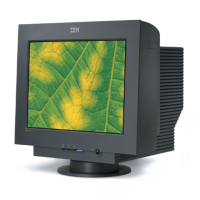
Color Monitor
C220p
User’s Guide English

Questions and Answers

  • K
    Kimberly ManningJul 28, 2025
    How to fix IBM C220p when the screen is blank and power indicator is off?
    • R
      Ruben BennettJul 28, 2025
      If the IBM Monitor screen is blank and the power indicator is off, it indicates that there is no power to the monitor. First, ensure that both the electrical outlet and the monitor are switched on. Check that the power cord is firmly plugged into both the monitor and the electrical outlet. If the power cord plug has a removable fuse, replace it. You can also try using another power cord or electrical outlet to rule out any issues with the current ones.
  • N
    Nathan SparksAug 1, 2025
    What to do if my IBM C220p displays 'CHECK SIGNAL CABLE' message?
    • S
      Sheri CarterAug 1, 2025
      If the IBM Monitor displays a 'CHECK SIGNAL CABLE' message, it typically indicates an issue with the video cable connection. Ensure that the signal cable is firmly connected to the computer and check for any bent pins in the signal cable connector.
  • C
    Catherine WalkerAug 6, 2025
    Why is my IBM C220p screen blank with an amber power indicator?
    • K
      Kaylee WalkerAug 6, 2025
      If the IBM Monitor screen is blank but the power indicator is amber, the monitor might be in Power Management Standby/Suspend or Off state. Try pressing any key on the keyboard or moving the mouse to restore operation. Also, it could mean there is no video signal from the computer, so check that the computer is powered on and the signal cable is firmly connected, ensuring no pins are bent. Another cause may be that the wrong input is selected; select the correct signal input.
  • E
    Edward RosalesAug 10, 2025
    What to do if IBM Monitor shows 'SIGNAL OUT OF RANGE' message?
    • P
      Paul RodriguezAug 10, 2025
      If your IBM Monitor displays a 'SIGNAL OUT OF RANGE' message, it means that the display mode of the computer is outside the monitor's supported range. To resolve this, reconfigure the computer to use a supported display mode.
  • L
    lgonzalezAug 14, 2025
    Why does the image on my IBM C220p Monitor appear discolored?
    • D
      Dorothy FryeAug 14, 2025
      If the image on your IBM Monitor appears to be discolored, it could be due to interference from nearby equipment that produces magnetic fields. Move such equipment further away from the monitor. If another monitor is close by, separate the two monitors by at least 300mm (12 in.) for optimal performance. Also, magnetization of monitor components may have built up. To fix this, degauss the monitor using the OSD manual demagnetize function; note that this function can only be used once in a 30-minute period.
  • U
    ubranchAug 19, 2025
    How to stop my IBM C220p image from flickering?
    • A
      adamreynoldsAug 19, 2025
      If the image on the IBM Monitor appears to be flickering, it may be due to the monitor operating in an interlaced or low refresh rate display mode. Reconfigure the computer to use a non-interlaced display mode with a refresh rate of at least 75 Hz.
  • S
    Shannon PowellAug 23, 2025
    Why is my IBM C220p affected by interference from nearby equipment?
    • B
      Brandon KelleyAug 23, 2025
      If the IBM Monitor is affected by interference from nearby equipment, move fluorescent desk lighting or any equipment that produces magnetic fields further away from the monitor. If another monitor is close by, separate the two monitors by at least 300mm (12 in.) for optimal performance.

Summary

Safety Information

General Safety Precautions

Observe precautions for injury/damage reduction, including electrical safety.

Component Safety Guidelines

Safety guidelines for batteries, computer heat, ventilation, and CD/DVD drive use.

Connecting and Workplace Setup

Monitor Connection Procedure

Steps to connect the signal cable and power cord, then power on the monitor.

Ergonomic Workplace Guidelines

Guidance on monitor positioning, posture, breaks, eyesight, and screen settings.

Installing Device Drivers

Driver Installation for Windows OS

Step-by-step guides for installing monitor drivers on Windows 95, 98, 2000, Me, and XP.

Monitor Controls and OSD Menu

User Controls and Hotkey Functions

Overview of monitor buttons, OSD navigation, and direct adjustments for brightness/contrast.

OSD Menu Options and Adjustments

Detailed explanations of OSD menu categories: Image Quality, Position, Shape, Color, and Options.

Display Modes, Power Management, and Troubleshooting

Display Modes and Power Management

Information on supported display modes, resolutions, refresh rates, and VESA DPMS power saving.

Troubleshooting Common Issues

Solutions for common problems: blank screens, signal errors, flickering, and input selection.

Getting Technical Support

Contact information and required details for seeking technical assistance from IBM.

Specifications and Legal Information

Monitor Technical Specifications

Detailed technical specifications of the IBM C220p monitor.

Service Parts and Legal Notices

Service part numbers, legal disclaimers, notices, and trademark information.

IBM C220p Specifications

General IconGeneral
Display Size22 inches
Native Resolution1680 x 1050
Response Time5 ms
Brightness300 cd/m²
Contrast Ratio1000:1
Viewing Angle (horizontal)170°
Viewing Angle (vertical)160°
Aspect Ratio16:10
Panel TypeTN
Input ConnectorsVGA, DVI
Power Consumption45 W

Related product manuals