EasyManua.ls Logo

IBM ThinkVision L170 - User Manual

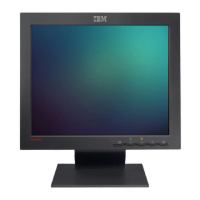
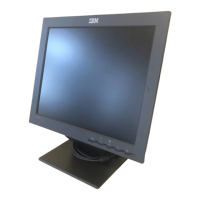
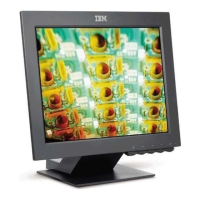
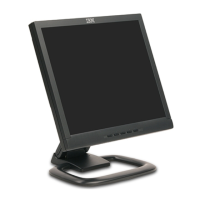
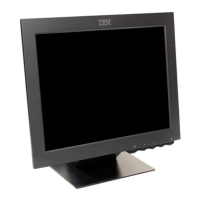
IBM ThinkVision L170
32 pages
Print Icon
To Next Page IconTo Next Page
Loading...
L170
User's Guide
IBM ThinkVisionā„¢ L170 Monitor
English

Questions and Answers

  • D
    Dr. Jenna Kim DDSJul 28, 2025
    What to do if the IBM ThinkVision L170 Monitor screen is blank and the power indicator is blinking green?
    • P
      Pamela KennedyJul 28, 2025
      If your IBM Monitor screen is blank and the power indicator is blinking green, this could indicate several issues: * The monitor might be in Power Management Standby, Suspend, or Off state. Try pressing any key on the keyboard or moving the mouse. * The signal cable might not be firmly connected to the computer, or there might be bent pins in the connector. Ensure the cable is properly connected and that the pins are not damaged. * The display mode of the computer might be outside the range supported by the monitor. Reconfigure the computer to use a supported display mode.
  • J
    Jordan MasonAug 2, 2025
    How to troubleshoot a blank screen on my IBM ThinkVision L170 Monitor when the power indicator is off?
    • B
      Bobby ObrienAug 2, 2025
      If your IBM Monitor screen is blank and the power indicator is off, it indicates that the monitor is not receiving power. Ensure that both the electrical outlet and the monitor are switched on. Check that the power cord is firmly plugged into both the electrical outlet and the power supply unit. If the power cord plug has a removable fuse, try replacing it. You can also try using a different power cord or a different electrical outlet.
  • G
    Gregory HarveyAug 6, 2025
    Why is my IBM ThinkVision L170 Monitor screen blank when the power indicator is green?
    • V
      Vincent HaynesAug 6, 2025
      If your IBM Monitor screen is blank but the power indicator is steady green, the brightness and contrast settings may be too low. Adjust the brightness and contrast settings on your monitor.
  • M
    myoungAug 10, 2025
    What to do if my IBM ThinkVision L170 screen image is garbled?
    • K
      Kevin ChenAug 11, 2025
      If the screen image on your IBM Monitor is garbled or unusable, with issues like rolling or overlapping images, it could be due to the display driver attempting to use settings that your monitor does not support. To resolve this, select the correct monitor settings.
  • K
    Kelly BrownAug 14, 2025
    How to fix a smeared image on my IBM ThinkVision L170 Monitor?
    • A
      april00Aug 14, 2025
      If the image on your IBM Monitor appears smeared, it indicates noise in the video signal. To correct this, access the Image Setup menu in the OSD, and then select MANUAL to adjust the Phase/Clock settings.
  • D
    davisryanAug 19, 2025
    Why won't my computer boot after installing the IBM Monitor graphics adapter?
    • K
      Kevin SmithAug 19, 2025
      If your computer does not boot after installing the graphics adapter for your IBM Monitor, it might be due to another graphics adapter already present in the computer. Remove any other graphics adapter plugged into an expansion slot. If the graphics card is built into the motherboard, consult your system manual for instructions on how to disable the built-in adapter.
  • A
    Alan ZavalaAug 23, 2025
    What to do if the image on my IBM ThinkVision L170 appears discolored?
    • R
      Richard FloydAug 23, 2025
      If the image on your IBM Monitor appears discolored, the color settings may be incorrect. Adjust the color settings to correct this issue.

Summary

Safety: Read First

Setting Up the Monitor

Product Description

Details the IBM ThinkVision L170 Monitor and its package contents.

Handling Instructions

Provides guidance on safely handling the monitor to prevent damage.

Workplace Preparation

Offers advice on setting up the monitor in an optimal workspace environment.

Adjusting Monitor Position

Explains how to adjust the monitor's viewing angle for comfort.

Working Practices

Gives advice on comfortable and fatigue-reducing computer usage.

Caring for Your Monitor

Connecting Your Monitor

Switching On Your Monitor

Device Driver Installation

Driver Installation for Windows 95;98

Guide for installing drivers on Windows 95 and Windows 98.

Driver Installation for Windows 2000;Me

Guide for installing drivers on Windows 2000 and Windows Me.

Driver Installation for Windows XP

Guide for installing drivers on Windows XP.

Auto Setup for DOS

Auto Setup

Auto Setup for Windows 95, 2000, Me, or XP

Instructions for automatic monitor setup in various Windows versions.

Manual Setup

Adjusting Your LCD Monitor

User Controls and OSD Navigation

Details direct access buttons and basic On-Screen Display navigation.

Image Adjustment Features

Covers monitor operation, OSD lock, image setup, and properties.

Monitor Configuration Options

Settings for language, menu position, reset, and accessibility features.

Further Information

Display Modes Explained

Explains how display modes are controlled by the computer and image adjustments.

Factory Set Display Modes

Lists supported display modes, refresh rates, and horizontal frequencies.

Power Management

Product Disposal

Troubleshooting Common Issues

Troubleshooting Computer and Display Problems

Solutions for computer boot, display, power, and signal connectivity issues.

Image Quality Troubleshooting

Fixes for image smearing, discoloration, and intrinsic dot characteristics.

Further Help and Support

Specifications

Service Information

Notices and Trademarks

IBM ThinkVision L170 Specifications

General IconGeneral
BrandIBM
ModelThinkVision L170
CategoryMonitor
LanguageEnglish

Related product manuals