EasyManua.ls Logo

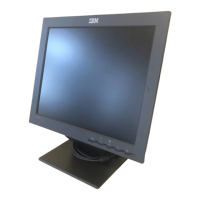
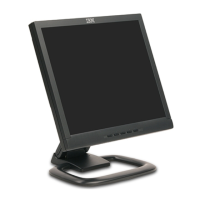
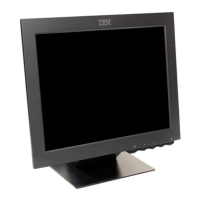
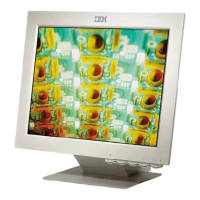
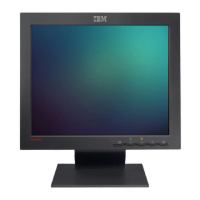
IBM ThinkVision L150 - User Manual

IBM ThinkVision L150
33 pages
Print Icon
To Next Page IconTo Next Page
Loading...
L150
User's Guide
ThinkVision
TM
Flat Panel Monitor
English

Questions and Answers

  • D
    Donald HendersonAug 16, 2025
    What to do if the IBM Monitor screen is blank and the power indicator is off?
    • J
      Janice CamachoAug 16, 2025
      If your IBM Monitor screen is blank and the power indicator is off, ensure that both the electrical outlet and the monitor are switched on. Also, check that the power cord is firmly plugged into the electrical outlet and the power supply unit. If the power cord plug has a removable fuse, replace it. You may also try another power cord or electrical outlet to resolve the issue.
  • N
    nicolealexanderAug 19, 2025
    Why is my IBM Monitor screen blank and the power indicator blinking green?
    • D
      Daisy HughesSep 12, 2025
      If your IBM Monitor screen is blank and the power indicator is blinking green, it's likely that the monitor is in the Power Saving state. To restore operation, simply press any key on the keyboard or move the mouse. Additionally, you may want to check the Power Management software settings on your computer.
  • Y
    youngpatrickAug 22, 2025
    How to fix an IBM Monitor that is not receiving a video signal?
    • L
      Lisa VelasquezAug 22, 2025
      If your IBM Monitor is not receiving a video signal, first check that the signal cable is firmly connected to the computer. Also, inspect the signal cable connector to ensure that no pins are bent.
  • B
    Brandon RyanAug 25, 2025
    What to do if computer does not boot after IBM ThinkVision L150 Monitor graphics adapter is installed?
    • S
      Shannon WilsonAug 26, 2025
      If your computer does not boot after installing the graphics adapter for your IBM Monitor, it may be due to another graphics adapter already present in the computer. Remove the other graphics adapter plugged into one of the expansion slots. If the card is built-in to the motherboard, check your system manual for instructions on how to disable the built-in adapter.
  • W
    william47Aug 27, 2025
    How to restore my IBM ThinkVision L150 from the Active Off state?
    • J
      Joseph WallaceAug 27, 2025
      If your IBM Monitor is in the Active Off state, try pressing any key on the keyboard or moving the mouse to restore operation. You might also want to check the Power Management software settings on your computer.
  • R
    robert34Aug 31, 2025
    Why is the screen image on my IBM ThinkVision L150 garbled or unusable?
    • W
      william56Aug 31, 2025
      If the screen image on your IBM Monitor is garbled or unusable, with issues like rolling or overlapping images, it's likely that the display driver is using settings that your monitor doesn't support. Select the correct monitor to resolve this issue.
  • P
    Peter JohnsonSep 3, 2025
    What to do if IBM ThinkVision L150 Monitor screen is blank but power indicator is steady green?
    • K
      Kristina AnthonySep 3, 2025
      If your IBM Monitor screen is blank but the power indicator is steady green, the brightness and contrast levels may be set too low. Try adjusting the brightness and contrast settings.
  • M
    Mary SandersSep 6, 2025
    How to fix 'Display mode of the computer is outside the range of the monitor' on IBM ThinkVision L150 Monitor?
    • K
      Kimberly MillerSep 6, 2025
      If the display mode of your computer is outside the range supported by your IBM Monitor, reconfigure the computer to use a supported display mode.
  • T
    Tony JonesSep 8, 2025
    How to resolve a smeared image on my IBM Monitor?
    • B
      Bradley GomezSep 9, 2025
      If the image on your IBM Monitor appears smeared, it indicates noise in the video signal. Access the Image Setup menu in the OSD, then select MANUAL to adjust the Phase/Clock settings.
  • R
    Rick HaynesSep 12, 2025
    Why does the image on my IBM Monitor appear discolored?
    • M
      marycunninghamSep 12, 2025
      If the image on your IBM Monitor appears discolored, the Color setting may be incorrect. Try adjusting the Color settings to correct this issue.

Summary

Safety: Read first

Setting up the Monitor

Handling Instructions

Provides guidance on safely lifting and preparing the monitor for use.

Caring for your Monitor

Connecting your Monitor

Turning on your Monitor

Installing the Device Driver

Installing the Device Driver for Windows 95 or Windows 98

Steps to install the device driver for Windows 95 and Windows 98.

Installing the Device Driver for Windows 2000 or Windows Me

Installing the Device Driver for Windows XP

Automatic Image Setup

Image Setup for DOS

Setup for Windows 95, Windows 98, Windows NT, Windows 2000, Windows Me or Windows XP

Manual Image Setup

Adjusting your LCD Monitor

On-Screen Display (OSD) Controls

Power Management

Troubleshooting

Help and Service Information

Specifications

IBM ThinkVision L150 Specifications

General IconGeneral
BrandIBM
ModelThinkVision L150
CategoryMonitor
LanguageEnglish

Related product manuals