EasyManua.ls Logo

iCarsoft i620 User Manual

iCarsoft i620
4 pages
To Next Page IconTo Next Page
Page #1 background imageLoading...
Page #1 background image
iCarsoft i620 Bluetooth Quick Start
When you get this exquisite device, please operate as following.
First Step:
Install related software to your mobile-phone (just support Android software system
and Windows software): please download the TORQUE from Android Market.
After install the related software to your mobile-phone then all is finished. Of course,
you also can use the TORQUE and Dashcommand software from the CD of the device
which we supply to you. Please refer to the following pictures.
Question and Answer IconNeed help?

Do you have a question about the iCarsoft i620 and is the answer not in the manual?

iCarsoft i620 Specifications

General IconGeneral
BrandiCarsoft
Modeli620
CategoryDiagnostic Equipment
LanguageEnglish

Summary

Install Software for Mobile-Phone

Download TORQUE from Android Market

Install related software to your mobile-phone. Download the TORQUE app from Android Market.

Use Software from Device CD

Utilize TORQUE and Dashcommand software provided on the device's CD.

Connect to Vehicle OBD Interface

Locate and Connect OBD Device

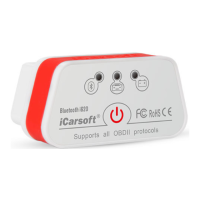
Connect the iCarsoft Bluetooth OBD Multi-Scan Tool i620 to your car's OBD interface.

Device Sleep Mode Functionality

The device enters sleep mode after 30 mins of inactivity and can be reactivated by pressing the switch.

Pair Bluetooth with Mobile-Phone

Bluetooth Verification Process

Enable Bluetooth on your phone, scan for devices, select 'iCarsoft', and enter '1234' as the password.

Configure and Use Diagnostic Software

Set Up TORQUE or Dashcommand

Open TORQUE or Dashcommand, select 'setting', then 'OBD adapter setting' and choose Bluetooth connection.

Automatic Connection and Data Reading

After configuration, reopen the software to connect automatically and read data.

Related product manuals