EN-22
Display System
1. Touch the upper left corner to display main menu.
2. Touch [ Settings ].
The settings menu is displayed.
3. Touch [
] or press the [ menu ] button on the front panel to exit.
Adjust General Settings
1. Touch [ General ], if necessary.
2. Touch to select a setting.
3. Touch on the option to display/select an option.
General settings Options Description
Language Select on-screen display language.
Radio Area
Europe
Select one that matches your location.
America
America4
East Europe
Australia
China
Beep
On
Turn on the beep sound. Each time you press a button,
the unit beeps.
Off Turn off the beep sound.
Calibration Ok Calibrate the touch screen.
Wallpaper Ok You can select a wall paper.
Gps Path Setup
Key colour Adjust You can select the color of the key.
Calibration
When the touch operation is not sensitive or valid, you should
calibrate the touch screen through calibration setting function.
Adjust the response positions of the touch panel as followings:
1. Press the [ Calibration ] option on the setup menu to enter.
2. Touch [ Start ] to enter.
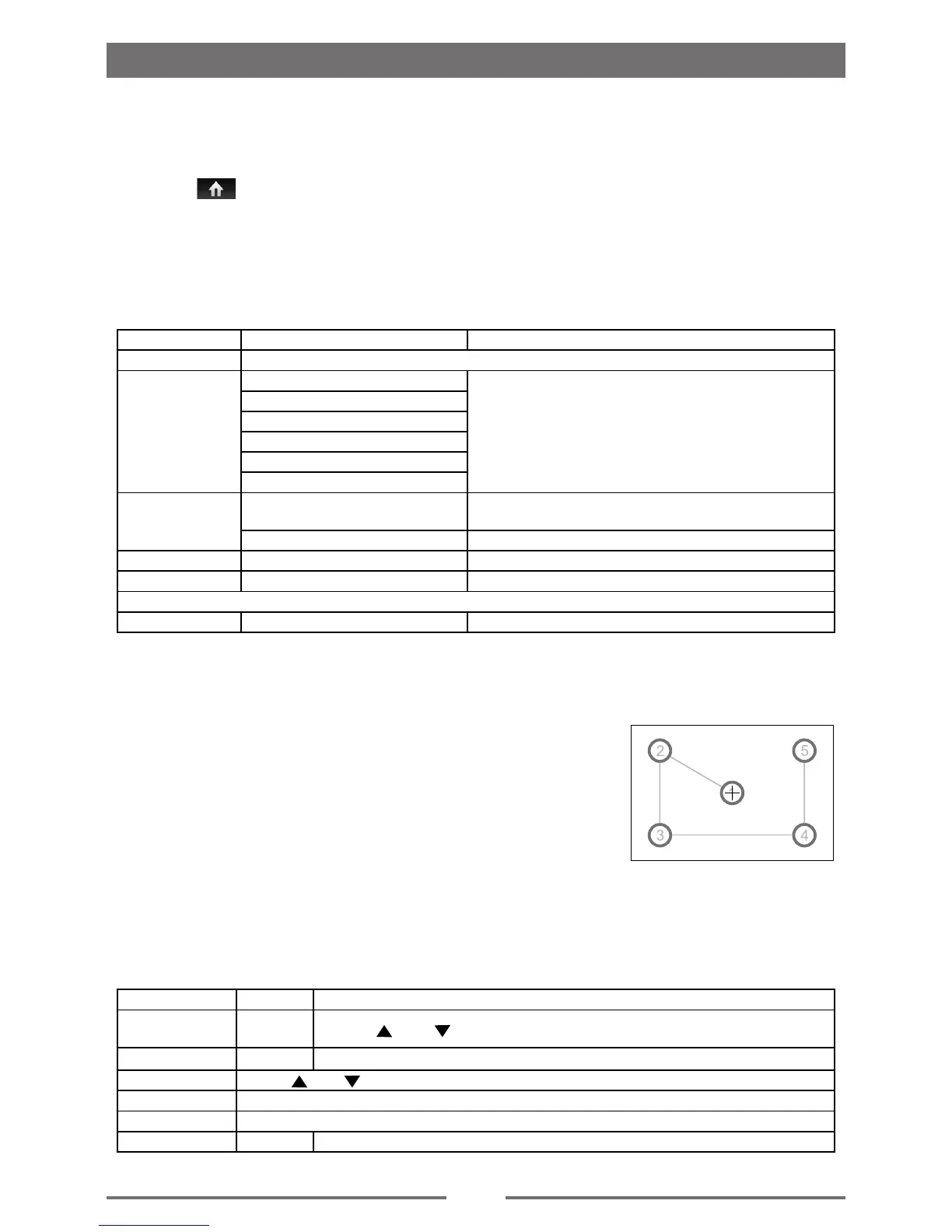
3. Press and hold the center of [ + ] for 2 seconds, the [ + ] will
move automatically.
4. Aim at center of [ + ], follow the path as shown of the gure, after
steps from 1 to 5, the system will exit calibrating automatically.
Adjust Time Settings
1. Touch [ Time ].
2. Touch an option repeatedly to select.
Time settings Options Description
Date
Year/
Month/Day
Touch [ ] or [ ] to set year, month and day.
Time Mode 12H/24H
Touch [12H] or [24H] to switch time mode.
Time Touch [ ] or [ ] to set hour and minute.
Desk Timer Touch to select [ Simulate Timer] or [ Numeral Timer ].
Time Zone Touch to select the time zone you desire.
Power Off Time On/Off Touch to select whether the time displays after power off.
Settings


 To Next Page