5
2
PANEL DESCRIPTION
■ Software Keys
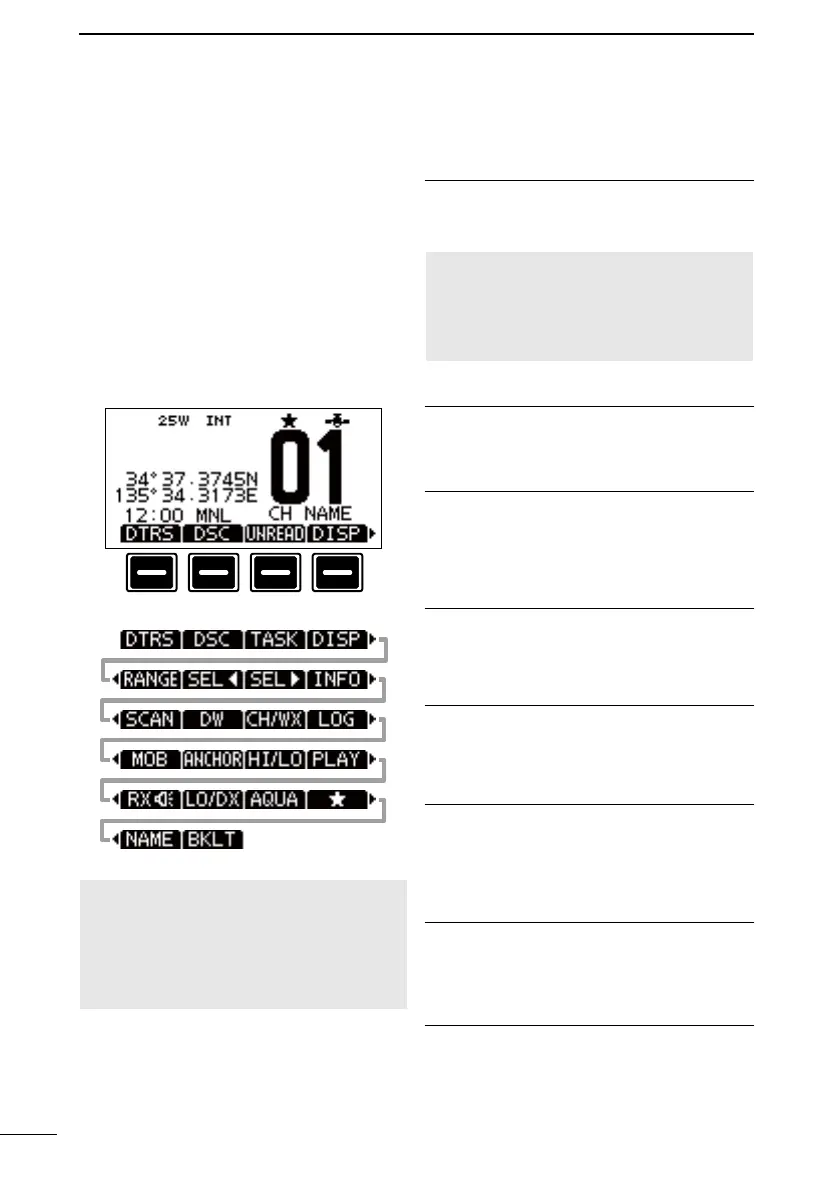
Various often-used functions are assigned
to the Software Keys for easy access. The
functions’ icons are displayed above the
Software Keys, as shown below.
D Selecting a Software Key
function
Push[◄]or[►]toslidethroughthe
selectable functions that are assigned to
the Software Keys.
Push the Software Key under the function’s
icon to select the function.
NOTE: The displayed icons or their order
maydier,dependingonthetransceiver
version or the presetting.
When the MMSI code is not set, the
Software Keys for the DSC function are
not displayed.
D Software Key functions
Compose Distress [DTRS] (p. 20)
Push to display the “COMPOSE DISTRESS”
screen to select the nature of distress, then
to make a call.
NEVER MAKE A DISTRESS CALL IF
YOUR VESSEL OR A PERSON IS NOT
IN AN EMERGENCY. A DISTRESS
CALL SHOULD BE MADE ONLY WHEN
IMMEDIATE HELP IS NEEDED.
Compose other DSC [DSC] (p. 23)
Push to compose an Individual call, Group
call, All Ships call or a Test call, and so on.
Task List [TASK] (p.43)
(For only the USA version)
Push to enter the Task List.
L Displayed only when “Multiple” is selected
in the “Procedure” in the Menu screen.
Unread List [UNREAD] (p.43)
Push to enter the Unread List.
L Displayed only when “Single” is selected in
the “Procedure” in the Menu screen.
DISPLAY [DISP] (p. 3)
(For only the IC-M510BB)
Push to
switch the main screen between the
INFO, the Plotter, and the MOB screens
Range [RANGE] (p. 53)
(For only the IC-M510BB)
Push to select the plotter display range on
the Plotter screen.
L Displayed only on the plotter screen.
Target Select [SEL ◄]/[SEL ►] (p. 53)
(For only the IC-M510BB)
Push to select an AIS target, or MOB.
L Displayed only on the plotter screen.
Target Details [INFO] (p. 57)
(For only the IC-M510BB)
Push to display the details on the selected
target.
L Displayed only on the plotter screen.
FELLECS-TECH | inbox@fellecs-tech.com | www.fellecs-tech.com


 To Next Page