An available USB Port on the PC
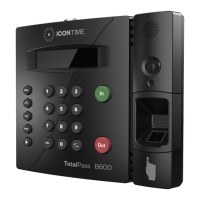
1. Plug the USB cable into the USB port located on the bottom of your clock.
2. Plug the other end of the USB cable into the USB port on your PC.
3. Download the USB Communication Drivers from our website and follow the directions for installation provided
on the webpage.
4. After installing the drivers, open your Web browser and navigate to:
http://totalpass.timeclock or http://172.20.20.1
Important: USB connection is compatible with Windows Vista and above. If you are using a Mac, give us a call
for alternative options.
9. LOG INTO YOUR TIME CLOCK
1. Open your computer’s web browser and enter the clock’s IP address in the address bar. Press Enter.
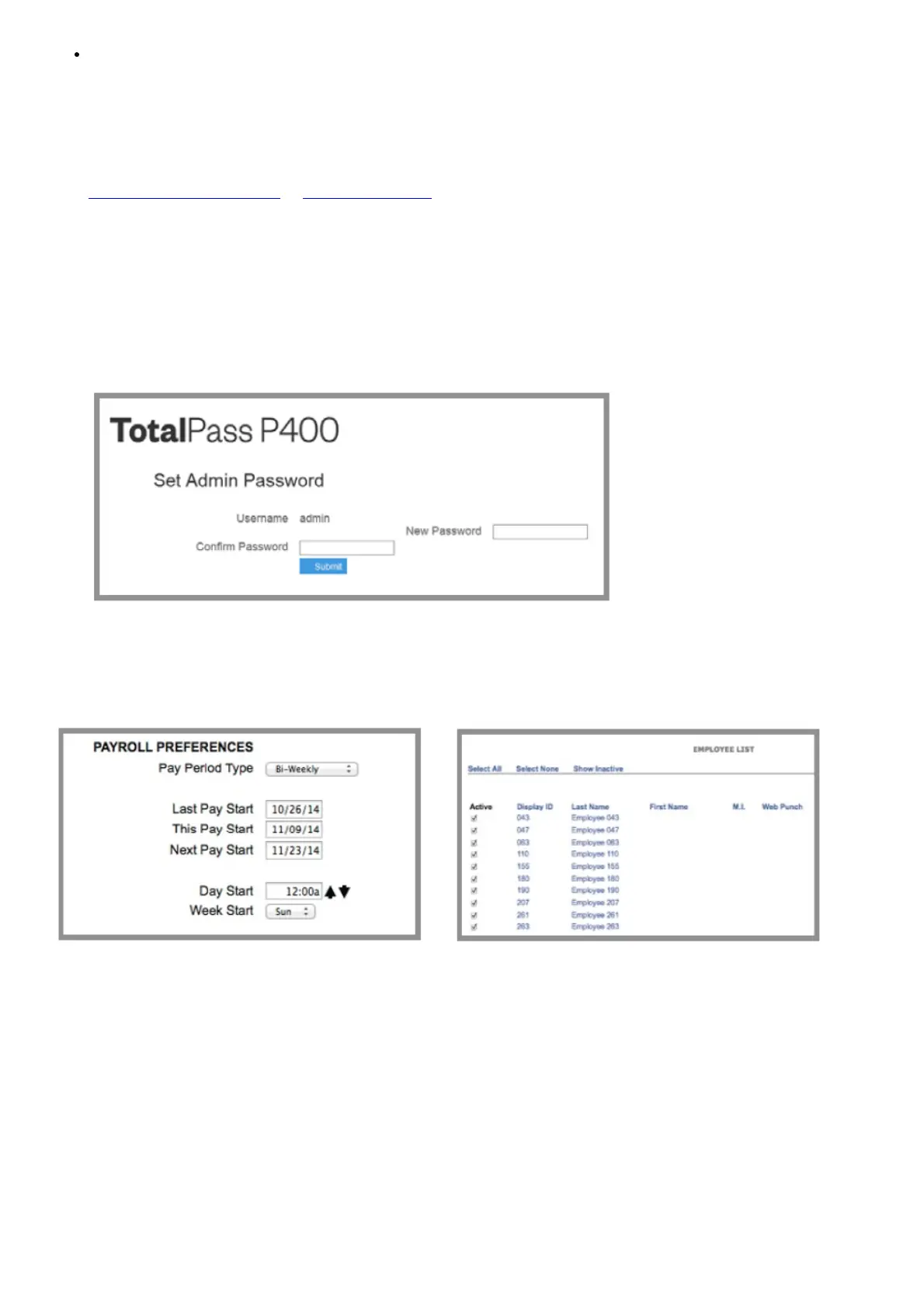
2. Set your Password.
⇒ Enter your New Password (default Username is admin)
⇒ Confirm your New Password
3. For instructions on adding employees and completing setup, click the Help menu on the navigation bar and
download the User Guide.
10. SET UP PAY PERIOD & ADD EMPLOYEES
Set Up Your Pay Period:
1. Go to the Settings menu, and click Preferences.
2. Under the Pay tab, select the applicable Pay Period type. Complete the rest of the settings accordingly.
Add Employees:
The Employee List is used for maintaining employees in the time clock including, adding, editing and terminating
employees.
Each employee is assigned a default 4-digit PIN.
1. To access the Employee List, go to Lists, then click Employees.



 To Next Page