Getting Started
4
Connecting your iPad controller system
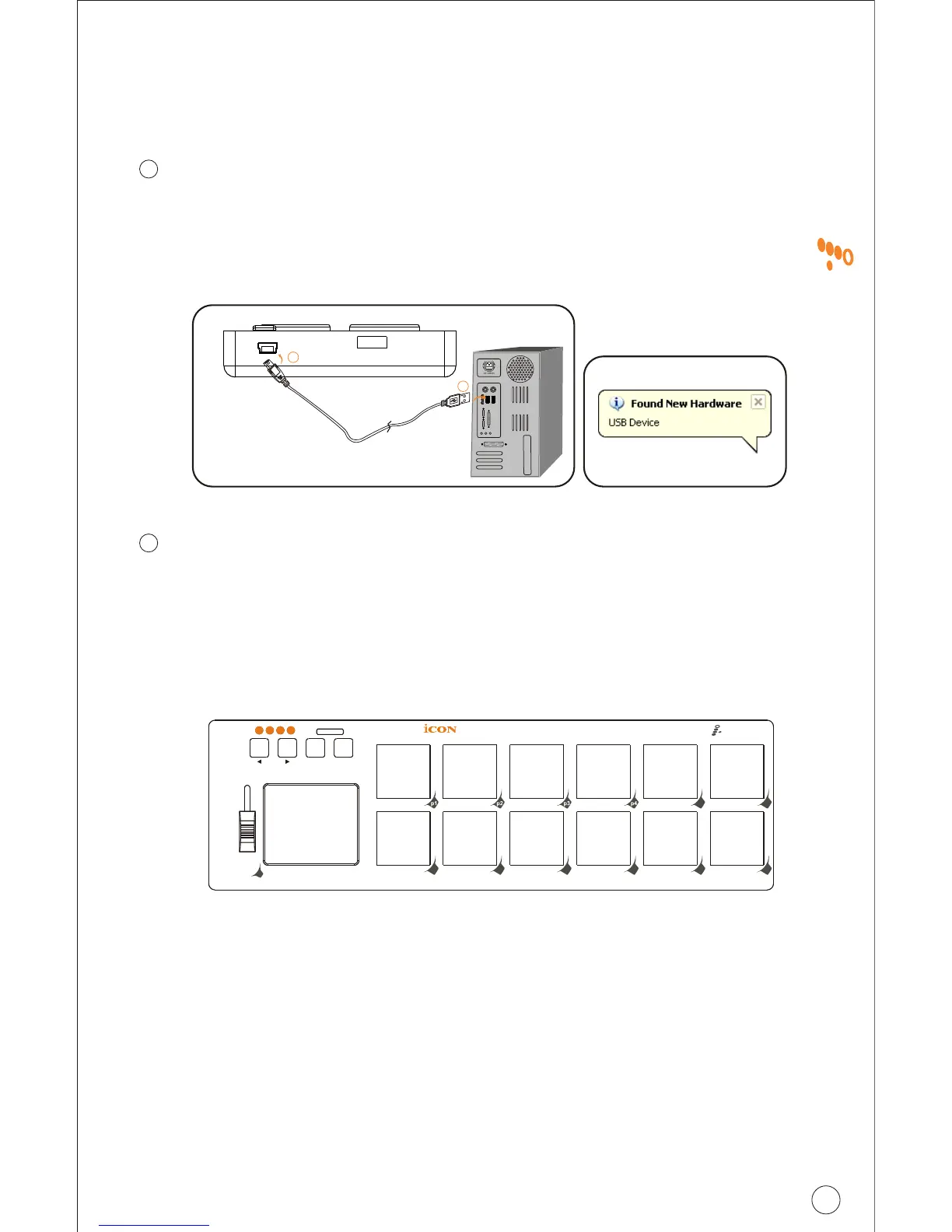
Choose a USB port on your Mac/PC and insert the wide (flat) end of
the USB cable. Connect the cable's small jack end to the iPad. Your
Mac/PC should automatically "see" the new hardware and notify you
that it is ready to use.
Connect the iPad to your Mac/PC via the USB port.
1
TM
Refer to page 10 for "Assign the MIDI functions with "iMap "
software"
Assign the MIDI messages to iPad
2
Controller Features and Settings
Learning how to effectively and creatively use the functions on your
iPad is simple.
Trigger Pads
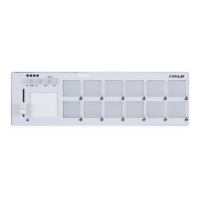
There are twelve velocity-sensitive trigger pads on iPad. They can
be set up to control any on/off or touch-sensitive functions, such as
MIDI Machine Controls, drum sounds, pitched notes on any MIDI
sound module or softsynth or any other non-linear functions.
1394
USB1 USB2
a
b
Diagram 1 Diagram 2
Michael says: "The pads are very cool! They can do anything the
keyboard can do. So, if you have music that uses pitches that you
can play like a drum, simply assign those key-notes, via the CC
number, to a pad and play the pads instead of having to play the
keyboard. This is especially good for hits and percussive effects of
all kinds."
Pa d
Pa d
p5 p6
p7 p8 p9
p
10
p
11
p
12
Artist Hold
Flam
Roll
f1
1 2 3 4


 To Next Page