TM
Assigning MIDI functions with iMap
TM
You can use iMap to assign the
MIDI functions of your iPad easily.
TM
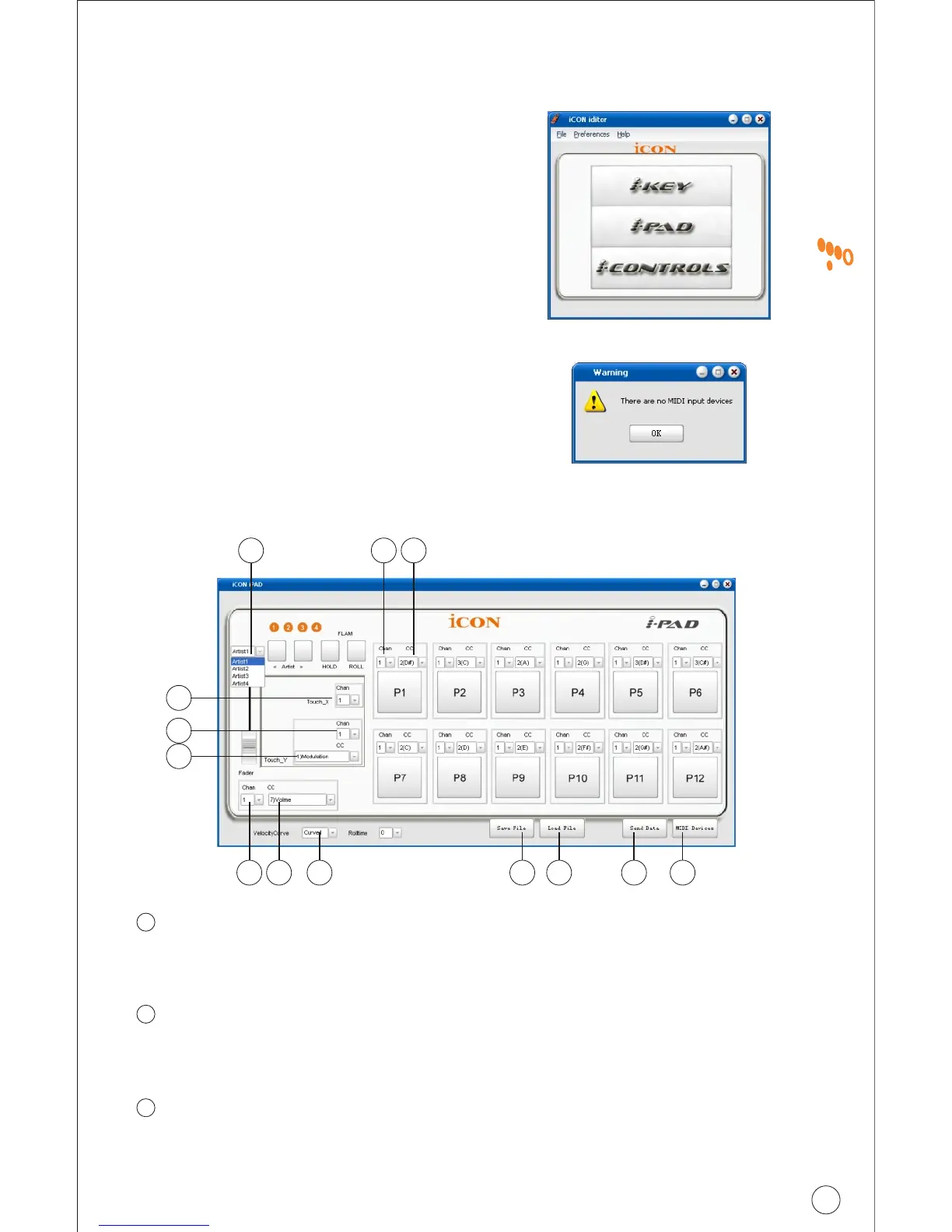
Please launch the iMap software,
a device selector screen will appear
as shown in diagram 1. Then click
the "iPad" button.
Note: If your iPad is not connected to
your Mac/PC, a message of "There are no
MIDI input devices" will appear. Please
connect iPad to your Mac/PC with the
provided USB cable.
Diagram 1
Diagram 2
TM
iMap iPad software panel
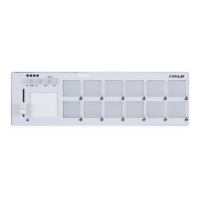
Assign the MIDI channels to the 12-trigger pads
Select your desired MIDI channel from 1-16 for each of the 12-
trigger pads with their corresponding pull-down menu.
Assign the CC value to the 12-trigger pads
Select your desired CC number from -1(C) to 9(G#) in the pull-down
menu for each trigger pad.
Assign the MIDI channels to the X-touchpad
Select your desired MIDI channel from 1-16 in the pull-down menu for
the X-touchpad.
1
2
3
1 2
3
5
7
4
6
8
11 12109 13
10
Pa d


 To Next Page