16
How to Allocate DAWs to the DAW buttons in
the iMAP
This is covered in more detail in the iMAP section of this manual, but here's a
general introduction.
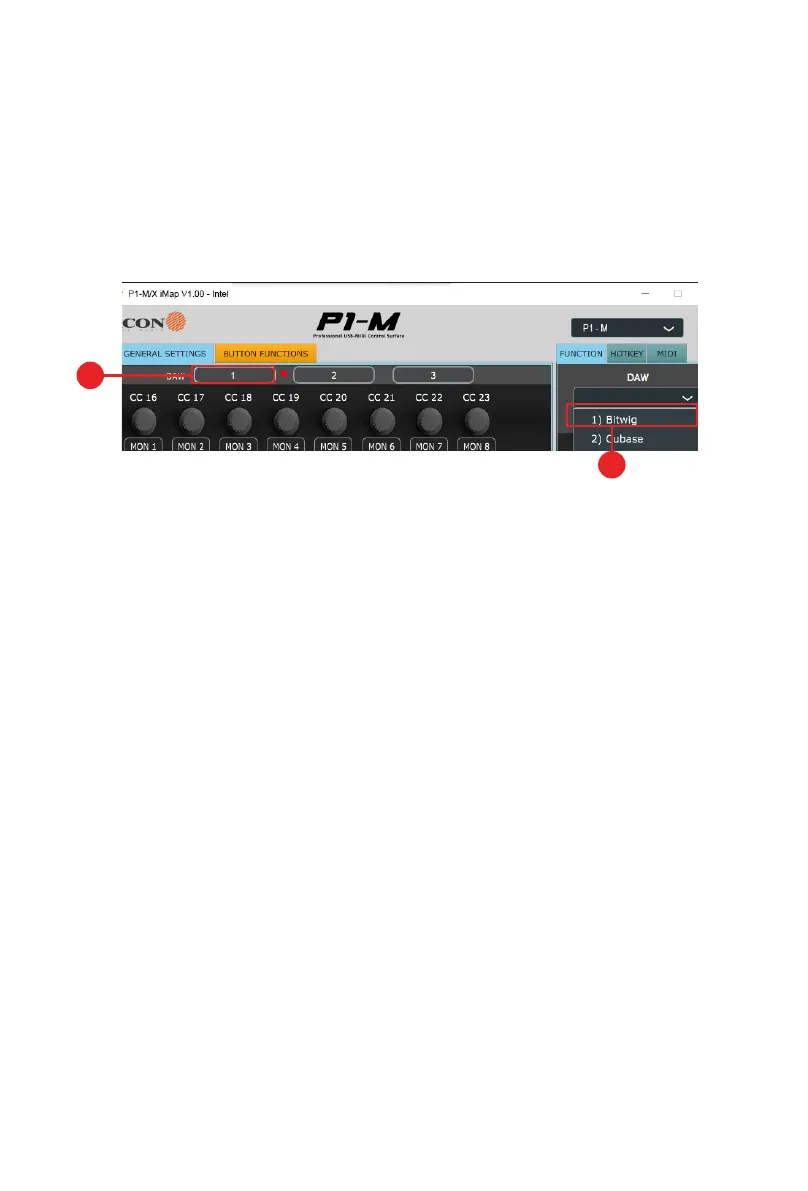
Just so we understand the general principle, we are going to allocate button 1, 2 and 3 on the
P1-M to Bitwig, Cubase and Logic respectively. Therefore, since ‘1’ is selected in the diagram
below, we are going to choose ‘Bitwig’ in the drop-down menu.
So, you've downloaded, installed and opened the iMAP. You will see the three DAW
buttons on top of the iMAP. These correspond to the three DAW buttons on the P1-M.
Simply select the corresponding button of choice and select a DAW from the drop
down list.
The DAW will be automatically allocated. There is no need to send data, or perform
any special function.
You may do this for all three buttons on the iMAP/P1-M.
Please go to the iMAP section for further details on this and how to use the iMAP,
including how to allocate commands and functions to the 16 panel touchscreen, MIDI
map commands and even allocate QWERTY hot keys to your P1-M.
Remember that, in everyday use, YOU MUST ENSURE YOU LAUNCH THE
CONTROLLER FIRST, then the iMAP, before launching the DAWs you wish to work with;
Remember:
Step 1: Switch on the
C
ontroller
Step 2: Open the
i
Map
TM
Step 3: Launch the
D
AW/s you intend to use
Or simply remember;
C
ontroller
i
MAP
D
AW/s (
CiD
!)
(You may wish to associate a phrase that will make this easy to remember i.e. “
C
onsider
i
t
D
one!”)
Note: Please wait a few moments between each step, to ensure each is fully loaded.
2
1


 To Next Page