7
9. Sonar – MCP
10. Audition – MCP
11. Ableton Live – MCP
12. LogicPro – Logic Pro
13. ProTools - HUI
(Tip: Platform B+ will automatically switch to the same Platform M+ DAW mode if
they are connected.)
(Tip: Platform M+ / Platform B+ will memorise your last selected DAW mode and re-
enter the same mode a few seconds after it has been switched on. (i.e. DAW mode
selection is not needed if the last mode is being used.)
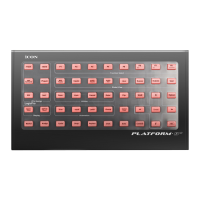
For the function descriptions below, please place the LogicPro silicon overlay on
your Platform B+.
2) VPot Assign
Tip: These functions are always used in conjunction with the channel knobs.
Track button - Activate the Track function. Rotate the channel knob
to adjust the volume of the corresponding track.
Send button - Press to make a send assignment for each track.
Rotate the channel to adjust the bus and press
to make the assignment.
Pan/Surround button - Activate the Pan function. Rotate the channel knob
to adjust the pan value of the corresponding track.
Plug-in button - Press to make a plug-in assignment for each
track. Once a plug-in has assigned and entered
a particular plug-in window, the other channel
knobs are used to adjust the different plug-in
parameters. Also, for some plug-ins, the 4-arrow
buttons surrounding the Zoom buttons are also used.
EQ button - Press to adjust the EQ value of each track.
Once you have entered the EQ window, the
other channel knobs are used to adjust the
various EQ parameters. The 4-arrow buttons
surrounding the Zoom buttons are also used.
Inst. button - Press to adjust the parameters of the Instrument
tracks.
3) User-dened control buttons (F1-F8)
F1-F8 buttons - Please refer to the function list in this manual
for these button functions.
4) Global View
Note: The “Global View” button must be activated rst to use the Global view functions.
Global View button - Activate this button to enter the Global view
function mode and use the global view
functions as follows.


 To Next Page