6
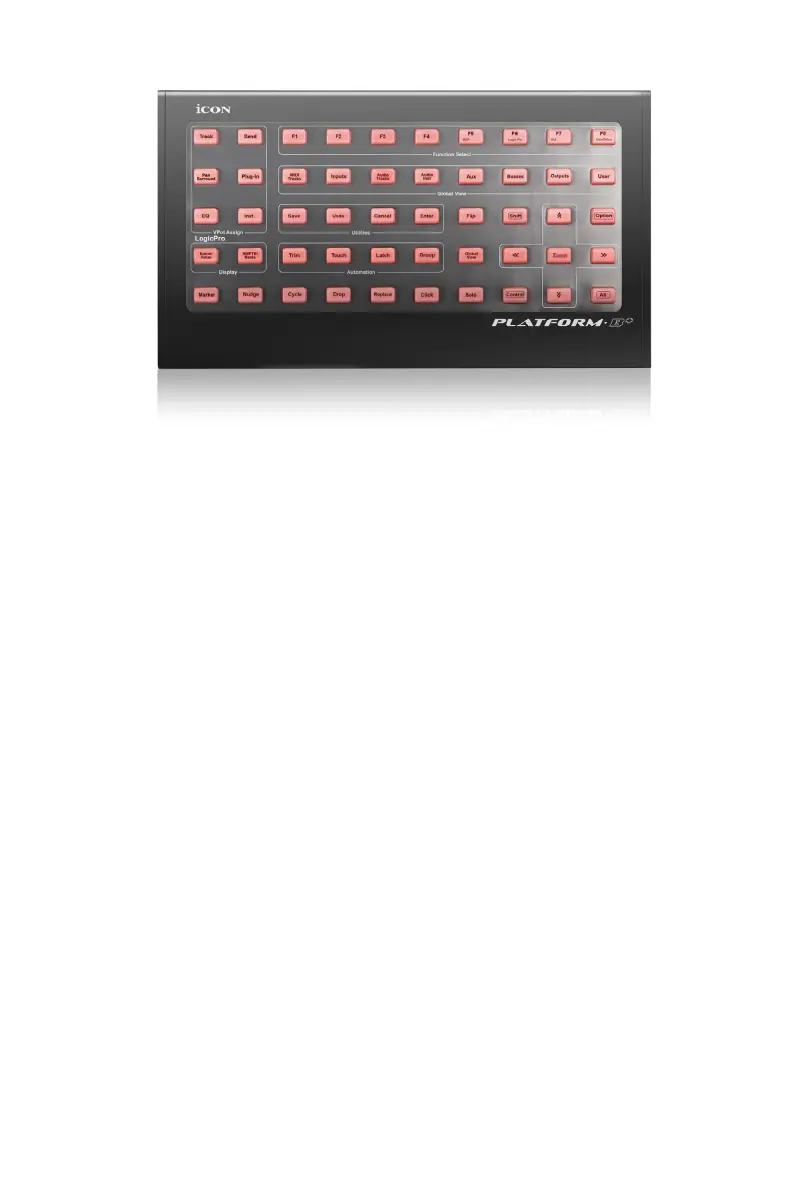
Top Panel Layout
Select Logic Pro mode by pressing the “LogicPro” button once you turn on the
device. Please note that if your Platform M+ has LogicPro mode selected, Platform
B+ will automatically switch to LogicPro mode. Then you may place your LogicPro
silicon overlay onto your Platform B+.
(Tip: Platform series support MackieControl and HUI Universal emulation. So, they
will support any DAW that has MCP or HUI protocol build-in. Please use the “User-
Dene” overlay to label all the button functions if your DAW silicon overlay is not
included.)
Additionally, different tutorial videos that show the operating methods for different
DAWs are stored in the provided DVD. You may also nd them on our website’s
Platform B+ product page.
1) DAW mode select section
Select “MCP”, “HUI” or “LogicPro” on the Platform M+ according to your DAW.
Below please nd the list showing the appropriate mode select for different
DAW.
1. Nuendo/Cubase – MCP
2. Digital Performer – MCP
3. FL Studio – MCP
4. SamplitudePro – MCP
5. Reaper – MCP
6. Studio One – MCP
7. Bitwig – MCP
8. Reasons – MCP
Note: To unleash the full potential of Platform B+, it must be connected to and used
with Platform M+. The following functions require the use of both units.
Note: Function operates slightly difference between DAWs. Please refer to your
DAW manual for each function and overlap the provided labeling template according
to your current using DAW. The following description is based on the functions that
operate in Apple Logic.


 To Next Page