Page 22 For technical questions, please call 1-877-987-4248. Item 57740
SAFETY MAINTENANCESETUP OPERATIONOVERVIEW
On-Screen Buttons
• Menu: Return to Main Menu screen.
• Exit: Exit the current diagnostic application.
• Tasks: Switch to other in-app
modules running in backstage.
• Exit: Exit the current diagnostic application.
• Settings: Quick access to settings.
• Clear DTC's: Touch to clear existing
diagnostic trouble codes.
• ...: Touch to perform open, print,
email, delete diagnostic report.
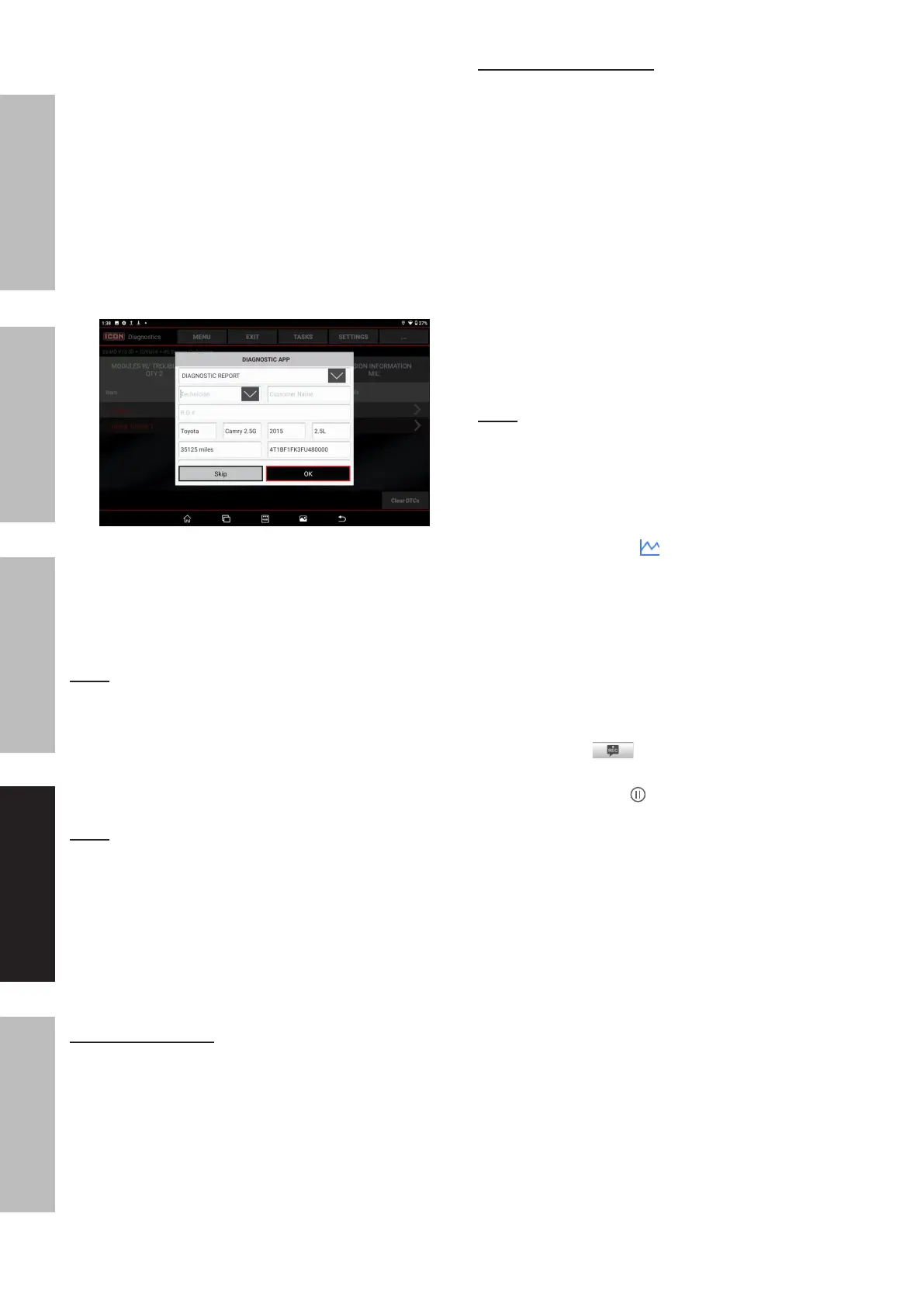
5. Choose the report type from the drop-
down menu: Pre-Repair Report, Post-
Repair Report, or Diagnostic Report.
6. Input the required information in the Report
Information window and touch OK.
Note: All reports are saved under the REPORTS tab in
Main Menu/RECORDS. Refer to the Records section
for further information on report operations. To append
the shop information on the diagnostic report, user
needs to check the box Includes Shop Information.
7. Touch OK to save. To skip the workshop
information, touch Skip to go to the next step.
Note: Workshop information can also be revised
from the Main Menu in Settings/Shop Information.
Configured information is automatically generated
each time the diagnostic report is saved. All vehicle
and workshop information is included on the
diagnostic report, permitting easy report retrieval
using the Diagnostic Report Search function.
8. Touch on desired systems to view detailed
Diagnostic Trouble Code information.
System Scan Demo
Use to quickly scan and identify which
systems are installed on vehicle.
9. Touch System Scan.
10. Touch desired system to enter test
function selection screen.
System Selection Demo
11. From Test Selection screen,
touch System Selection.
12. Touch desired system.
13. Touch Version Information.
14. Touch Read Fault Code.
On-Screen Buttons
• ALL: Touch to select all items on
current screen. To select individual
items check box before name.
• None: Touch to deselect all
selected data stream items.
• OK: Touch to confirm selections
and enter next screen.
Note: If value of data stream is out of
standard range, value is shown in red.
On-Screen Buttons
• Value: Default mode displays
parameters as text in a list format.
• Graph: Displays parameters in waveform
graphs. Touch to view the waveform.
• Combine: Use to merge graphs for
data comparison. Different items
are coded in different colors.
• Touch Combine.
Select a maximum of four items at a time and
touch OK to view the merged waveforms.
• Report:
Touch to record diagnostic data
for playback and analysis later.
• Record: Touch to record diagnostic
data for playback and analysis later.
Touch the Stop button to stop recording
the data stream and save the file.
The system uses the following saved file
naming convention: File name includes
vehicle type, product S/N, date, and record
starting time. Make sure the record starting
time is accurate to help identify files.
All files are saved under the Data Stream
tab in Job Menu > Records.




 To Next Page