EasyManua.ls Logo

ICON PROFESSIONAL T8 - User Manual

ICON PROFESSIONAL T8
28 pages
Print Icon
To Next Page IconTo Next Page
Loading...
Owners Manual & Safety Instructions
Save This Manual Keep this manual for the safety warnings and precautions, assembly,
operating, inspection, maintenance and cleaning procedures. Write the product’s serial number in the
back of the manual near the assembly diagram (or month and year of purchase if product has no number).
Keep this manual and the receipt in a safe and dry place for future reference. 23d
When unpacking, make sure that the product is intact
and undamaged. If any parts are missing or broken,
please call 1-877-987-4248 as soon as possible.
Copyright
©
2022 by Harbor Freight Tools
®
. All rights reserved.
No portion of this manual or any artwork contained herein may be reproduced in
any shape or form without the express written consent of Harbor Freight Tools.
Diagrams within this manual may not be drawn proportionally. Due to continuing
improvements, actual product may differ slightly from the product described herein.
Tools required for assembly and service may not be included.
Read this material before using this product.
Failure to do so can result in serious injury.
SAVE THIS MANUAL.
Visit our website at: http://www.harborfreight.com
Email our technical support at: productsupport@harborfreight.com
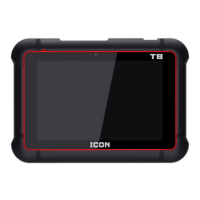
PROFESSIONAL T8
INTELLIGENT
DIAGNOSTIC SCANNER
57740
Question and Answer IconNeed help?

Do you have a question about the ICON PROFESSIONAL T8 and is the answer not in the manual?

Summary

IMPORTANT SAFETY INFORMATION

Work Area Safety

Safety guidelines for the work environment.

Electrical Safety

Precautions to prevent electric shock hazards.

Personal Safety

Guidelines for operator's personal well-being during use.

Service Safety

Instructions regarding professional servicing of the unit.

Specifications

Overview

OBD II On-Board Diagnostics

Explanation of the OBD II system and its purpose.

Vehicle Coverage

Information on vehicles compatible with the scanner.

Definitions

Glossary of key terms used in the manual.

Diagnostic System Details

Control Modules

Description of vehicle control units and their IDs.

I;M Monitors

Explanation of vehicle inspection and maintenance monitors.

Engine Monitors

Details on gasoline and diesel engine monitoring systems.

Diagnostic Test Modes

List and description of available OBD II diagnostic test modes.

Diagnostic Trouble Codes

Components and Controls

Tablet Interface Overview

Vehicle Communication Interface (WSM)

WSM Indicators and Ports

Identifies WSM indicators, ports, and connection types.

Setup Procedures

Charging the Scanner Battery

Step-by-step guide for charging the scanner's battery.

Power ON;OFF

Instructions for turning the scanner tablet on and off.

Screen Layout

Description of the tablet's on-screen buttons and home screen.

Desktop Settings and Connectivity

Adjusting Screen Brightness

How to modify screen brightness for better visibility.

Setting Standby Time

Procedure to configure the device's sleep mode duration.

Changing Language

Steps to change the tablet's operating language.

File Transfer Setup

Guide for setting up data transfer between tablet and computer.

Wi-Fi Setup

Instructions for connecting the scanner to a Wi-Fi network.

User Registration and Software Download

User Registration Process

Guide for registering the scanner and creating a workshop profile.

Download Diagnostic Software

Steps to download and update vehicle diagnostic software.

Software Updates and Subscriptions

Existing Account Login

How to log in to an existing user account.

Software Upgrade Procedures

Instructions for upgrading installed vehicle diagnostic software.

Renew Software Subscription

Process for renewing the diagnostic software subscription.

Software Renewal Methods

Method 1: Activation Code Renewal

Steps to renew subscription using an activation code.

Method 2: Redeem Code Renewal

Steps to renew subscription using a redemption code.

Vehicle Connections

OBD II Vehicle Connection

Guide for connecting the scanner to the vehicle's DLC.

Installing the WSM Connector

Detailed steps for connecting the WSM to the vehicle.

Diagnostic Interface Controls

Diagnostics Toolbar Functions

Explanation of the diagnostic toolbar buttons and their uses.

Basic Operation Flow

Job Menu and Diagnostics

Job Menu Overview

Introduction to the scanner's main job menu options.

Diagnostics Menu

Navigation to the diagnostic functions.

SMOG & OBD2 Function

Using the scanner for emissions-related diagnostics.

Diagnostic Preparation

Steps required before performing vehicle diagnostics.

Diagnostic Demonstrations

Diagnostic System Demonstration

Walkthrough of diagnosing a vehicle system.

All System Code Scan Demonstration

Demo of scanning all vehicle systems for codes.

Diagnostic Workflow and Reporting

On-Screen Buttons

Explanation of general on-screen controls in diagnostic screens.

System Scan Demo

Demonstration of scanning vehicle systems.

System Selection Demo

Demonstration of selecting specific vehicle systems.

Diagnostic Reporting

Procedures for generating and managing diagnostic reports.

Profile Management

Settings and System Management

Personal and Profile Settings

Managing user information, login, and logout.

Data Management and Backup

Configuring data backup, restore, and file management.

System Configuration

Adjusting demo mode, diagnostic units, and alerts.

Software and Connectivity Settings

Managing software updates and WSM connector.

Accessing Help Resources

How to access the digital user manual and help modules.

Maintenance Procedures

General Inspection

Periodic checks for scanner component condition.

Cleaning Procedures

Guidelines for cleaning the scanner and its screen.

Storage Recommendations

Proper storage of scanner components when not in use.

FCC Statement

Limited Warranty

Summary

IMPORTANT SAFETY INFORMATION

Work Area Safety

Safety guidelines for the work environment.

Electrical Safety

Precautions to prevent electric shock hazards.

Personal Safety

Guidelines for operator's personal well-being during use.

Service Safety

Instructions regarding professional servicing of the unit.

Specifications

Overview

OBD II On-Board Diagnostics

Explanation of the OBD II system and its purpose.

Vehicle Coverage

Information on vehicles compatible with the scanner.

Definitions

Glossary of key terms used in the manual.

Diagnostic System Details

Control Modules

Description of vehicle control units and their IDs.

I;M Monitors

Explanation of vehicle inspection and maintenance monitors.

Engine Monitors

Details on gasoline and diesel engine monitoring systems.

Diagnostic Test Modes

List and description of available OBD II diagnostic test modes.

Diagnostic Trouble Codes

Components and Controls

Tablet Interface Overview

Vehicle Communication Interface (WSM)

WSM Indicators and Ports

Identifies WSM indicators, ports, and connection types.

Setup Procedures

Charging the Scanner Battery

Step-by-step guide for charging the scanner's battery.

Power ON;OFF

Instructions for turning the scanner tablet on and off.

Screen Layout

Description of the tablet's on-screen buttons and home screen.

Desktop Settings and Connectivity

Adjusting Screen Brightness

How to modify screen brightness for better visibility.

Setting Standby Time

Procedure to configure the device's sleep mode duration.

Changing Language

Steps to change the tablet's operating language.

File Transfer Setup

Guide for setting up data transfer between tablet and computer.

Wi-Fi Setup

Instructions for connecting the scanner to a Wi-Fi network.

User Registration and Software Download

User Registration Process

Guide for registering the scanner and creating a workshop profile.

Download Diagnostic Software

Steps to download and update vehicle diagnostic software.

Software Updates and Subscriptions

Existing Account Login

How to log in to an existing user account.

Software Upgrade Procedures

Instructions for upgrading installed vehicle diagnostic software.

Renew Software Subscription

Process for renewing the diagnostic software subscription.

Software Renewal Methods

Method 1: Activation Code Renewal

Steps to renew subscription using an activation code.

Method 2: Redeem Code Renewal

Steps to renew subscription using a redemption code.

Vehicle Connections

OBD II Vehicle Connection

Guide for connecting the scanner to the vehicle's DLC.

Installing the WSM Connector

Detailed steps for connecting the WSM to the vehicle.

Diagnostic Interface Controls

Diagnostics Toolbar Functions

Explanation of the diagnostic toolbar buttons and their uses.

Basic Operation Flow

Job Menu and Diagnostics

Job Menu Overview

Introduction to the scanner's main job menu options.

Diagnostics Menu

Navigation to the diagnostic functions.

SMOG & OBD2 Function

Using the scanner for emissions-related diagnostics.

Diagnostic Preparation

Steps required before performing vehicle diagnostics.

Diagnostic Demonstrations

Diagnostic System Demonstration

Walkthrough of diagnosing a vehicle system.

All System Code Scan Demonstration

Demo of scanning all vehicle systems for codes.

Diagnostic Workflow and Reporting

On-Screen Buttons

Explanation of general on-screen controls in diagnostic screens.

System Scan Demo

Demonstration of scanning vehicle systems.

System Selection Demo

Demonstration of selecting specific vehicle systems.

Diagnostic Reporting

Procedures for generating and managing diagnostic reports.

Profile Management

Settings and System Management

Personal and Profile Settings

Managing user information, login, and logout.

Data Management and Backup

Configuring data backup, restore, and file management.

System Configuration

Adjusting demo mode, diagnostic units, and alerts.

Software and Connectivity Settings

Managing software updates and WSM connector.

Accessing Help Resources

How to access the digital user manual and help modules.

Maintenance Procedures

General Inspection

Periodic checks for scanner component condition.

Cleaning Procedures

Guidelines for cleaning the scanner and its screen.

Storage Recommendations

Proper storage of scanner components when not in use.

FCC Statement

Limited Warranty

Overview

This document serves as the Owner's Manual and Safety Instructions for the ICON Professional T8 Intelligent Diagnostic Scanner. It provides comprehensive information on the device's function, usage, and maintenance to ensure safe and effective operation.

The ICON Professional T8 Intelligent Diagnostic Scanner is a sophisticated tool designed for automotive diagnostics. Its primary function is to interface with a vehicle's On-Board Diagnostics (OBD II) computer system to identify and troubleshoot fault conditions. The scanner is capable of working with all OBD II compliant vehicles, including those equipped with a CAN bus, and some 1994 and 1995 model year gasoline vehicles. It helps users understand why a "Check Engine" light might be on, retrieve Diagnostic Trouble Codes (DTCs), and monitor various vehicle systems.

Function Description:

The scanner operates by connecting to the vehicle's Data Link Connector (DLC) via a Vehicle Communication Interface (WSM) and an OBDII Diagnostic Cable. It reads vehicle data and transmits it to the Scan Tablet, which runs on an Android operating system. The device supports various diagnostic test modes as described in the SAE J1979 standard, including requesting current powertrain diagnostic data, freeze frame data, emission-related stored DTCs, and vehicle information. It can also clear/reset emission-related diagnostic information and request on-board monitoring test results for specific monitored systems.

The scanner provides detailed information about DTCs, which are five-digit alphanumeric identifiers for fault conditions. These codes are categorized as Pending, Stored, or Permanent, indicating the severity and status of the fault. The device helps users understand the structure of these codes, including the system (Body, Chassis, Powertrain, Network), code type (Generic or Manufacturer Specific), and sub-system (Fuel and Air Metering, Ignition Malfunction, Emission Controls, etc.).

The scanner also monitors various vehicle systems through I/M Monitors, which are diagnostic tests performed by the Control Modules. These monitors can be Continuous (running all the time) or Non-Continuous (requiring specific operating conditions). It provides insights into gasoline engine monitors (Misfire, Fuel System, Comprehensive Components, Catalyst, Evaporative System, Oxygen Sensors, EGR System) and diesel engine monitors (Misfire, Fuel System, Comprehensive Components, NMHC Catalyst, NOx Aftertreatment, Boost Pressure System, Exhaust Gas Sensor, PM Filter, EGR System).

Usage Features:

The ICON Professional T8 Intelligent Diagnostic Scanner is designed for ease of use with a touch-screen interface on the Scan Tablet.

  • Charging: The Scan Tablet's battery can be charged using the provided Power Cable connected to a 120VAC outlet or via a USB Cable connected to a computer. The screen displays a charging symbol and battery power level.
  • Power ON/OFF: The tablet is turned on by pressing and holding the Power Button for about one second, which initiates the system and leads to the Home screen. To turn off, the Power Button is pressed and held until an option menu appears, allowing the user to select "Power Off."
  • Screen Layout and Navigation: The tablet features on-screen buttons for navigation: "Back" to return to the previous screen, "Home" to go to the home screen, "Recent App" to view launched applications, and "Screenshot" to capture the current screen. A "WSM" button provides access to the Vehicle Communication Interface.
  • Desktop Customization: Users can customize the Home screen by touching and holding a blank area to access a function menu for wallpapers, widgets, settings, and applications.
  • Adjusting Screen Brightness and Standby Time: Screen brightness can be adjusted via the Settings menu to conserve battery power. The standby time can also be set, after which the system enters sleep mode.
  • Changing Language: The scanner supports multiple languages, which can be changed in the Settings menu by adding a language and dragging it to the top of the list.
  • File Transfer: The tablet can connect to a computer via a USB Cable for file transfer, allowing users to exchange data with a USB storage device.
  • Wi-Fi Setup: The device can connect to Wi-Fi networks through the Settings menu, enabling software updates and online functionalities.
  • User Registration and Software Download: New users must register the device by inputting personal and shop information. The WSM connector needs to be activated with a product serial number and activation code. Diagnostic software can then be downloaded and updated via Wi-Fi. The device allows for automatic download of software updates for preferred brands.
  • Software Subscription Renewal: The manual outlines two methods for renewing the software subscription, either through a prompt on the update screen or by entering a 24-digit renewal code in the Settings menu.
  • Vehicle Connections: The WSM is connected to the vehicle's DLC using the OBDII Diagnostic Cable. For vehicles using DoIP protocol, a DoIP Cable is used. The WSM has indicator lights for power, vehicle communication, and scanner communication.
  • Diagnostics Toolbar: The diagnostic screens feature a toolbar with buttons for various functions, including returning to the Main Menu, exiting diagnosis, switching between in-app modules, accessing settings, selecting/unselecting items, printing/emailing diagnostic reports, deleting items, and sharing reports.
  • Diagnostic Process: The diagnostic process begins by selecting the "Diagnose" icon from the Job Menu. Users can choose to scan the Vehicle Identification Number (VIN) or manually select the vehicle software. The scanner can perform an "All System Code Scan" to read trouble codes from all available systems, displaying results in tabs for modules with trouble codes, modules without trouble codes, and emission information.
  • Diagnostic Report: After a diagnosis, a report can be generated (Pre-Repair, Post-Repair, or Diagnostic Report) and saved. These reports are stored under "Records" in the Job Menu and can include vehicle and workshop information.
  • System Scan and Selection: The device allows for a quick "System Scan" to identify installed systems and then select a desired system to enter the test function selection screen.
  • Data Stream Monitoring: During diagnostics, parameters can be displayed as text in a list format, waveform graphs, or merged graphs for data comparison. Diagnostic data can be recorded for playback and analysis.
  • Profile Management: Users can view and modify personal information, email address, login password, and other profile details through the "Profile" icon in the Job Menu.
  • Settings Management: The "Settings" icon in the Main Menu allows users to manage personal information, WSM connectors, files, shop information, and other system settings like units of measurement, sound alerts, and demo mode. It also facilitates WSM connector pairing, upgrade, and firmware fixes.

Maintenance Features:

The manual emphasizes that the ICON Professional T8 Intelligent Diagnostic Scanner has no user-serviceable parts. All servicing must be performed by a qualified repair person using identical replacement parts to ensure safety.

  • Regular Inspection: Users are advised to periodically inspect the scanner's components for loose hardware, damaged cords/electrical wiring, cracked or broken parts, or any other condition that might affect safe operation.
  • Cleaning: External surfaces should be wiped with a clean cloth, and the Scan Tablet screen should be cleaned with a soft cloth and mild glass cleaner. Harsh chemicals or abrasive cleansers should not be used.
  • Storage: The scanner and its accessories should be stored in the provided Carry Case in a dry, locked area, out of reach of children.
  • Safety Precautions: Before any inspection, maintenance, or cleaning, the Scanner Tablet must be shut down, and the Power Adapter unplugged from the electrical outlet to prevent serious injury from electric shock.

This comprehensive overview highlights the ICON Professional T8 Intelligent Diagnostic Scanner's capabilities as a powerful and user-friendly tool for automotive diagnostics, along with essential guidelines for its safe operation and care.

ICON PROFESSIONAL T8 Specifications

General IconGeneral
TypeFlatbed
Light SourceLED
InterfaceUSB 2.0
Color Depth48-bit
Supported Operating SystemsWindows, Mac

Related product manuals