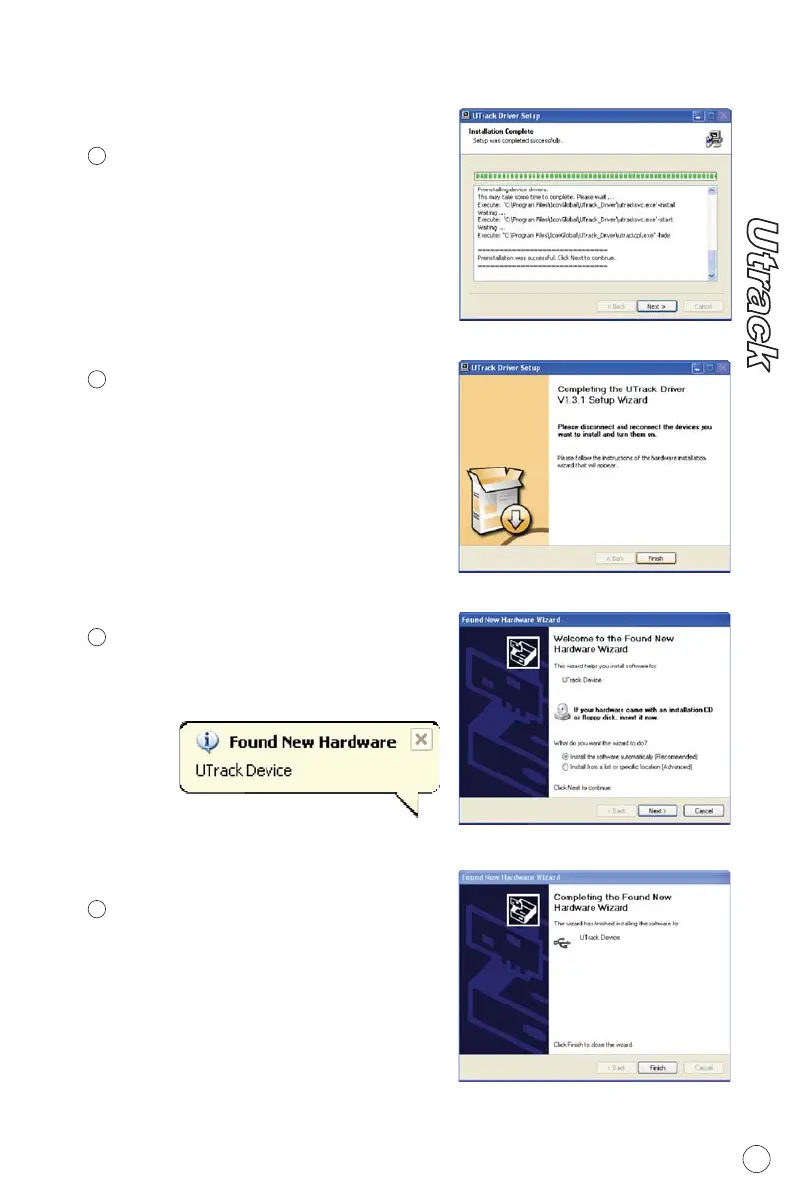
Driver Installation (Continues)
Driver (ASIO2.0) will automatically
install and this may take some time,
please be patient and wait for the
installation set up completed as
shown on Diagram5. Then click
"Next".
Installation Start
6
7
8
Diagram 5
Diagram 6
New hardware (Utrack) should
be found and click "Next"
Found New Hardware Wizard
6
Notes: Utrack only support
USB 2.0. Your computer must
have an USB2.0 port.
Now, connect the Utrack to your
computer's USB port and turn on
its power switch and click "Finish".
Connect your Utrack
Diagram 7
Diagram 8
9
Utrack Device is found and appear
in the window. Click "Finish"
Found New Hardware Completed


 To Next Page