Driver Installation
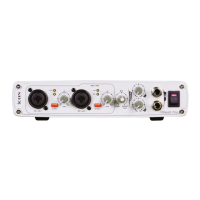
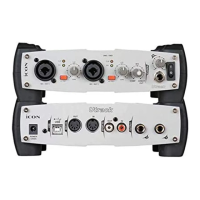
Please follow the below procedures step-by-step to install your Utrack
and its driver.
1
2
3
4
5
Turn on your computer
Note: Do not connect the Utrack to your computer yet
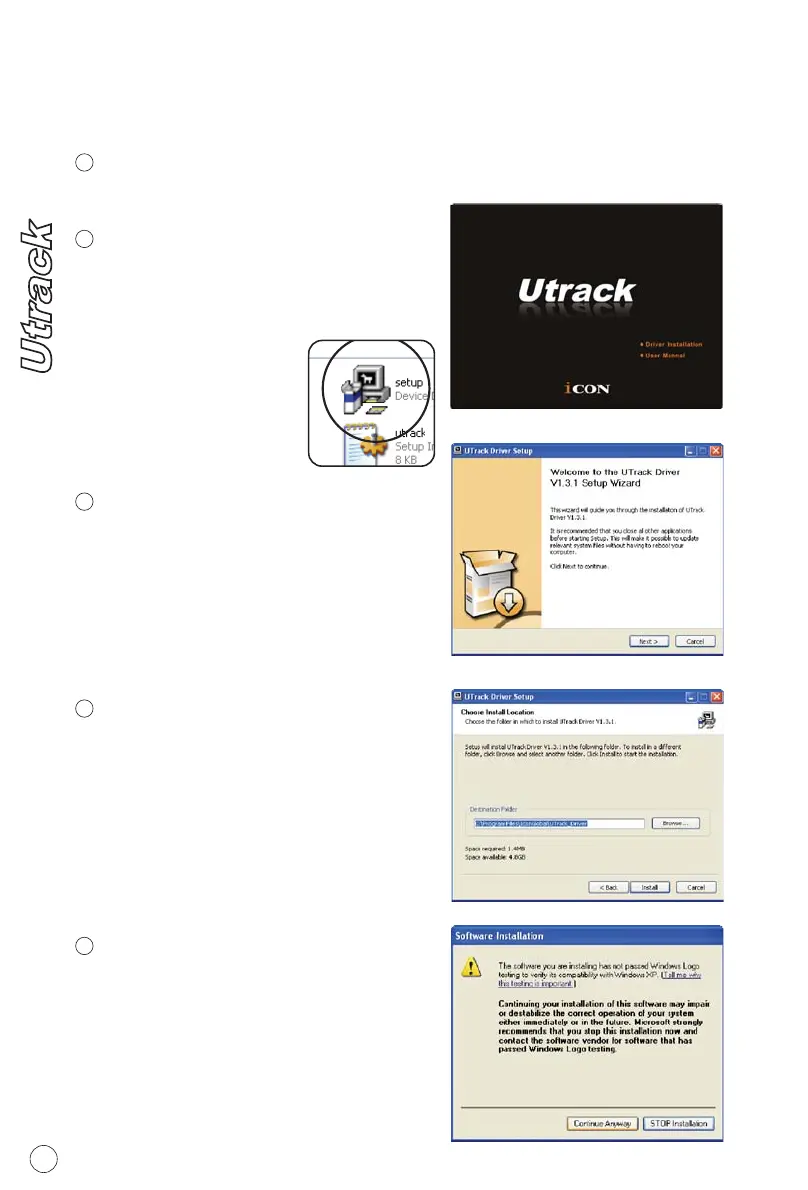
After you have insert the provided
Driver CD into your CD-Rom, a
Installation screen should appear as
Diagram 1, then click "Driver
Installation"
Insert Driver CD to your CD-Rom
Note: If the Installation
screen not appaer
automatically. Go to the
CD folder and
double click "Setup"
Choose "Next" when you see the
Welcome Screen as Diagram 2
Installation Wizard appear
Diagram 1
Diagram 2
Choose the loaction of the driver
and click "Next" as Diagram 3
Driver Setup
Diagram 3
Diagram 4
A window as illustrated as Diagram 4
would appear. Choose " Continue
Anyway"
Software Installation Window
Note: Although this message appear.
Utrack's driver is fully tested and
supporting Window XP and Vista
5


 To Next Page