EasyManua.ls Logo

iDataLink Maestro HRR-HO1 - User Manual

iDataLink Maestro HRR-HO1
86 pages
Print Icon
To Next Page IconTo Next Page
Loading...
NOTICE: Automotive Data Solutions Inc. (ADS) recommends having this installation performed by a certifi ed technician. Logos and trademarks used here in
are the properties of their respective owners.
WARNING
Pressing the printer icon or “quick printing” this document will print
all of the guides in this compilation.
Open the Bookmarks menu and find your vehicle OR scroll
down until you find the install guide for your vehicle.
Print only the pages for your vehicle using the advanced
options in the Print menu.
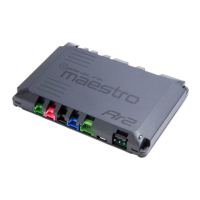
Install your Maestro RR according to the guide for your vehicle.
HOW TO USE THIS INSTALL GUIDE
1
2
3
SELECT VEHICLE
PRINT PAGES NEEDED

Questions and Answers

  • H
    Hannah MaxwellAug 20, 2025
    What to do if iDataLink Automobile Accessories radio does not turn on?
    • E
      Edward PerryAug 20, 2025
      If your iDataLink Automobile Accessories radio isn't turning on, especially if it's a modular radio, make sure the screen is securely attached and all trim pieces are fully installed. Use a multimeter to test the red and yellow wires for DC voltage at the radio. If there's no voltage on either wire, contact support.
  • C
    Christopher MillerNov 5, 2025
    How to fix iDataLink Automobile Accessories steering wheel controls when the LED blinks?
    • R
      roy40Nov 5, 2025
      If the steering wheel controls for your iDataLink Automobile Accessories aren't working, but the LED on the Maestro blinks when you press the buttons, here's what to check: * Make sure the blue 4-pin steering wheel control cable is properly connected between the Maestro and the radio. * The radio should use either the 3.5mm jack OR the blue/yellow wire, but not both. Connect the 3.5mm jack from the Maestro's blue 4-pin cable to the radio’s 3.5mm port (labeled steering, remote, or wheel). If there's no such port, connect the blue/yellow wire to blue/yellow (Kenwood/JVC) or to the radio’s Key 1 wire (other brands) and secure the 3.5mm jack since it won't be used. * Confirm that the buttons are correctly set up in the flash. If any button is set to “none” for “press once”, it won't fun...

Summary

How to Use This Install Guide

Find Your Vehicles Install Guide

Open the Bookmarks menu or scroll to find your specific vehicle's installation guide.

Print Specific Vehicle Pages

Use advanced print options to print only the necessary pages for your vehicle.

Install Your Maestro RR

Follow the dedicated guide for your vehicle to install the Maestro RR correctly.

Install Guide Overview

Products Required for Installation

Lists the necessary iDatalink Maestro RR or RR2 and the HRR-H01 Installation Harness.

Programmed Firmware Version

Specifies the firmware version, e.g., H01-RR-AS, for the module.

Welcome and Additional Resources

Product & Installation Information

Includes head unit adapters, programmable outputs, videos, and product details.

Module Setup and Support

Covers flash verification, programming software, and technical support.

Installation Steps

Step 1: Radio Removal & Harness Connection

Instructions for removing the factory radio and connecting the HRR-H01 harness.

Step 2: T-Harness Assembly

Connects the HRR-H01 T-harness components and adapter cables.

Step 3-5: Final Connections & Testing

Connects OBDII, aftermarket radio, and Maestro RR modules; tests installation.

Wiring Diagram Guide

Wiring: Speakers, Power, and Adapters

Details connections for speakers, power, illumination, and head unit adapters.

Wiring: OBDII, Bluetooth, Data, Audio, SWC

Connects OBDII, Bluetooth, Data, Audio, and SWC cables to the Maestro RR.

Radio Wire Reference Chart

Module Diagnostics

Troubleshooting and Support

SWC and Radio Power Issues

Troubleshoots steering wheel controls and radio power problems.

Module Reset and Technical Help

Procedure for resetting the module and contact info for support.

Installation Instructions (Vehicle Specific)

Before Installation: Amplifier Check

Determine if the vehicle has a factory amplifier based on rear deck components.

Installation Steps Overview

Covers radio removal, T-harness assembly, and final module connections.

Wiring Diagram (Vehicle Specific)

Wiring Details: Speakers, Power, Adapters

Details connections for speakers, power, illumination, and head unit adapters.

Wiring Details: OBDII, Bluetooth, Data, Audio, SWC

Connects OBDII, Bluetooth, Data, Audio, and SWC cables to the Maestro RR.

Honda CRV Installation Instructions

Before Installing: Amplifier Check

Determine if the vehicle has a factory amplifier based on rear deck components.

Installation Steps Overview

Covers radio removal, T-harness assembly, and final module connections.

Honda CRV Wiring Diagram

Wiring Details: Speakers, Power, Adapters

Details connections for speakers, power, illumination, and head unit adapters.

Wiring Details: OBDII, Bluetooth, Data, Audio, SWC

Connects OBDII, Bluetooth, Data, Audio, and SWC cables to the Maestro RR.

Honda Civic Installation Instructions

Installation Steps Overview

Covers radio removal, T-harness assembly, and final module connections.

Honda Civic Wiring Diagram

Wiring Details: Speakers, Power, Adapters

Details connections for speakers, power, illumination, and head unit adapters.

Wiring Details: OBDII, Bluetooth, Data, Audio, SWC

Connects OBDII, Bluetooth, Data, Audio, and SWC cables to the Maestro RR.

Welcome and Additional Resources (with Radar Detectors)

Product & Installation Information

Includes head unit adapters, programmable outputs, videos, and product details.

Module Setup and Support

Covers flash verification, programming software, and technical support.

Radar Detector Integration

Information on integrating K40 and Escort radar detectors.

Acura CSX (Nav DS) Installation

Installation Steps Overview

Covers radio removal, T-harness assembly, and final module connections.

Acura CSX (Nav DS) Wiring Diagram

Wiring Details: Speakers, Power, Adapters

Details connections for speakers, power, illumination, and head unit adapters.

Wiring Details: OBDII, Bluetooth, Data, Audio, SWC

Connects OBDII, Bluetooth, Data, Audio, and SWC cables to the Maestro RR.

Acura CSX (Without Nav DS) Installation

Installation Steps Overview

Covers radio removal, T-harness assembly, and final module connections.

Acura CSX (Without Nav DS) Wiring Diagram

Wiring Details: Speakers, Power, Adapters

Details connections for speakers, power, illumination, and head unit adapters.

Wiring Details: OBDII, Bluetooth, Data, Audio, SWC

Connects OBDII, Bluetooth, Data, Audio, and SWC cables to the Maestro RR.

iDataLink Maestro HRR-HO1 Specifications

General IconGeneral
BrandiDataLink
ModelMaestro HRR-HO1
CategoryAutomobile Accessories
LanguageEnglish

Related product manuals