6
66
6 PHONEBOOK
PHONEBOOKPHONEBOOK
PHONEBOOK
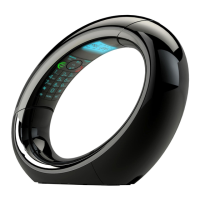
The Main Eclipse Handset can store up to 200 phonebook entries, and
each additional handset can store up to 100 phonebook entries. Each
phonebook entry can have a maximum of 24 digits for the phone number
and 12 characters for the name.
6.1
6.16.1
6.1 Store a
Store a Store a
Store a C
CC
Contact in the
ontact in the ontact in the
ontact in the P
PP
Phonebook
honebookhonebook
honebook
-
On Your
On YourOn Your
On Your
Main
MainMain
Main
Eclipse Handset
Eclipse HandsetEclipse Handset
Eclipse Handset
1. From the home screen, press
M.
2. Press
+/- to PHONEBOOK
PHONEBOOKPHONEBOOK
PHONEBOOK and then press M to select.
3. Press
M
to select NEW ENTRY
NEW ENTRYNEW ENTRY
NEW ENTRY.
•
The screen displays
ENTER NAME
ENTER NAMEENTER NAME
ENTER NAME
.
4. Enter the name of the contact (maximum 12 characters) using the
keypad.
If you make a mistake, press
m
to delete the last character
entered.
5. Press M to confirm the name entry.
•
The screen displays
ENTER NUMBER
ENTER NUMBERENTER NUMBER
ENTER NUMBER
.
6. Enter the number of the contact (maximum 24 digits) using the
keypad.
If you make a mistake, press
m
to delete the last digit entered.
7. Press M to confirm.
•
A confirmation tone is played.
8. Press O
to return to standby mode.


 To Next Page