9.2
9.29.2
9.2 Set the
Set the Set the
Set the R
RR
Ring
ing ing
ing Tone
ToneTone
Tone
You can select from 10 ringer melodies for both internal and external calls.
-
On Your
On YourOn Your
On Your
Main
MainMain
Main
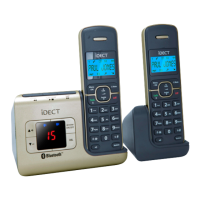
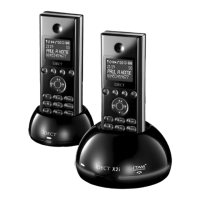
Eclipse Handset
Eclipse HandsetEclipse Handset
Eclipse Handset
1. From the home screen, press
M.
2. Press
+/- to HANDSET OPTS
HANDSET OPTSHANDSET OPTS
HANDSET OPTS and then press M to select.
3. Press
+/- to RINGER&TONES
RINGER&TONES RINGER&TONES
RINGER&TONES and then press M to select.
4. Press
+/- to RING
RINGRING
RING
TONE
TONE TONE
TONE and then press M to select.
5. Press
+/- to select the desired ringer melody
from 1 to 10
(each melody will play as it is selected) and then press
M to confirm.
•
A confirmation tone is played.
6. Press O
to return to standby mode.
-
On Your Additional Handset
On Your Additional HandsetOn Your Additional Handset
On Your Additional Handset
1. From the home screen, press
M
.
2. Press
+\- to PERSONAL SET
PERSONAL SETPERSONAL SET
PERSONAL SET and then press
M
to select.
3. Press
+\- to HAND
HANDHAND
HANDSET TONE
SET TONESET TONE
SET TONE and then press
M
to select.
4. Press
+\- to RING TONES
RING TONESRING TONES
RING TONES and then press
M
to select.
5. Press +\- to select the desired melody
from 1 to 10 (each
melody will play as it is selected) and then press
M
to confirm.
•
A confirmation tone is played.
6. Press O to return to standby mode.



 To Next Page