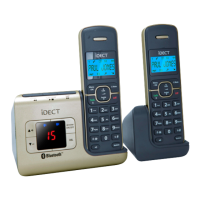
- On Your Additional Handset
On Your Additional HandsetOn Your Additional Handset
On Your Additional Handset
1. From the home screen, press
M
.
2. Press
+\- to ADVANCED SET
ADVANCED SETADVANCED SET
ADVANCED SET and then press
M
to select.
3. Press
M
to select CHANGE PIN
CHANGE PINCHANGE PIN
CHANGE PIN.
4. Enter the current Master PIN and then press
M
to confirm.
•
The PIN will be shown as asterisks (*) on the screen as you
enter them.
5. Enter the new PIN and then press
M
to confirm.
•
A confirmation tone is played.
6. Press O to return to the home screen.
10.5
10.510.5
10.5 Set
Set Set
Set the
the the
the First Ring
First RingFirst Ring
First Ring
(
((
(f
ff
for Additional Handset
or Additional Handsetor Additional Handset
or Additional Handsets Only)
s Only)s Only)
s Only)
If you have subscribed to Caller Line Identification service and do not
wish to hear the phone ring before the caller identification is displayed,
you can set the FIRST RING
FIRST RINGFIRST RING
FIRST RING to OFF
OFFOFF
OFF.
1. From the home screen of your additional handset, press
M
.
2. Press
+\-to ADVANCED SET
ADVANCED SETADVANCED SET
ADVANCED SET and then press
M
to select.
3. Press
+\-to FIRST RING
FIRST RINGFIRST RING
FIRST RING and then press
M
to select.
4. Press
+\-to select ON
ONON
ON or OFF
OFFOFF
OFF and then press
M
to confirm.
•
A confirmation tone is played.
5. Press O to return to standby mode.



 To Next Page