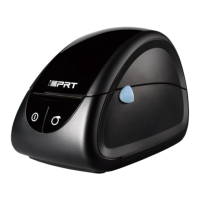
3.3 Operation Panel
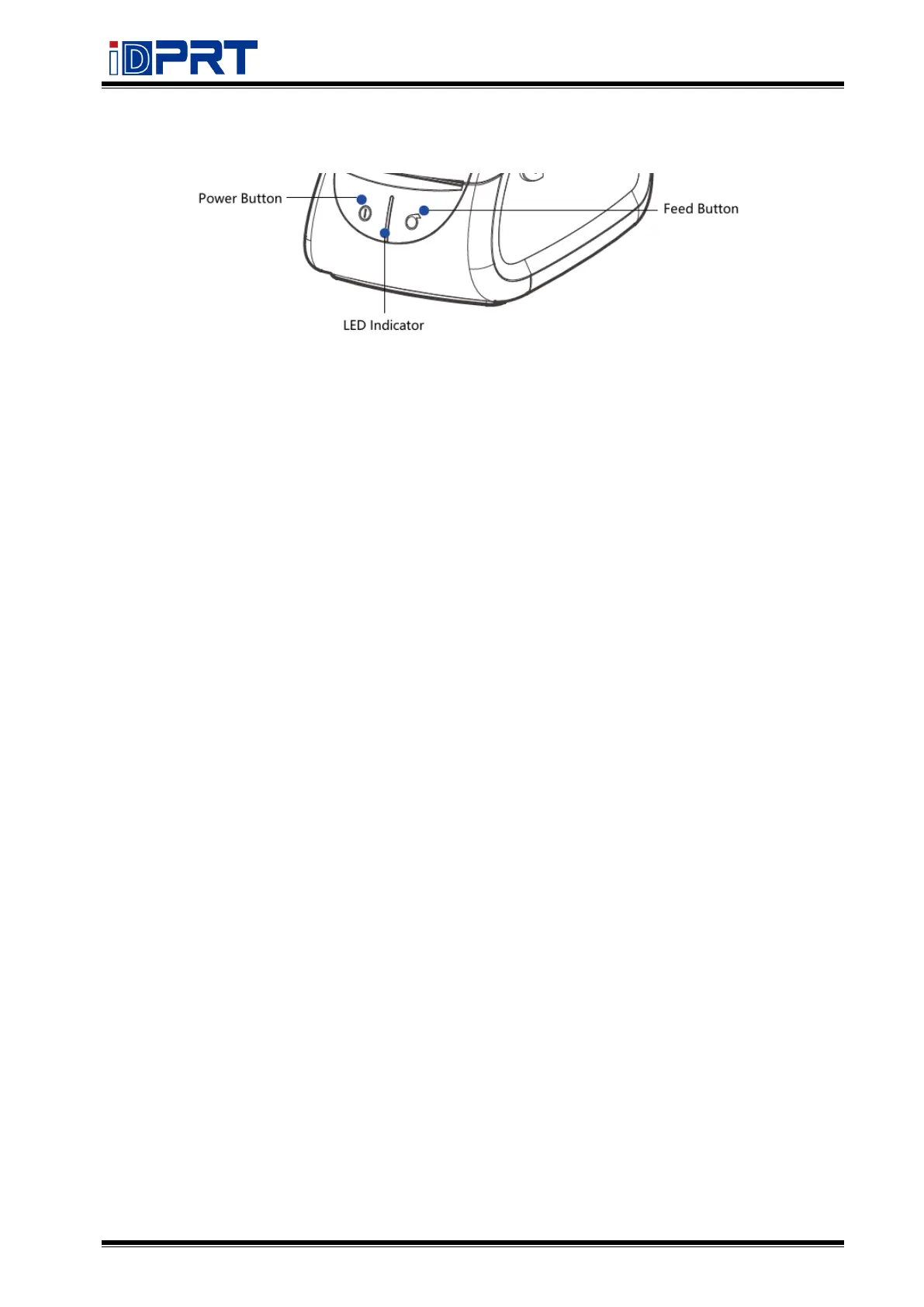
● Power Button
This button is used to turn the printer on/off.
If you want to power on the printer, please hold and press the power button for approx. 1.25s
and the LED indicator turns blue. If you want to power off the printer, please press and hold the
power button for approx. 1.25s. When the printer works normally, the LED indicator is green.
When paper out or abnormal working, the LED indicator is red.
● Feed Button
This button is used to feed paper manually and self-test printing.
When the printer is ready, press the feed button to send the paper out to the exit according to
the type of paper used. When using continuous paper, press the feed button once to send out
the paper with a fixed length; when using label paper, press the feed button once to send out a
whole label.
Print Self-test Page:
1) Make sure the paper is loading properly.
2) Make sure the printer is power off and the top cover closes properly.
3) Press the feed button and power on the printer simultaneously, the printer will print the
self-test page.
● Settings Button
1) Finish the following two steps within 2s after power on, it will put the printer into Setting
Mode.
① Press the power button three times.
② Press the feed button once.
2) In setting mode, press the feed button to switch the setting item, then press the feed button
to confirm the change and enter to next setting item.


 To Next Page