3
2
Extending Your Mobile Storage using
IDrive One
Loading Data onto the IDrive
One Device
1. Visit the App Store or Google Play
and download the ‘IDrive One’
mobile app.
2. Connect your device to the IDrive
One Wi-Fi network. If a login field
appears, the default username is
‘admin.’ No password is required, but we recommend
establishing one aer logging in.
3. Launch the IDrive One mobile app. You should see your IDrive
One device and network name.
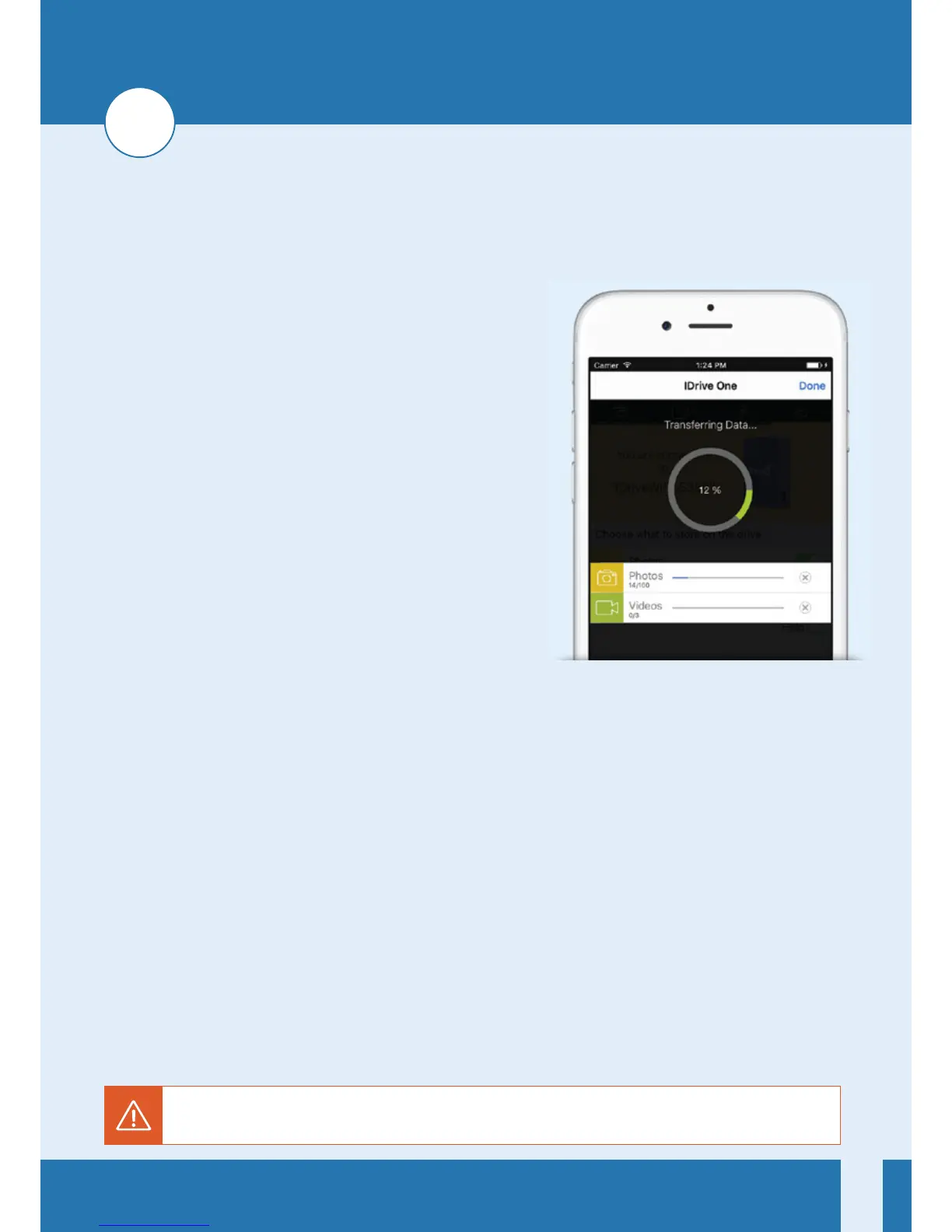
4. Select the types of files you’d like to load onto the IDrive One
device. Once loaded, you can stream Photos, Videos, and
Music. (Music available on Android only).
5. Wait for your data to load onto the IDrive One device.
We highly recommend changing your IDrive One Wi-Fi Network Password, and the password for the
Administrative Controls. See our FAQ at idrive.com for details'.


 To Next Page