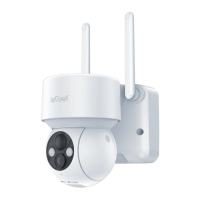
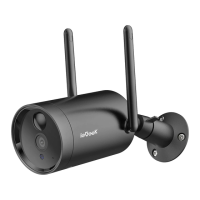
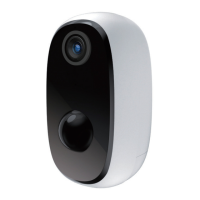
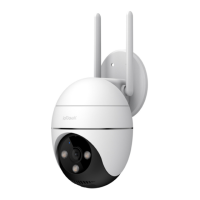
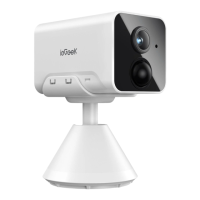
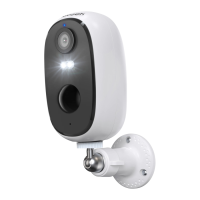
(Note: If it can't be powered on, please plug in DC 5V 2A type-c power adapter
to charge the camera for 15minfirst)
My camera fails to connect Wi-Fi?
I. Before adding a device, make sure that the device is in the state of slow
flashing red light. If the indicator status is abnormal, please restore the device
to factory settings(long press and hold the device RESETbutton until you hear
the 'boogu' Sound)
2. Please make sure the Wi-Fi the camera connected is 2.4GHz. In our
experience, network connection is failed in most cases, which is caused by
that users used 5GHz WIFI.ThisWi-Fi camera can't support 5GHz WiFi.
3.Make sure the password correction of the Wi-Fi. (Note; the password of the
WiFicannot include single quote, underline, space and virgule (l).
4. Check the number of the devices your router connected. In general, the router
has connection limits. Once the devices that your router connected excess
the its max limit numbers, other devices will not connect the router.
5. Make sure the QR code on the phone screen is normal and the distance
between the phone and the camera lens is 10-15cm(3.9-5.9inch) during the
scanning process.
6.Check the current location has good wifi coverage and a stable network (wifi
signal is greater than 85%);
7. Avoid using wifi extenders;
8. After checking the above information, if the camera cannot connect the Wi
Fi,please try to re-download the APP, reset the camera and restart the router,
and then add the camera again.
9. If you tried all steps, but still no luck, please message your order and problem
to service@iegeek.com.


 To Next Page
 Loading...