10
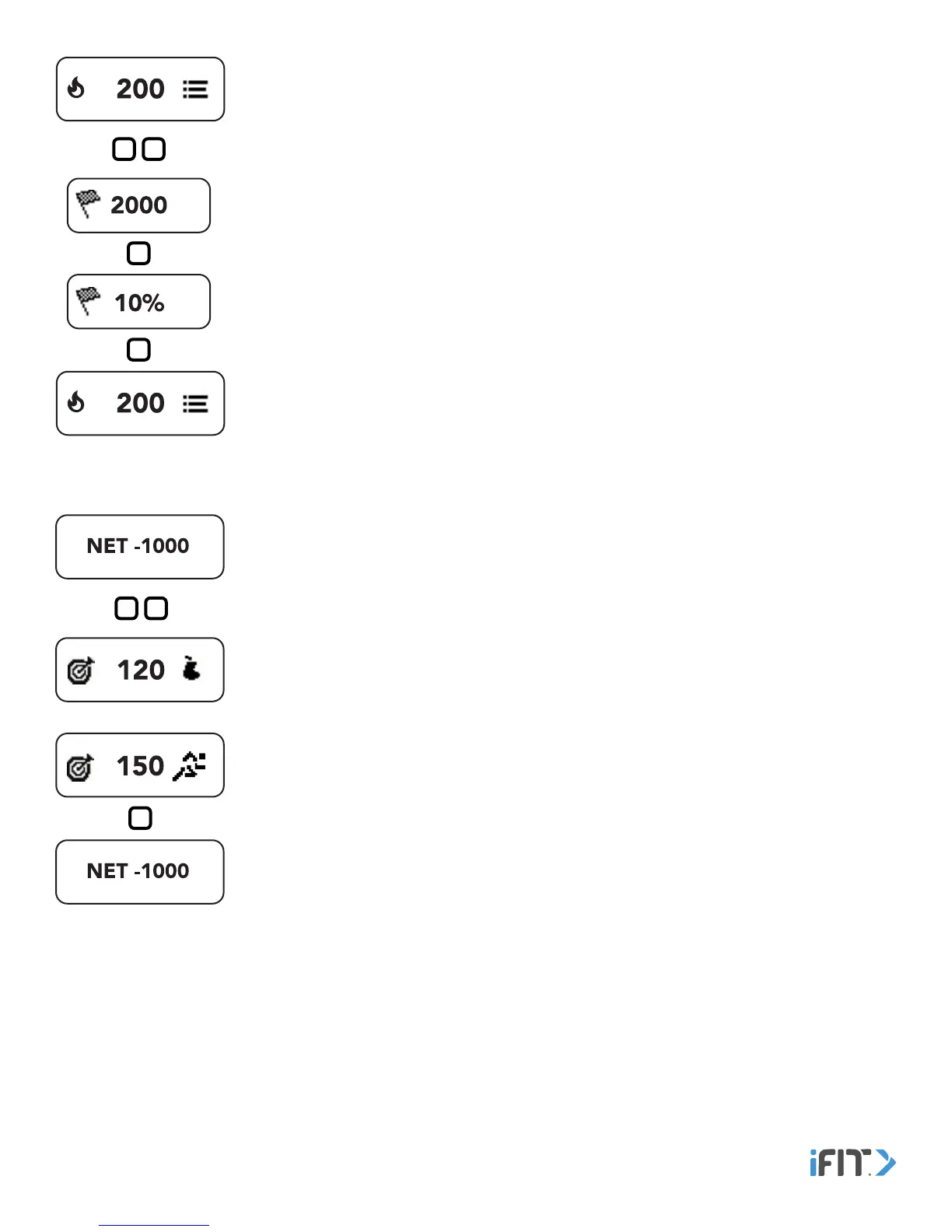
Calories Burned—This screen displays the approximate number of calories you have burned.
Double tap the button to view your calories burned goal status and your calories burned
goal percentage. The screen will advance automatically every few seconds; tap the button
repeatedly to view the screens more quickly.
Target Calories Goal—This screen displays the status of your target calories goal. Double tap
the button to view your current calories status. If you can eat more calories and still meet your
goal, a pear icon and the number of calories that remain to be eaten will appear. If you need
to burn more calories, a runner icon and the number of calories that remain to be burned will
appear.
Note: For this feature to function, you must enter calories you have eaten into the tracker pod or
the iFit Coach app. See ENTER CALORIES on page 13.


 To Next Page