Editing
20
There are two methods you can use to enter characters
with the virtual keyboard:
Use the HOT KEYS - Each character in the Letters
and Signs keyboards shows a hot key above it that
corresponds to one on the remote control. Press this
key repeatedly until the character you wish to enter
is highlighted and then press ENTER.
For example, to enter the letter "S", press the 7 key
four (4) times. Notice that the first letter is
automatically capitalized.
Use the 5/6 and 3/4 keys - Simply use the
directional arrow keys to move to the character you
wish to insert and then press ENTER.
To save your changes, select DONE by pressing
DISPLAY or using the 5/6 and 3/4 keys to select
DONE and then pressing ENTER.
Using the On-Screen Keyboard
1
2
1
p q r
7
Hot Key
s
p q r
7
s
Saving Your Changes
Press the C key or use the 5/6 and 3/4 keys to
move to BACK and press ENTER.
1
Deleting Characters
On-Screen Keyboard & Scheduled Recordings
The On-Screen Keyboard makes it easy to enter Text,
Numbers and Various Symbols with your remote control.
About the On-Screen Keyboard
p q r s w x y zt u v
g h i m n oj k l
d e fa b c
1 2 3
Clear
4 5 6
7
8 9
Display Display
Return
Exit
Clear all
Back
<< >>
<
>
( - #
Done
Done
Letters
Numbers
Signs
Space bar
Caps
CM Skip
0
1
To select LETTERS, press the 3 key to move to the
TABS on the left of the virtual keyboard.
2
Use the 5/6 keys to select other keyboards.
3
Press the 4 key to move to the virtual keyboard of
your choice.
Timer Recordings are designed for unattended
operation, and will work when the recorder is in Standby
Mode.
1
To Begin programming a scheduled recording, press
the SCHEDULE button on the remote control This
will access the recorder's Schedule Screen.
Scheduled Recordings
Scheduling a Recording
Schedule
No.
1
4
5
6
3
Starting time Length Source Status
Feb 12, 2005 - 08:00PM
2 03.06.05 - 08:30PM 01:30 VIDEO 1 Ready
7
Letters
Numbers
Signs
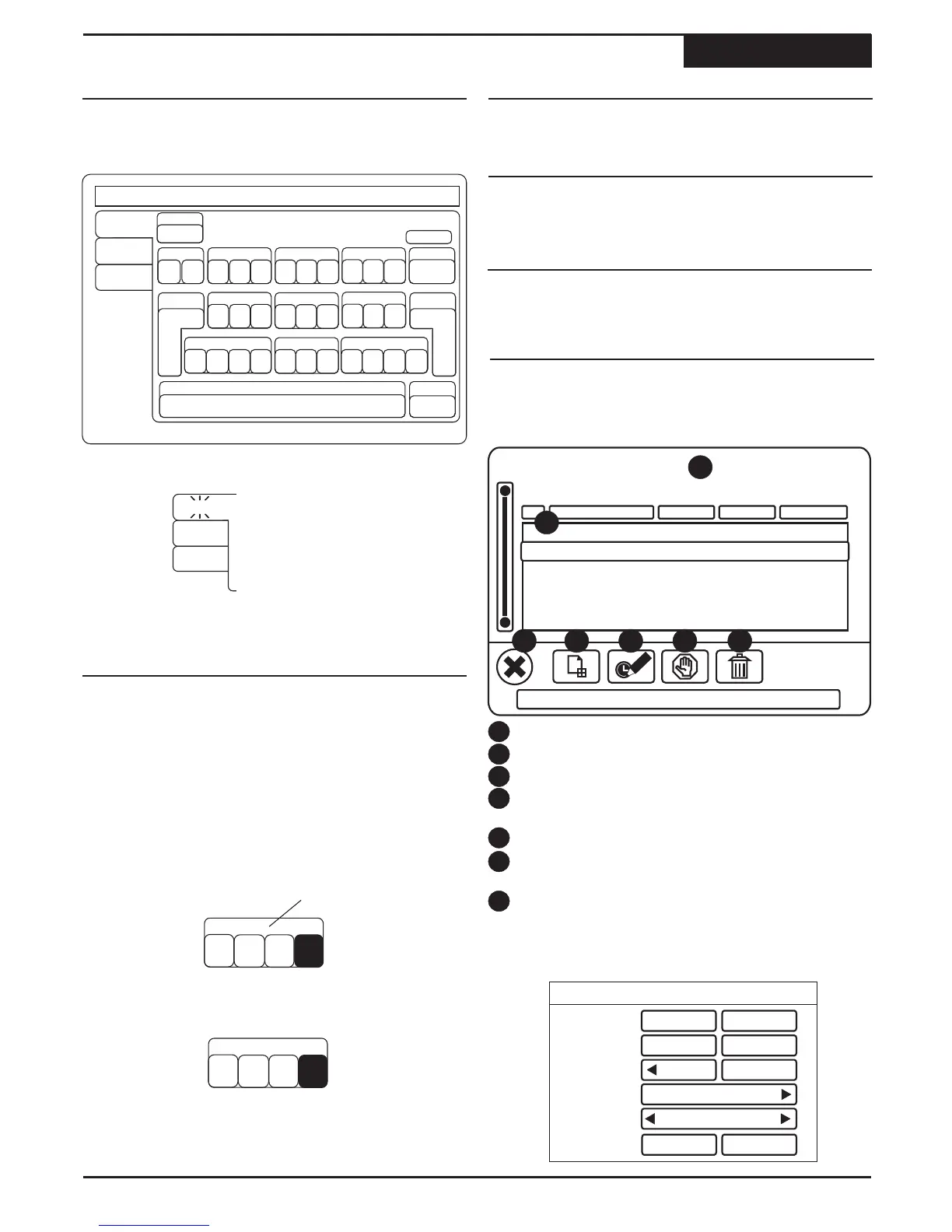
Current Time - Current time of the clock.
Events - Total scheduled recording event(s).
Close Screen - To close the Schedule Screen.
Add New Schedule Recording - Choose to Add a
New event to the Schedule.
Edit Schedule - Choose to Edit the Schedule.
Suspend/Ready* - Change the status of the
schedule - Ready or Suspended.
Delete - Delete the current schedule.
4
1
2
3
6
5
7
1 03.05.05 - 06:30AM 01:00 VIDEO 1 Ready
2
2
Before any schedules have been entered, the NEW
SCHEDULE RECORDING screen will appear by
default.
New Scheduled Recording
Start Time:
End Time:
Source:
Recurrence:
Quality:
08:00 PM
09:00 PM
Tuner
Once
SP(2 Hours)
Add Cancel
03/05/05
03/05/05
36



 To Next Page