Need help?
Do you have a question about the IMOU 1.0.1 and is the answer not in the manual?
Scan the QR code or search for "Imou" in Google Play or App Store to download and install the application.
Run the Imou App and register an account for the first-time use.
Connect the camera to the power source using the provided power adapter.
Wait for the camera to finish booting until the indicator flashes green.
Connect smartphone to a 2.4 GHz Wi-Fi network and add the camera via the app.
Stick the mounting foam onto the camera pedestal for secure placement.
Power up the camera, adjust the angle, and attach the pedestal to the surface.
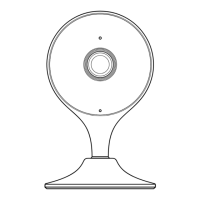
Details the physical components of the camera, including lens, mic, ports, and buttons.
Explains the meaning of different LED indicator patterns for device status and network connectivity.
This document describes the setup, operation, and features of an Imou camera, designed for easy installation and remote monitoring. The guide provides essential information for users to quickly get their camera up and running, from initial setup with the Imou app to understanding the camera's various indicator statuses and maintenance tips.
The Imou camera is a smart home security device designed for remote monitoring. It connects to your home's Wi-Fi network, allowing you to view live footage and manage settings through the Imou mobile application. The camera features a lens for capturing video, a built-in microphone for audio, and an LED indicator to communicate its status. It also includes a Micro SD card slot for local storage and a reset button for troubleshooting. The primary function is to provide real-time surveillance and recording capabilities, enhancing the security of your home or desired monitoring area.
The camera is designed for straightforward setup using the Imou app. Users can download the app from Google Play or the App Store by scanning a QR code or searching for "Imou." After installing the app, users need to register an account for first-time use. The setup process involves connecting the camera to a power source using the provided power adapter and cable. Once powered on, the camera's LED indicator will flash green, signaling that it is ready for connection.
To add the camera to the app, users must ensure their smartphone is connected to a 2.4 GHz Wi-Fi network. The app guides users through selecting their Wi-Fi network and entering the password. Once connected, the camera will be successfully added, and users can access the live view. The app provides clear steps for device addition, including options to select the Wi-Fi network and confirm the connection.
The camera comes with a mounting foam that attaches to its pedestal, allowing for easy and secure placement on various surfaces. The mounting surface should be smooth and strong enough to support at least three times the device's weight. After powering up the camera and adjusting the monitoring angle, the pedestal can be attached to the surface by pressing and holding it for 10 seconds. This ensures a stable installation and optimal viewing angle.
The camera features an LED indicator that communicates its current status. Understanding these statuses is crucial for troubleshooting and operation:
The Imou app supports adding multiple cameras. If a user has more than one camera, they can repeat the adding process for each device, allowing for comprehensive coverage of different areas.
In case of Wi-Fi network changes or issues with the indicator status, the camera can be reset. Users can press and hold the reset button for 10 seconds to restore the camera to its factory settings. After a reset, the camera can be added to the app again following the initial setup steps.
The camera supports firmware updates, which are indicated by the green and red lights flashing alternately. Keeping the firmware updated ensures the camera operates with the latest features, security patches, and performance improvements. The Imou app will likely notify users when updates are available.
The detailed LED indicator status table serves as a valuable troubleshooting tool. By observing the light pattern, users can quickly identify common issues such as network connection failures, device malfunctions, or ongoing firmware updates, enabling them to take appropriate corrective actions.
The reset button is a key maintenance feature, particularly useful when changing Wi-Fi networks or encountering persistent connection problems. A simple reset allows users to reconfigure the camera's network settings without complex procedures.
Proper installation with the provided mounting foam and adherence to the weight-bearing guidelines contribute to the camera's longevity and stable operation. A securely mounted camera is less prone to accidental damage or dislodgement.
The guide emphasizes the importance of keeping the Imou app updated to the latest version. App updates often include bug fixes, new features, and compatibility improvements that enhance the overall user experience and camera performance.
For any uncertainties or controversies, users are directed to visit the Imou website or contact their local service engineer for more information. This ensures that users have access to professional support for complex issues or detailed inquiries.
In summary, the Imou camera is designed for ease of use, offering a straightforward setup process, clear status indicators, and essential maintenance features to ensure reliable and continuous home monitoring.
 General
| Two-way Audio | Yes |
|---|---|
| Night Vision | 10m (33ft) IR Distance |
| Video Compression | H.264 |
| Wi-Fi | 802.11b/g/n |
| Power Supply | DC 5V/1A |
| Operating Conditions | -10°C to 45°C, ≤95% humidity |
| Image Sensor | 1/2.7" CMOS |

 To Next Page