ImpulseRadar
CrossOver® User Manual V1.4
Page 11 (31)
1. Locate the file <CrossOver-X.XXX.apk>¹ and start it to initiate the installation
2. The recommended file system for this App is "ES File Explorer"
3. When prompted, allow permission for the CrossOver® App to access photos, media and files
on your device, so that radargrams can be saved and opened
¹ X.XXX will be numerical according to the latest software release.
WiFi pairing
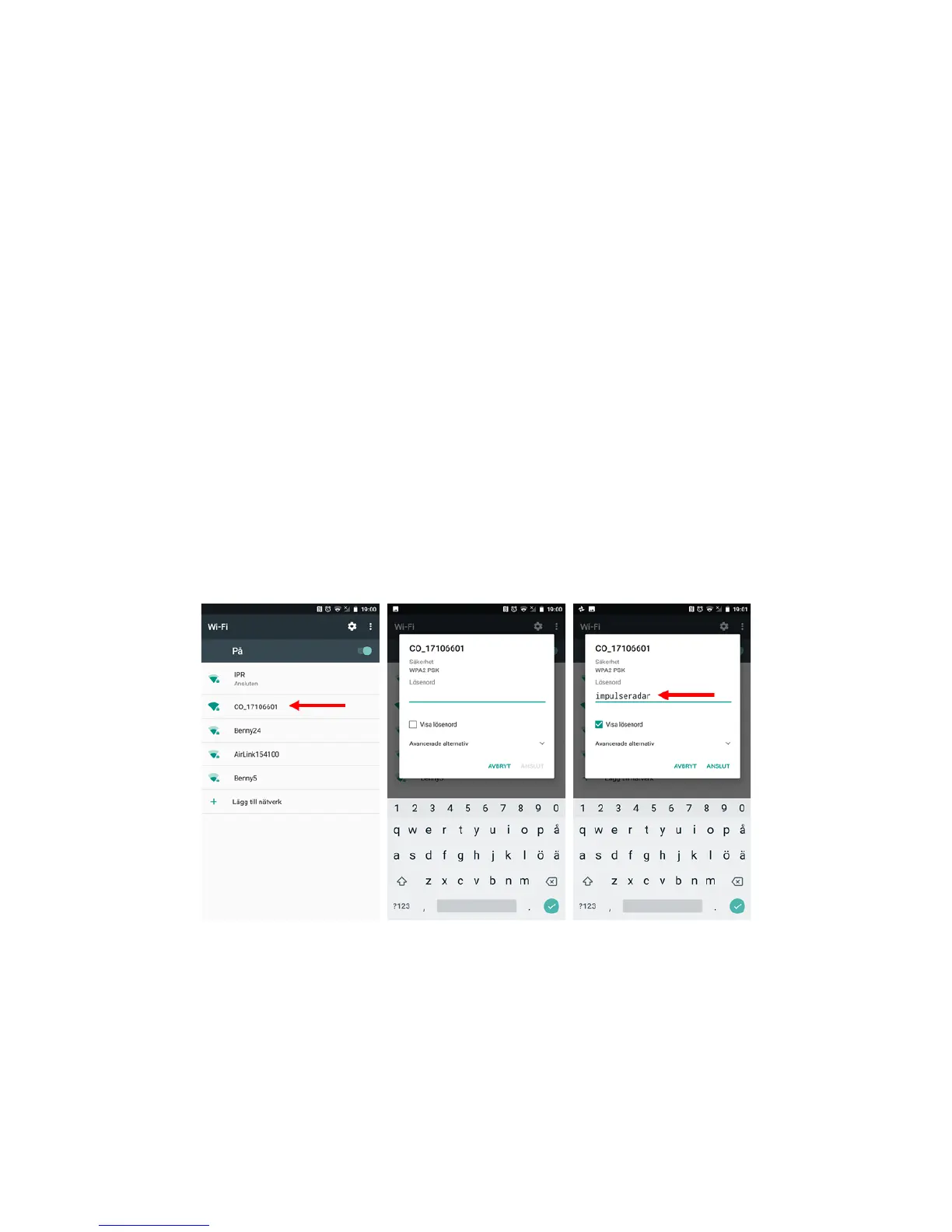
Follow the process below to connect your Android device to a CrossOver® antenna. Refer to Figure 10
for supporting screenshots.
1. Switch on the CrossOver® antenna
2. On your Android device, navigate to Settings > Wi-Fi > and look for the CrossOver antenna ID,
which will appear as ‘CO_XXXXXXXX’ (where XXXXXXXX is the serial number of the antenna)
3. Select this Access Point (AP) and you will be prompted to enter the password, which is
‘impulseradar’
4. Press ‘Connect’ to complete the process
Once connected, a ‘no-internet’ warning may appear, which can be disregarded. If the warning
dialogue permits, authorise the network and do not show the warning again.
Figure 10 Pairing a CrossOver® antenna to an Android device


 To Next Page