28
12.1.3 Select Fixtures using the “Group Pool” –window
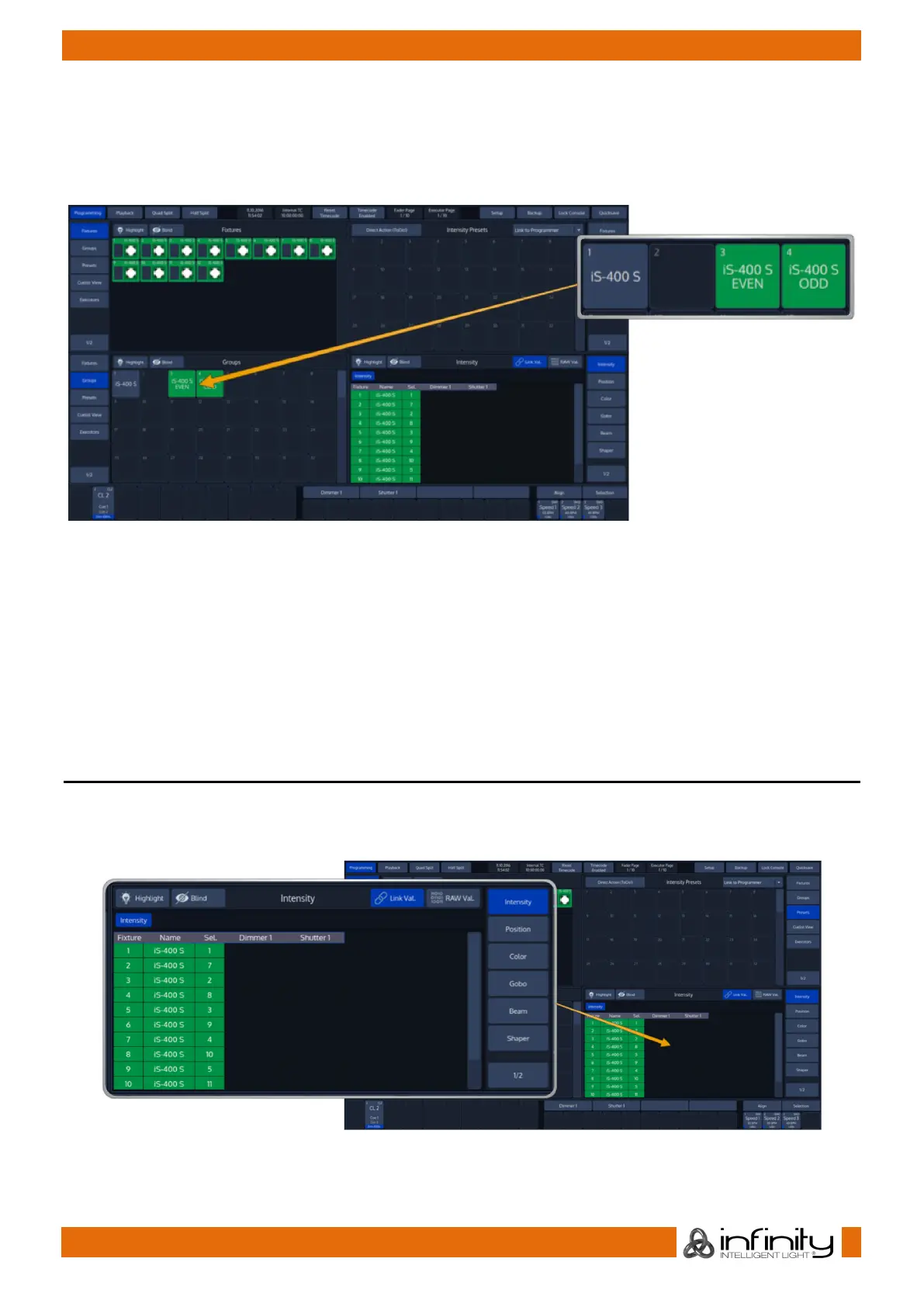
Once you selected the Groups button in one of the Split Widget Menus, this particular split widget will
change to “Groups” mode.
Now simply click on an item to select it. Selected Items will be indicated by a green background color.
Fig. 33: Selecting Fixtures using the Group Pool
12.1.4 Select Groups using the command line interface
Press the [Group] –key followed by the ID of the group. Completed the command using the [Enter] Key.
For example:
[Group] [1] [Enter]
Please note you may further extend the selection by using the [Thru], [+] and [-] keys, similar to when
selecting fixtures.
13 Working with Fixture Values
Altering a fixtures parameter values is only possible from within the Programming Window.
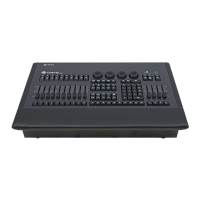
The programmer is shown in the bottom right part of the screen. It behaves very similar to the group split
widgets – it has buttons in the title bar and features a side menu for parameter selection.
Fig. 34: The Programmer Window



 To Next Page