EasyManua.ls Logo

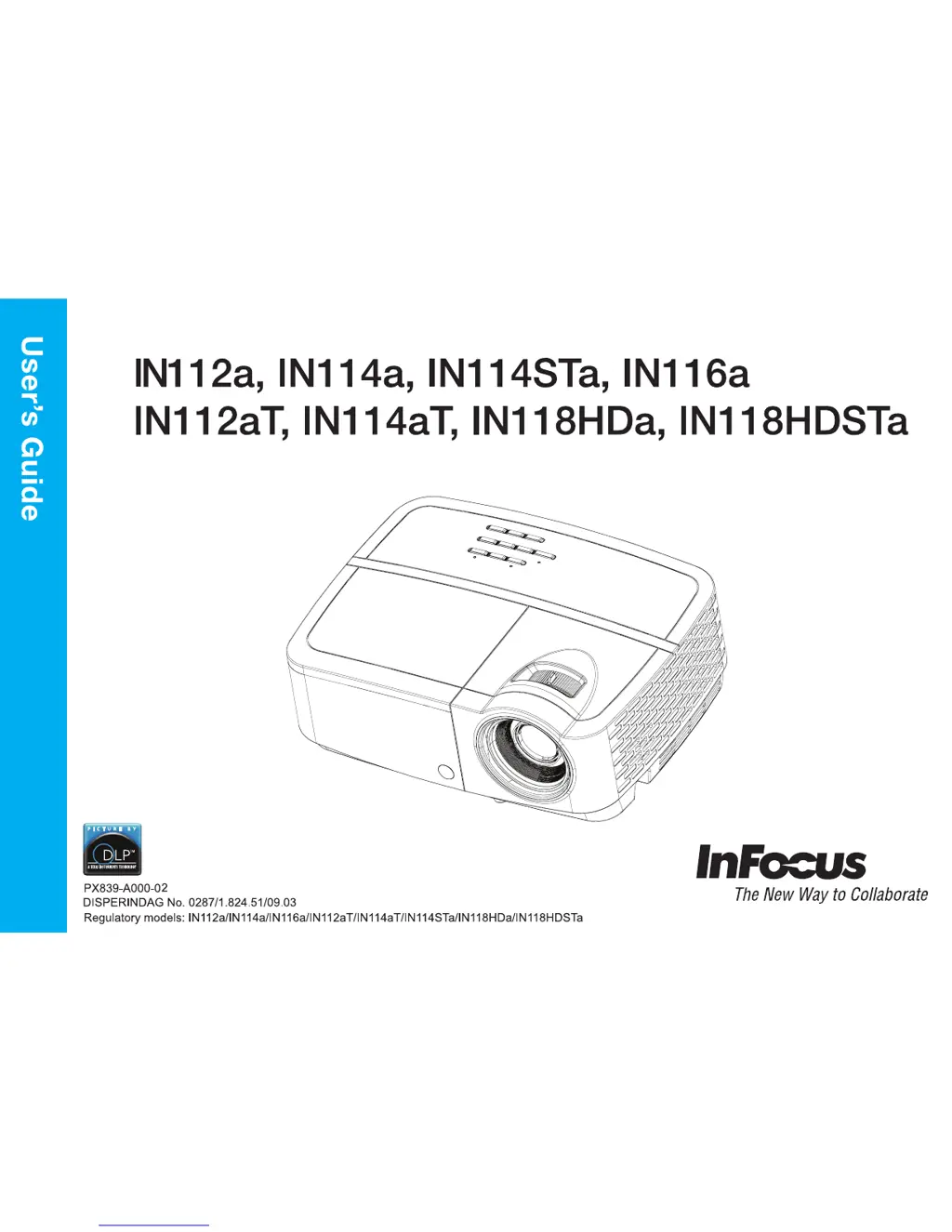
InFocus IN112a - User Manual

InFocus IN112a
36 pages
Print Icon
To Next Page IconTo Next Page
Loading...

Other manuals for InFocus IN112a

Questions and Answers

  • A
    Alicia WallaceAug 17, 2025
    Why is the InFocus IN112a Projector lamp not turning on and the projector is overheating?
    • M
      Megan DiazAug 18, 2025
      If the InFocus Projector lamp won’t turn on and the projector is overheating, it may be due to the overheating indicator. Ensure that the vents are not blocked and turn off the projector. Allow it to cool down for one minute before attempting to use it again.
  • J
    Jessica JohnsonAug 20, 2025
    What to do if my InFocus IN112a says 'Signal out of range'?
    • A
      Amber HernandezAug 20, 2025
      If your InFocus Projector displays 'Signal out of range' instead of the computer image, here's what you can do: * First, try pressing the Auto Image button on the remote. * If that doesn't work, adjust your computer's refresh rate via the Control Panel > Display > Screen Resolution > Advanced Settings > Adapter tab (the exact path may vary depending on your operating system). * You might also need to set a different resolution on your computer.
  • H
    howardmorganAug 22, 2025
    Why does my InFocus IN112a only show my laptop background?
    • B
      Brandi GilbertAug 22, 2025
      If your InFocus Projector only shows your laptop's background and not the desktop icons, you need to change the Multiple Display setting to 'Duplicate these displays'. For Windows 7, this can be found in Control Panel > Display > Screen Resolution. Note that the exact location of this setting may vary depending on your operating system.
  • A
    andrea97Aug 26, 2025
    How to fix upside down image on InFocus Projector?
    • M
      mccoypamelaAug 26, 2025
      If the image on your InFocus Projector is upside down, turn off the Ceiling Mount option in the Basic menu.
  • B
    Blake MckenzieAug 28, 2025
    What to do if InFocus Projector only shows laptop background?
    • J
      James Yoder MDAug 28, 2025
      If your InFocus Projector only displays your laptop’s background and not the Desktop icons, change the Multiple Display setting to "Duplicate these displays". This setting can typically be found in the Control Panel under Display > Screen Resolution.
  • R
    Rebecca FrazierAug 30, 2025
    What to do if the InFocus IN112a shows "Signal out of range"?
    • K
      Kelli JamesAug 30, 2025
      If your InFocus Projector displays “Signal out of range”, try the following: Press the Auto Image button on the remote. Also, adjust your computer's refresh rate via the Control Panel (Display > Screen Resolution > Advanced Settings > Adapter tab). You might also need to set a different resolution on your computer.
  • R
    Rodney StewartSep 1, 2025
    What to do if the InFocus IN112a image is fuzzy or cropped?
    • E
      Edward BurtonSep 2, 2025
      If the image on your InFocus Projector appears fuzzy or cropped, change the computer's resolution setting to match the projector's resolution. You can typically find this setting in the Control Panel under Display > Screen Resolution.
  • D
    Donna MurphySep 4, 2025
    How to adjust colors on InFocus Projector?
    • E
      Eileen WilsonSep 4, 2025
      To adjust the colors on your InFocus Projector so they match the source, go to the Advanced Menu, then Image, and then Color. From there, you can adjust items such as Color, Red Gain, Green Gain, Blue Gain, Red Offset, Green Offset, Blue Offset, Color Space, Color Temp, Gamma, Tint and White Intensity.
  • K
    keithcoreySep 6, 2025
    How to make InFocus IN112a image sharper?
    • K
      kelly39Sep 7, 2025
      To make the image sharper on your InFocus Projector, adjust the Sharpness setting in the Basic Menu.
  • T
    Taylor LiSep 9, 2025
    How to correct a non-square image on InFocus IN112a Projector?
    • V
      victor78Sep 9, 2025
      To correct a non-square image on your InFocus Projector, adjust the Keystone setting on the keypad.

Summary

Important Operating Considerations for Safety

General Safety Warnings

Covers warnings for placement, handling, power, and servicing to ensure user safety.

Connector Panel

Positioning the Projector

Connecting a Computer Source

Connecting Power

Guidance on connecting the projector to a power source using the provided cord.

Optional Computer Connections

Information on connecting audio and using monitor out for additional computer connections.

Displaying an Image

Adjusting the Image

Connecting a Video Device

HDMI Connection

Connecting video devices via HDMI for digital audio and video.

Composite Video Connection

Connecting video sources using composite video cables.

VGA Connection

Connecting video sources with VGA output to the projector.

Shutting Down the Projector

Troubleshooting Your Setup

Using the Remote Control

Using the Audio

Using the Keypad Buttons

Optimizing Computer Images

Optimizing Video Images

Using the Menus

Basic Menu

Advanced Menu

InFocus IN112a Specifications

General IconGeneral
Weight2.4 kg
Throw Ratio1.96 - 2.15:1
Projection TechnologyDLP
Resolution800x600
Contrast Ratio20000:1
ConnectivityHDMI, VGA, USB
Aspect Ratio4:3
Noise Level32 dB (Normal) / 28 dB (Eco)
Keystone CorrectionVertical ±40 degrees
Lamp Life5000 hours (Normal) / 6000 hours (Eco) / 7000 hours (Dynamic)

Related product manuals