INPUT PICTURE LAMPS ALIGNMENT CONTROL SERVICE
Projection Mode < Front >
Fan Mode < Normal >
Lens Control Enter
Lens Memory Enter
Center Lens Execute
Warp Enter
Blanking Enter
Edge Blend Enter
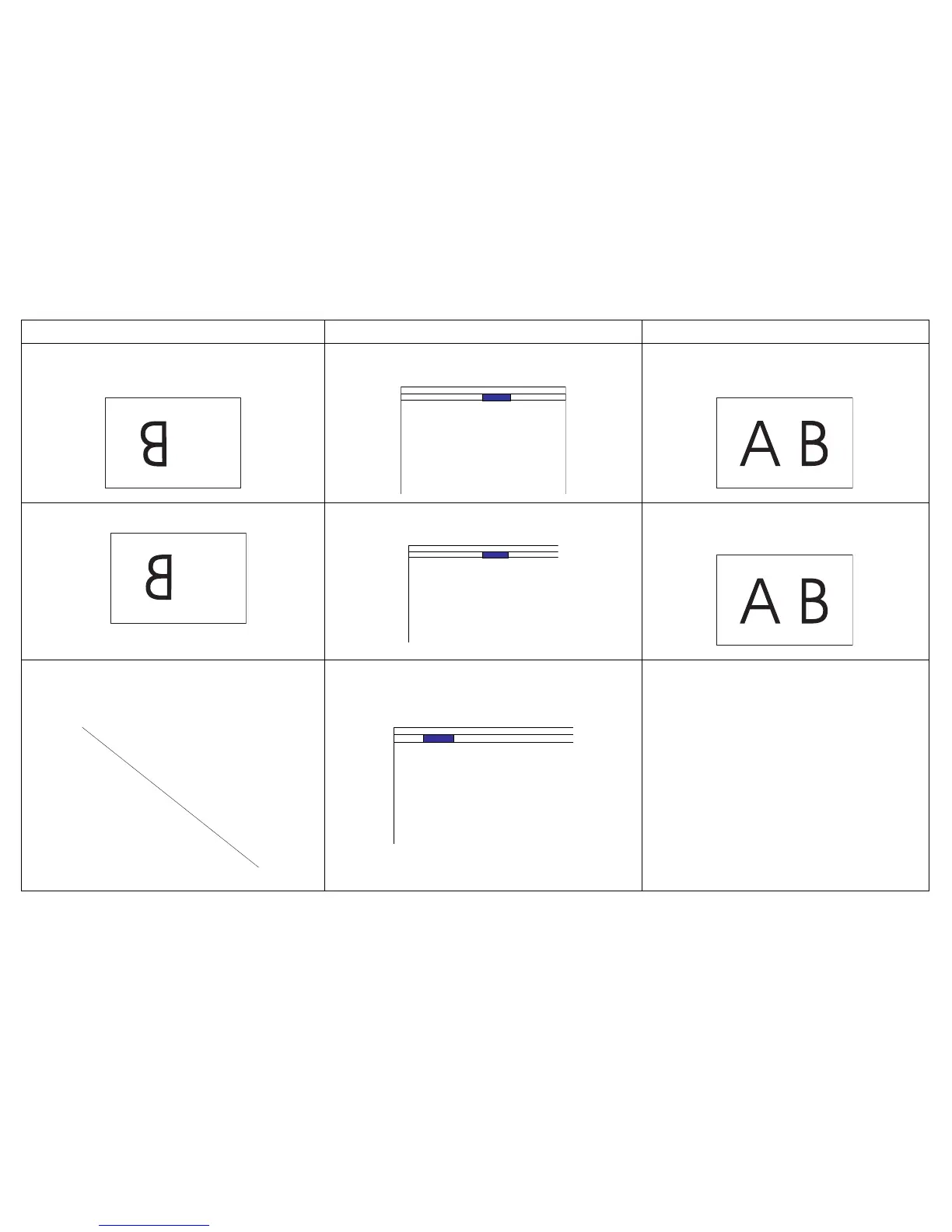
Turn Projection Mode to Front in the Alignment
menu.
Correct image.
Image reversed left to right.
INPUT PIC TURE LAMPS ALIGNMENT CONTROL SERVICE
Projection Mode < Front >
Fan Mode < Normal >
Lens Control Enter
Lens Memory Enter
Center Lens Execute
Warp Enter
Blanking Enter
Edge Blend Enter
Turn Projection Mode to Front in the Alignment
menu.
Correct image.
Projected colors don’t match source.
INPUT PICTURE LAMPS ALIGNMENT CONTROL SERVICE
Picture Mode < High Bright >
Contrast < 100 >
Brightness < 100 >
Adaptive Contrast < O >
Saturation < ------ >
Hue < ------ >
Gamma < Video >
Color < Enter >
Sharpness < 0 >
Noise Reduction < 0 >
Aspect Ratio < 16:10 >
Overscan < O >
VGA Setup Enter
Auto Sync Execute
Adjust color, tint, brightness, contrast in the
Picture menu and/or color space in the Input
menu.
Correct image.
Problem Solution Result


 To Next Page