6 7
How to Process Basic Transactions
Below are some common transactions to help you start processing right
away. For additional transactions, download the full guide at:
chase.ca/merch an tservices (available February, 2019)
Sale
Perform a credit or debit card sale transaction when the card is present.
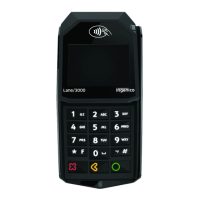
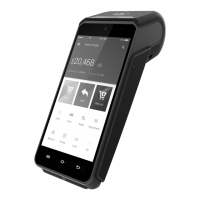
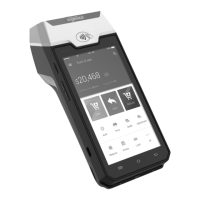
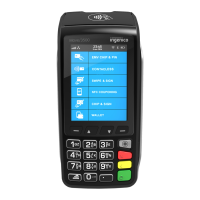
Display DESK/5000 / MOVE/5000
Idle Screen Press
SALE
Enter Sale
Amount: $ 0.00
Key in amount and press [ ]
Customer is prompted to Swipe/Insert/Tap
1. Customer conrms the sale amount
2. Selects Chequing or Savings (Debit Only)
3. Enter PIN and press [ ]
4. While terminal connects, do not remove card
For contactless (tap) transactions, the customer holds their
card over the terminal until the reader ashes and/or beeps.
Receipt prints and approval is displayed
Press [ ] to print the customer copy
Return/Refund
Perform a return to refund money to a cardholder’s account from a sale completed
in a closed batch (e.g., previous day).
Display DESK/5000 / MOVE/5000
Idle Screen Press
RETURN Enter Manager Password
Enter Manager password and press [ ]
RETURN Enter Return Amount
Key in Amount and press [ ]
Customer is prompted to Swipe/Insert/Tap
1. Customer conrms the refund amount
2. Selects Chequing or Savings (Debit Only)
3. Enter PIN and press [ ]
4. While terminal connects, do not remove card
For contactless (tap) transactions, the customer holds their
card over the terminal until the reader ashes and/or beeps.
Receipt prints and approval is displayed
Press [ ] to print the customer copy
What the customer seesWhat the customer sees



 To Next Page
 Loading...