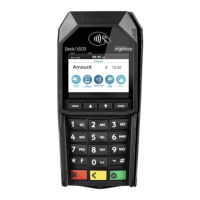
The Ingenico Desk5000 is a payment terminal designed for various transaction types, offering a user-friendly interface with a color touch screen display. It supports multiple card reading methods including magstripe, chip card, and contactless, making it versatile for different payment scenarios. The device is intended for use in attended environments, allowing merchants to process payments, cash advances, reservations, refunds, and other financial transactions.
Function Description:
The Desk5000 primarily functions as a point-of-sale (POS) terminal for processing card-based payments. It can operate in an idle state, ready to initiate transactions upon user input. The terminal supports a range of transaction types accessible through a dedicated Function Menu (F4 key) or a Transaction Menu (F1 key). These include:
- Payment: Standard transaction for purchasing goods or services.
- Cash Advance: Allows cardholders to withdraw cash.
- Reservation: Reserves an amount for a specified period, with the final payment amount and date potentially unknown at the time of reservation.
- Extra Reservation: Adds an additional reservation to an existing one.
- Payment after RSV (Reservation): Finalizes a payment using a previously obtained reservation.
- Card Check: Verifies the validity of a cardholder's card.
- Refund: Initiates a refund transaction.
- Original Credit: Starts a refund transaction not linked to a previous purchase (e.g., for lotteries).
- Cancellation Menu: Allows for the cancellation of previous transactions, protected by a manager password. This menu includes options to cancel previous payments, reservations, and extra reservations.
Beyond transactions, the Desk5000 offers several administrative and maintenance functions:
- Function Menu (F4): Provides quick access to common functions like "Copy Receipt" (prints a copy of the last transaction receipt), "Last Transaction" (displays details of the last transaction), "Print X-totals" (prints a report of transaction totals since the last clearance, without clearing them), "Print Z-totals" (prints a report of transaction totals since the last clearance, and then clears them), and "Print Period Totals" (downloads and prints period counters from acquirers, including current, previous, or both).
- Tech Menu: Accessible via the Function Key, this menu is for technical settings and maintenance. It includes "TMS Session" (forces a connection to the Terminal Management Server), "Software Update" (updates terminal software), "Settings Menu" (allows changing terminal settings like language, network, IP settings, menu layout, header/footer state, and password), and "Information Menu" (displays RDM version, terminal info, Ethernet info, and printer status).
- Manager Menu: Allows authorized users to change the Manager password.
- Service Menu: Accessible only by authorized dealers, this menu provides advanced functionalities such as "Enter Database" (for database and settings changes), "Change TMS" (for modifying Terminal Management System connection parameters), "Upload TDRs" (uploads Transaction Date Records), "Block Payments" (disables payment functionality), "Unblock Payments" (re-enables payment functionality), and "Clean Sweep" (resets the terminal to factory settings, requiring re-activation).
- Kassa Menu (Cash Register Menu): Contains settings for cash register integration, including "Settings Menu" (password-protected, for changing and testing settings), "Change Connection" (for selecting connection type like None, Serial, TCP/IP), "Test Menu" (password-protected, for terminal testing), and "Information Menu" (displays ECR application version).
Important Technical Specifications:
- Paper Roll Characteristics:
- Color: White
- Width: 58 mm
- Diameter: 40 mm
- Length: Approximately 18 meters
- Connectivity: The terminal can be connected via Ethernet, USB, or COM port, especially for integration with a Cash Register (ECR). It supports DHCP or Static IP for Ethernet connections and C-TAP with SSL.
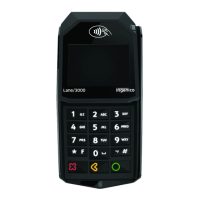
- Magic Box: The Desk5000 is shipped with an optional Magic Box (Ingenico Lane 5000) which serves as a connection hub. It connects to the terminal via a dedicated cable, includes a power adapter, and allows for ECR connection via Ethernet, USB, or commport.
Usage Features:
- User Interface: Features a color touch screen display for data entry and menu navigation.
- Keypad: Includes numeric keys (0-9), function keys (F1-F4), "OK" (green) key, "Stop" (red) key, "Cancel" (yellow) key, and a "Dot" key.
- Shortcut Keys: F1, F2, F3, F4 are programmable or assigned to specific functions (F1 for Transaction Menu, F4 for Function Menu).
- Card Reading:
- Magstripe: Cards can be swiped from bottom to top or top to bottom, with the stripe facing the terminal, for reliable reading.
- Chipcard: Cards are inserted horizontally with the chip facing upwards and remain in position throughout the transaction.
- Contactless: Cards are brought firmly to the active zone and kept close to the reader. Four virtual LEDs indicate the transaction status.
- Transaction Flow: Initiating a transaction involves pressing a numeric key or "OK" from the idle screen, entering the amount, and confirming with "OK". Corrections can be made with the "Clear" key, and transactions can be stopped with the "Stop" key.
- Language Selection: The terminal supports English, Dutch, German, and French, configurable through the Tech Menu's Settings Menu.
- Receipt Printing: The terminal prints cardholder and merchant receipts, with the option for a journal, depending on settings and transaction approval. Merchant receipts may require a signature.
- Reboot: The terminal can be restarted by simultaneously pressing the 'dot' key and the yellow 'Clear' key.
- Power On/Off: The terminal is switched on by pressing the green 'OK' button. It can only be switched off by unplugging the power lead.
Maintenance Features:
- Paper Roll Installation: Requires switching off the terminal, lifting the catch at the rear, pulling the cover, inserting the paper roll following directions, pulling paper to the top, maintaining it while closing the lid, pressing the lid center until it clips, and then turning on the terminal to check paper feed with the 'Paper Feed' button. Only Ingenico-approved heat-sensitized paper should be used to prevent printer damage.
- Software Updates: Can be performed via the Tech Menu, with updates potentially taking 5 to 25 minutes depending on network speed.
- Log File Upload: Users can upload log files to assist dealers in troubleshooting problems.
- Terminal Activation: If not pre-activated, the terminal requires an activation code from the dealer, followed by configuration of TMS parameters (IP address, port number, protocol) and a software update.
- Password Protection: Various menus and functions (e.g., Cancellation Menu, Manager Menu, Service Menu, Settings Menu) are password-protected to ensure security and control access.
- Parameter Download: Allows manual download of security schemes (Key Load) and acquirer/processor parameters (Parameter Download) via the Acquirer Menu.
- C-TAP Information: Provides access to the certified C-TAP application version, an overview of card brands, and C-TAP info (parameter status, blocked reasons, acquirer status, security provider status).

 Need help?
 General








 To Next Page