EasyManua.ls Logo

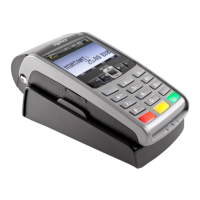
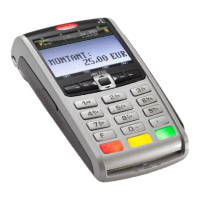
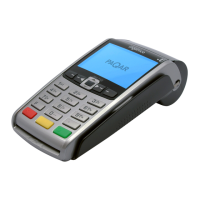
Ingenico iWL220 - User Manual

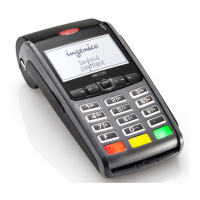
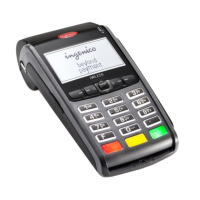
Ingenico iWL220
100 pages
Print Icon
To Next Page IconTo Next Page
Loading...
0
1
1
1
1
1
0
1
0
0
0
1
0
0
1
0
0
1
0
1
0
0
1
1
0
0
0
1
0
1
1
1
1
1
0
0
1
0
0
0
1
1
0
0
0
0
0
1
0
1
1
1
0
0
0
0
0
1
0
1
1
0
1
0
1
1
0
0
0
1
0
1
0
1
1
1
0
0
0
1
0
0
1
1
1
1
1
1
1
0
1
1
1
1
0
1
0
0
1
0
1
0
1
0
0
1
1
1
0
1
1
0
1
1
1
1
0
1
1
1
1
1
1
1
1
1
0
1
0
1
1
1
0
0
1
1
0
0
1
1
0
0
1
0
1
1
0
0
1
1
0
1
1
1
1
0
1
0
1
0
1
0
0
0
1
0
1
1
1
0
0
1
1
0
1
1
1
1
1
1
0
1
1
1
1
1
0
1
0
0
0
1
0
0
1
0
0
1
0
1
0
0
1
1
0
0
0
1
0
1
1
1
1
1
0
0
1
0
0
0
1
1
0
0
0
1
0
1
0
1
1
0
0
1
0
0
1
0
0
0
0
0
0
1
1
0
1
1
1
1
0
0
1
0
0
1
1
0
1
1
0
0
1
0
0
0
1
0
0
1
1
0
0
0
0
0
0
1
1
0
1
1
1
1
0
0
1
1
1
0
1
0
1
0
1
0
1
1
0
1
1
1
0
1
0
1
1
0
1
0
0
1
0
1
1
1
1
1
1
0
1
1
0
0
1
1
1
1
0
1
1
1
0
1
0
1
0
0
1
1
1
0
0
1
1
0
1
0
1
0
1
1
0
0
0
1
0
0
0
0
0
1
0
1
1
1
0
0
0
1
1
0
0
0
1
0
0
0
1
1
0
1
0
1
0
0
1
0
0
0
1
0
0
0
1
1
1
0
0
0
1
0
1
1
0
0
1
1
1
1
1
0
1
0
0
0
1
0
0
1
0
0
1
0
1
0
0
1
0
0
1
0
1
0
1
1
1
1
1
0
0
1
0
0
0
1
1
0
0
0
0
0
1
1
1
1
0
0
1
0
0
0
1
1
0
1
1
0
0
1
1
0
0
0
1
0
0
0
1
0
1
0
0
0
1
0
0
1
1
1
1
1
1
1
0
1
1
1
1
0
1
0
0
0
0
1
0
1
1
1
1
1
0
1
0
1
0
1
1
1
1
0
1
1
0
1
1
1
1
1
1
0
1
0
1
1
1
0
0
1
1
0
0
1
1
0
0
1
0
1
1
0
1
1
1
0
1
1
1
1
0
0
0
1
0
1
0
0
1
1
0
1
1
1
0
0
1
1
0
1
1
1
1
1
1
Ingenico (UK) Ltd
Ridge Way, Donibristle
Industrial Park, Hillend
DUNFERMLINE KY11 9JU
Part No: DIV434674A
Copyright © 2012 Ingenico (UK) Ltd. Image for illustrative purposes only; product may vary from that shown.
www.ingenico.com
Ingenico User Guide
iWL220
Optional Integrated Contactless Reader

Table of Contents

Other manuals for Ingenico iWL220

Questions and Answers

  • J
    Jillian LiAug 15, 2025
    How to fix Ingenico Handhelds terminal when it is unable to communicate?
    • S
      Stephen AdkinsAug 16, 2025
      If your Ingenico Handhelds terminal won't connect, try turning it off and on again to re-establish the network connection. If the GPRS status displays 'NO SIM', power off the terminal, take out the SIM card, gently wipe it with a clean, dry cloth, and then put it back in before switching the terminal on again. If the GPRS status still shows 'NO SIM', it is recommended to contact the Helpdesk.
  • D
    Debbie HancockAug 19, 2025
    What to do if signal bars disappear on Ingenico Handhelds?
    • D
      Diana CobbAug 19, 2025
      If the signal bars disappear on your Ingenico Handhelds terminal, try the following: 1. Turn off the terminal by pressing the yellow button and the button with three dots simultaneously until it switches off. 2. Remove the SIM card. 3. Wipe the SIM card with a clean, dry cloth. 4. Reinsert the SIM card. 5. Power the terminal back on. Wait 30 seconds for the signal bars to reappear. If they don't, contact the Technical Helpdesk.
  • E
    Elizabeth MeyersAug 21, 2025
    How to troubleshoot Ingenico Handhelds terminal when it struggles to print receipts?
    • L
      Lauren BrooksAug 21, 2025
      If your Ingenico Handhelds terminal is having trouble printing receipts or reports, try this: press the center button, then press 0, then 3, then 3, then 1, then 1, then 1. Finally, press the red cancel button to return to the READY screen. Leave the terminal on charge for at least 6 hours. If the problem continues, contact the Technical Helpdesk.
  • J
    Joshua WernerAug 25, 2025
    What to do if Ingenico Handhelds terminal has not contacted the Payment Processing Host?
    • M
      Matthew ThomasAug 25, 2025
      If your Ingenico Handhelds terminal fails to contact the Payment Processing Host after 3 attempts, check the signal strength. If the network coverage is good but the problem persists, contact the Helpdesk.
  • G
    Grant WarrenAug 27, 2025
    What to do if Ingenico Handhelds says card is not supported?
    • M
      Mrs. Sheila EllisAug 27, 2025
      If your Ingenico Handhelds terminal indicates that the card is not supported or cannot be read, try processing the payment one more time. If the same message appears, ask the customer to use another payment method and advise them to contact their Card Issuer.
  • C
    Charlotte DavisAug 30, 2025
    What to do if Ingenico Handhelds declines the transaction?
    • D
      Dr. Vanessa SheppardAug 31, 2025
      If the card issuer declines to authorize the transaction on your Ingenico Handhelds terminal, ask the customer to pay using another method.
  • I
    igarciaSep 2, 2025
    What to do if Ingenico Handhelds says operation is not allowed?
    • K
      Kimberly PruittSep 2, 2025
      If your Ingenico Handhelds terminal displays that the selected operation isn't allowed or that the card is faulty, ask the customer to pay with another method and advise them to contact their Card Issuer.
  • J
    Jeffrey HoltSep 6, 2025
    What to do if Ingenico Handhelds says card is not configured for transaction type?
    • J
      Joseph BakerSep 6, 2025
      If an inserted card isn't configured for the selected transaction type on your Ingenico Handhelds terminal, ask the customer to use an alternative payment method.
  • J
    Jake RodriguezSep 8, 2025
    What to do if Ingenico Handhelds shows a referral?
    • B
      brianrobertsonSep 8, 2025
      If a referral occurs on your Ingenico Handhelds terminal, call the Authorisation Centre using the number displayed or printed by the terminal for voice authorisation of the transaction.
  • K
    Kelly LawsonSep 12, 2025
    How to use Ingenico Handhelds terminal outside of the UK?
    • J
      Janice LivingstonSep 12, 2025
      Refer to your payment processing provider to confirm that you can transact outside of the UK with your Ingenico Handhelds terminal. Contact our Customer Service Team at least 7 working days before travelling so they can enable international roaming.

Summary

Introduction

Keeping Records

Guidelines for maintaining transaction receipts and End of Day reports for a minimum of six months.

Helpdesk Information

Details on contacting the terminal helpdesk for support and finding terminal identification numbers.

Terminal Security and Care

Checks for tampering, security seals, and proper cleaning procedures to maintain terminal integrity.

Your Terminal

Contents of Box

Lists the items included in the Ingenico iWL220 payment terminal package.

Terminal Overview

Provides an overview of the terminal's display, keypad, and base unit features.

Connections and Setup

Details on connecting the base unit to power, telephone lines, or LAN.

Bluetooth Association

Instructions for pairing the terminal with a Bluetooth base unit for wireless communication.

Transactions

Performing Sales Transactions

Steps for entering transaction amounts and processing sales via contactless, chip, or swipe.

Sales with Gratuity

Guidance on enabling and performing transactions with added gratuities (tips).

Sales with Cashback

Instructions for processing transactions that include customer cashback.

Transaction Receipts

Merchant Copy - Signature Transactions

Details the fields and layout of a merchant copy receipt for signature-based card transactions.

Merchant Copy - PIN Transactions

Explains the merchant copy receipt for PIN-based card transactions, including gratuity.

Merchant Copy - Contactless Transactions

Shows the merchant copy receipt for contactless transactions, detailing fields and verification.

Ingenico iWL220 Specifications

General IconGeneral
ConnectivityBluetooth
BatteryLi-Ion
ProcessorARM9
Memory16MB RAM
Card ReadersMagnetic stripe
PrinterThermal
SecurityPCI PTS 2.x
Device TypePortable
Storage Temperature-20°C to +55°C

Related product manuals