EasyManua.ls Logo

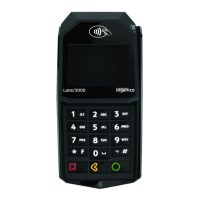
Ingenico Lane 3000 - User Manual

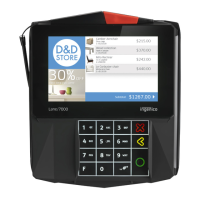
Ingenico Lane 3000
44 pages
Print Icon
To Next Page IconTo Next Page
Loading...
Nets One PA user guide | 1
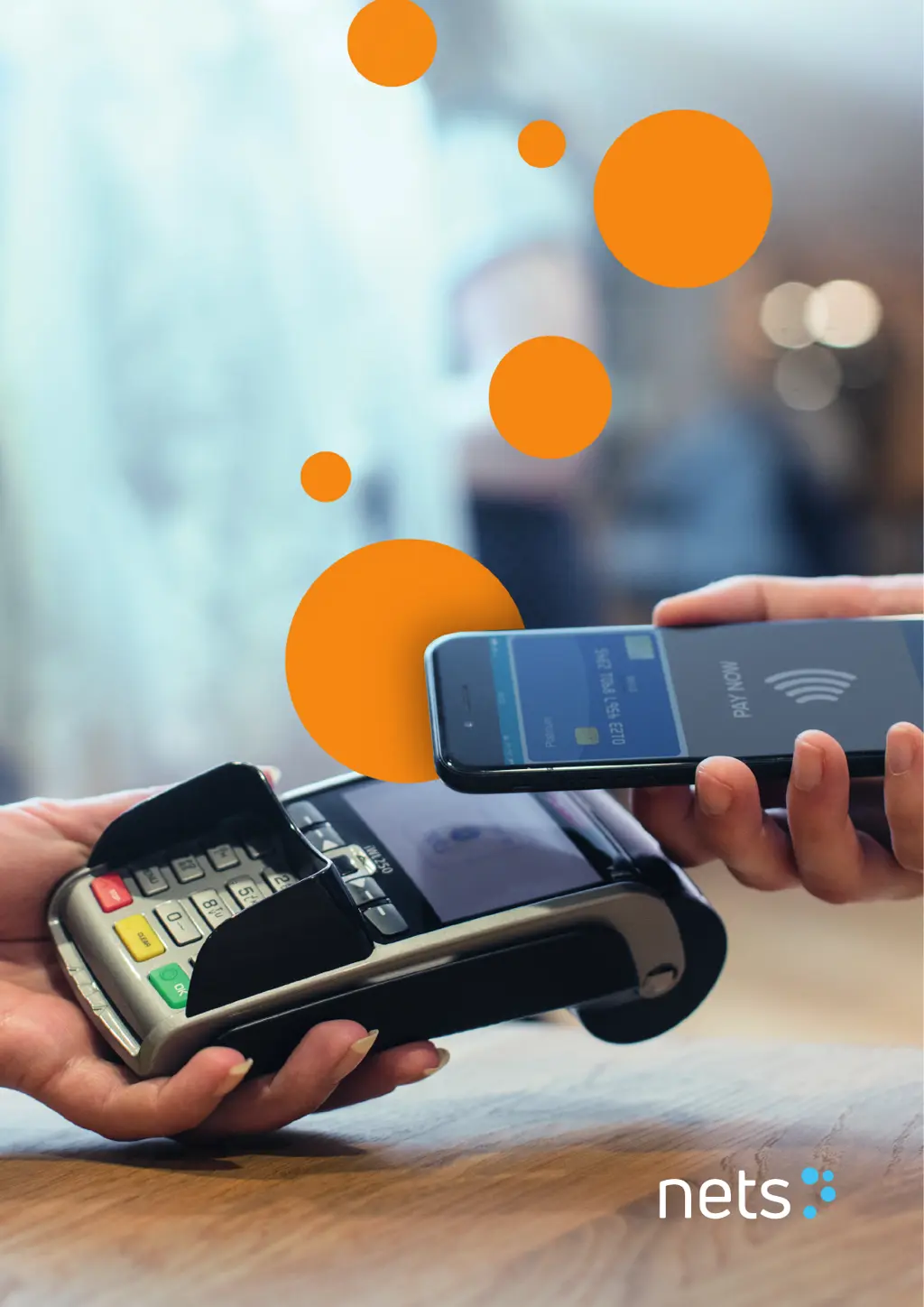
Nets Nordic
Payment Terminals
User Guide

Table of Contents

Questions and Answers

  • L
    Luis Carlson DDSJul 30, 2025
    What to do if Ingenico Payment Terminal is not connected to network?
    • P
      psaundersJul 30, 2025
      If your Ingenico Payment Terminal isn't connecting to the network, resulting in offline transactions, there are a few things you can check: * First, restart the terminal by pressing and holding the yellow “Clear” button and the full stop/comma button simultaneously until it restarts (about 30 seconds). Then try again. * If you're using GPRS, make sure the signal strength is displayed at the top. If not, contact your network provider to check coverage and SIM card subscriptions. * If you're using Ethernet, ensure the cable is properly connected to both the terminal and the network socket.
  • T
    travis30Aug 7, 2025
    How to fix Ingenico Payment Terminal when it freezes and keys don't work?
    • T
      Tracy FischerAug 7, 2025
      If your Ingenico Payment Terminal freezes and the keys stop working, try these steps: * Restart the terminal by holding down the yellow “Clear” button and the comma button simultaneously for about 3 seconds, then wait for it to restart (approximately 30 seconds). Try again after the restart. * If it remains frozen, remove the power cable or battery until the display goes dark, then reconnect the power cable or battery.
  • D
    Denise PierceAug 14, 2025
    What to do if my Ingenico Payment Terminal is broken and won't turn on?
    • T
      Thomas EspinozaAug 14, 2025
      If your Ingenico Payment Terminal is broken and won't turn on, check that the cables are connected and the battery is inserted correctly.
  • G
    George CochranAug 21, 2025
    How to fix Ingenico Payment Terminal error message 'missing keys'?
    • A
      Angela LoganAug 21, 2025
      To address the “missing keys” error on your Ingenico Payment Terminal, check for available updates in the settings menu (MENU-0-2).

Summary

Introduction

Getting started

Provides initial steps for setting up and using the payment terminal.

Nets Ingenico terminal range

Nets Spire terminal range

Terminal features - Daily operation

Purchase

Reversal (cancellation) of the last transaction

Refund (Return of goods)

Receipts

Contactless payments (NFC)

Purchase with contactless payment

Steps for completing a purchase using contactless payment methods.

Backup solution (EOT)

Procedure for backup solution in Norway (BankAxept)

Specific steps for handling BankAxept backup solutions in Norway.

Procedure for backup solution in Denmark (Dankort)

Procedure for managing Dankort/VisaDankort backup solutions in Denmark.

Sending backup solution transactions for processing

Offline approved transactions

Reconciliation - end of day report

Manual reconciliation

Details on performing manual end-of-day reconciliation.

Automatic reconciliation

Explanation of the automated reconciliation process for terminals.

Central reconciliation

Information on Nets' central reconciliation service for terminals.

Reports

Access control

How to enable access control

Steps to activate and set up the access control feature on the terminal.

Choosing which items to protect

Procedure for selecting specific terminal functions to protect with a security code.

Daily reboot of terminal

Configuring a terminal for cash register integration

Configuring ethernet settings

Configuring mobile network settings

Errors and troubleshooting

Submitting terminal for service or termination

Terminal security

PCI-PTS compliance

Information on the Payment Card Industry PIN Transaction Security standard.

Guidance for PIN entry

Best practices and guidelines for secure PIN entry on the terminal.

Ingenico Lane 3000 Specifications

General IconGeneral
ProcessorCortex A5
Operating SystemTelium Tetra
ConnectivityUSB
Card ReadersMagstripe, Contactless
SecurityPCI PTS 5.x certified
Display2.8" color QVGA
Power SupplyPowered over USB or external power supply

Related product manuals