Need help?
Do you have a question about the Innogy eBox professional and is the answer not in the manual?
Warnings about electrical voltage and handling live components.
Warnings about sharp edges, contents check, installation location, and flammable materials.
Information on improving product application.
Defines the scope and validity of instructions for eBox professional.
Device is for charging EVs, specifies plug types and restrictions.
Lists items included in the eBox professional package.
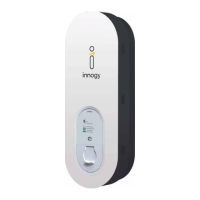
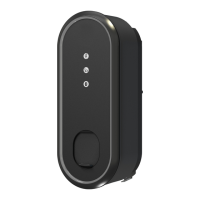
Details the components and features of the eBox professional.
Connect eSmartMeter ports using the provided data cable.
Connect the black ribbon data cable to the eClick expansion terminal.
Connect the white ribbon data cable to the eClick LAN port for communication.
Pull down locking bracket, place eBox, push firmly.
Release bracket and hold eBox in place with one hand.
Ensure locking bracket is fully raised and level with triangle on eBox.
Tighten grub screws to secure the locking mechanism and eBox.
Confirm eBox mounting and power on the eClick circuit.
Technical commissioning by electrician; user configuration via app.
Technical commissioning by electrician; connection to innogy or third-party backend.
Connect electric vehicle to eBox, check LED indicators.
Prohibits use of adapters or extension cables with the eBox.
Authenticate via RFID card or app (e.g., eCharge+).
LED ring pulses blue; vehicle charges. LED status changes.
LED ring lights white again; disconnect cable.
Covers issues like no power source or incorrect cable connection.
Addresses disruptions due to overheating or vehicle issues.
Covers failed authentication via app or unrecognized RFID card.
Indicates communication errors between vehicle and eBox.
Addresses issues with Bluetooth pairing and communication.
Describes device errors requiring immediate disconnection and electrician consultation.
Details charging points, cable length, charging mode, IP code, and weight.
Specifies operating temperature, air humidity, and altitude limits.
Details input power, charging power, output power, and plug assembly.
Covers DC fault current monitoring and overvoltage protection.
Details vehicle, direct, and backend communication methods.
Covers authentication methods like RFID and Plug & Charge.
Describes LED indicators for status and Bluetooth button.
Reference to graphic on the side for notes.
Details personal protection and circuit breaker accessories.
Requirements for using eBox with eClick and charging characteristics.
States eBox is maintenance-free; replace if errors occur.
Guidance on proper disposal of eClick and eBox devices.
Instructions for cleaning the eBox using water only.
Steps for disassembling the eBox from the eClick.
 General
| Charging Power | Up to 22 kW |
|---|---|
| Connector Type | Type 2 |
| Communication | OCPP 1.6 |
| Enclosure Rating | IP54 |
| Mounting Type | Wall-mounted |
| Protection Class | Class I |
| Charging Standard | IEC 61851-1 |
| Authentication | RFID |
| Power Output | 22 kW |
| Charging Cable Length | 5 m |
| Input Voltage | 400 V |
| Input Current | 32 A |
| Dimensions | 400 x 300 x 150 mm |


 To Next Page