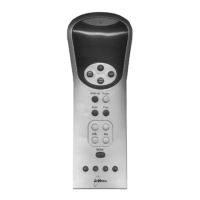
The Innotech Micro 3000 Control Station is a Human Machine Interface (HMI) designed for use with the Innotech Micro 3000 Controller. It features an attractive design and an intuitive Liquid Crystal Display (LCD) interface, allowing users to view and adjust various predefined variables on the Controller.
Function Description:
The Control Station serves as a user-friendly interface for managing and monitoring the Micro 3000 Controller. Its primary functions include:
- Programming Date and Time: Users can set the current date and time, and configure daylight saving settings.
- Schedule Management: The device allows for editing, copying, and deleting weekly and yearly schedules. This includes setting specific ON/OFF times for different days and defining exceptions.
- After Hours Management: Users can view and clear accumulated after-hours run time and adjust the after-hours timer settings.
- System Information Display: The Control Station provides access to information about both the Controller and the Control Station itself.
- Operational Control: It enables users to run/request after-hours operation, adjust set point temperature, adjust fan speed, enable/disable programmed schedules, and set the control mode (Automatic, Heating, Cooling, Fan Only).
Usage Features:
The Control Station's interface is designed for easy navigation and operation, primarily through a set of buttons:
- Power ON/OFF Button: Turns the system on or off.
- Up and Down Buttons (∧∨): Used to increase or decrease values when adjusting settings.
- Left Button (ESC): Exits the current menu and returns to the previous screen. Repeated presses return to the main menu. This button also adjusts fan speed and enables/disables schedules.
- Centre Button (Entr/SAVE/Copy/DEL): This multi-function button performs different actions depending on the current menu or adjustment, such as entering a selection, saving settings, copying schedules, or deleting items.
- Right Button (→): Scrolls through different screens and settings.
The menu structure is hierarchical, allowing users to access various settings:
- Main Menu: Provides access to "Info," "Clock," "Week," "Year," and "After Hours (A/H)" sub-menus.
- Info Menu: Contains "Controller" and "Control Station" information.
- Clock Menu: Allows adjustment of "Time," "Date," and "Daylight Savings."
- Week Menu: For managing "Week Schedule," "Day Selection/Edit," "Schedule Delete," and "Schedule Copy."
- Year Menu: For managing "Year Schedule," "Schedule Edit," "Schedule Delete."
- After Hours (A/H) Menu: For "Adjust A/H Time" and "Accumulated Run Time."
Operational Basics:
- Run Request / After Hours: Press the POWER button to cycle ON or OFF.
- Adjust Set Point Temperature: Use UP/DOWN buttons to adjust.
- Adjust Fan Speed: Press the LEFT button to adjust.
- Enable / Disable Programmed Schedules: Hold down the LEFT button. Yearly schedules take priority over weekly schedules when enabled.
- Set Control Mode: Press the RIGHT button to cycle through Automatic, Heating, Cooling & Fan Only modes.
- View Current Status: Press the CENTRE button to scroll through information like Time, Date, Control State, Set Point, Room Temperature, Ambient Temperature, and Analogue Output Value. The display returns to the default screen after 30 seconds.
- Startup Defaults: Hold the CENTRE and RIGHT buttons to set default start-up values. These settings are saved and retained in case of power loss.
Programming Features:
- Adjusting Time and Date: Accessed via the "Clock" menu. The date format is DD.MM, and time is 24-hour format.
- Configure Daylight Savings: Accessed via the "Clock" menu, allowing users to set the start and stop month/day for daylight saving.
- Edit (Add) Weekly Schedule: Users can select a day, set start and stop times (in 0.5-hour increments), and save the schedule.
- Copy a Weekly Schedule: Allows copying an existing schedule from one day to another.
- Delete Weekly Schedule: Enables deletion of selected weekly schedules.
- Edit (Add) Yearly Schedule (Exception to On and Off / Weekly Override): This feature allows setting specific ON/OFF exceptions for particular days or periods within a year, overriding weekly schedules. Users can define start and stop days/months and times. If only one day exception to OFF is required, the start and stop day must be the same.
- Delete Yearly Schedule: Enables deletion of selected yearly schedules.
- Adjust After Hours Timer: Allows setting the after-hours duration from MAN (Manual On/Off) to 24:00 hours in 0.5-hour increments. When MAN is set, the controller operates in Manual On/Off mode, and schedules must be disabled. The default after-hours setting is 2 hours.
- Reset Accumulated After Hours Run Time: Accessed via the "After Hours" menu, allowing users to view and reset the total accumulated after-hours run time by holding the "CLP" button. Each press of the After Hours button on the default screen adds 0.5 hours to the total.
Technical Specifications (Implied):
- Display: Liquid Crystal Display (LCD).
- Input: Button-based interface.
- Compatibility: Specifically designed for the Innotech Micro 3000 Controller.
- Models: Features may vary slightly between M3K01, M3K02, M3K03, and M3K04 models (e.g., After Hours screen access, schedule visibility, daylight savings configuration).
Maintenance Features:
- Default Settings Retention: Current settings are saved and retained in case of power loss, reducing the need for re-configuration after power interruptions.
- Support Documentation: Innotech provides technical manuals, user instructions, and data sheets online at www.innotech.com.au.
- Customer Assistance: Direct product support is available through local distributors or Innotech representatives via email, fax, or postal mail.
The Micro 3000 Control Station is a comprehensive HMI solution that simplifies the interaction with the Micro 3000 Controller, offering robust control and monitoring capabilities for various building management applications.

 Need help?
 General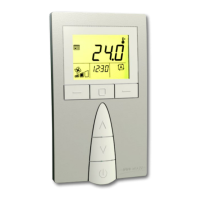

 To Next Page