Micro 3000 Control Station User Instructions
© Mass Electronics Pty Ltd 2013
Edition 1.3 dated 19.11.2013
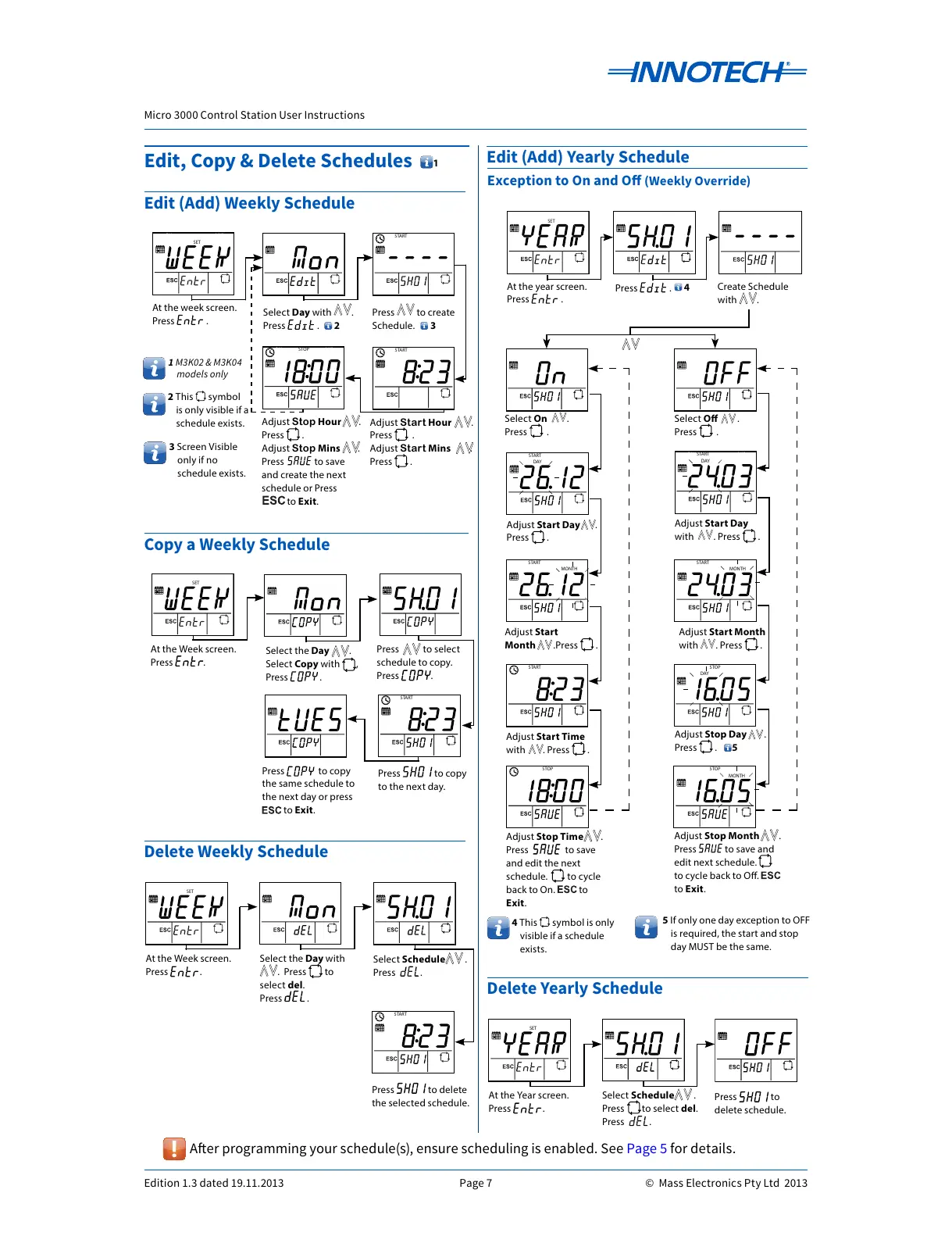
Edit, Copy & Delete Schedules
OFF
Edit (Add) Weekly Schedule
At the week screen.
Press .
Select Day with .
Press .
Press to create
Schedule.
OFF
Adjust Sta rt Hour .
Press .
Adjust Sta rt Mins .
Press .
Adjust Stop Hour .
Press .
Adjust Stop Mins .
Press to save
and create the next
schedule or Press
to Exit.
Edit (Add) Yearly Schedule
OFF
%
At the year screen.
Press .
OFF
Adjust Start Day
with . Press .
OFF
Select O .
Press .
OFF
MONTH
Adjust Stop Month .
Press to save and
edit next schedule.
to cycle back to O.
to Exit.
Exception to On and O (Weekly Override)
OFF
Select On .
Press .
OFF
DAY
Adjust Start Day .
Press .
OFF
MONTH
Adjust Start
Month .Press .
OFF
MONTH
Adjust Start Month
with . Press .
OFF
DAY
Adjust Stop Day .
Press . 5
OFF
Adjust Start Time
with . Press .
OFF
Adjust Stop Time .
Press to save
and edit the next
schedule. to cycle
back to On. to
Exit.
OFF
%
Copy a Weekly Schedule
At the Week screen.
Press .
Press to select
schedule to copy.
Press .
Press to copy
the same schedule to
the next day or press
to Exit.
Select the Day .
Select Copy with ,
Press .
OFF
%
At the Week screen.
Press .
Select the Day with
. Press to
select del.
Press .
Select Schedule .
Press .
Delete Weekly Schedule
OFF
%
Press to copy
to the next day.
OFF
%
Press to delete
the selected schedule.
OFF
%
At the Year screen.
Press .
Delete Yearly Schedule
Select Schedule .
Press to select del.
Press .
OFF
Press to
delete schedule.
OFF
Create Schedule
with .
3 Screen Visible
only if no
schedule exists.
2 This symbol
is only visible if a
schedule exists.
1 M3K02 & M3K04
models only
2 3
1
4
4 This symbol is only
visible if a schedule
exists.
Aer programming your schedule(s), ensure scheduling is enabled. See Page 5 for details.
5 If only one day exception to OFF
is required, the start and stop
day MUST be the same.
All manuals and user guides at all-guides.com



 To Next Page