Using the Diagnostic Tool
CODE RETRIEVAL PROCEDURE
36 3150e
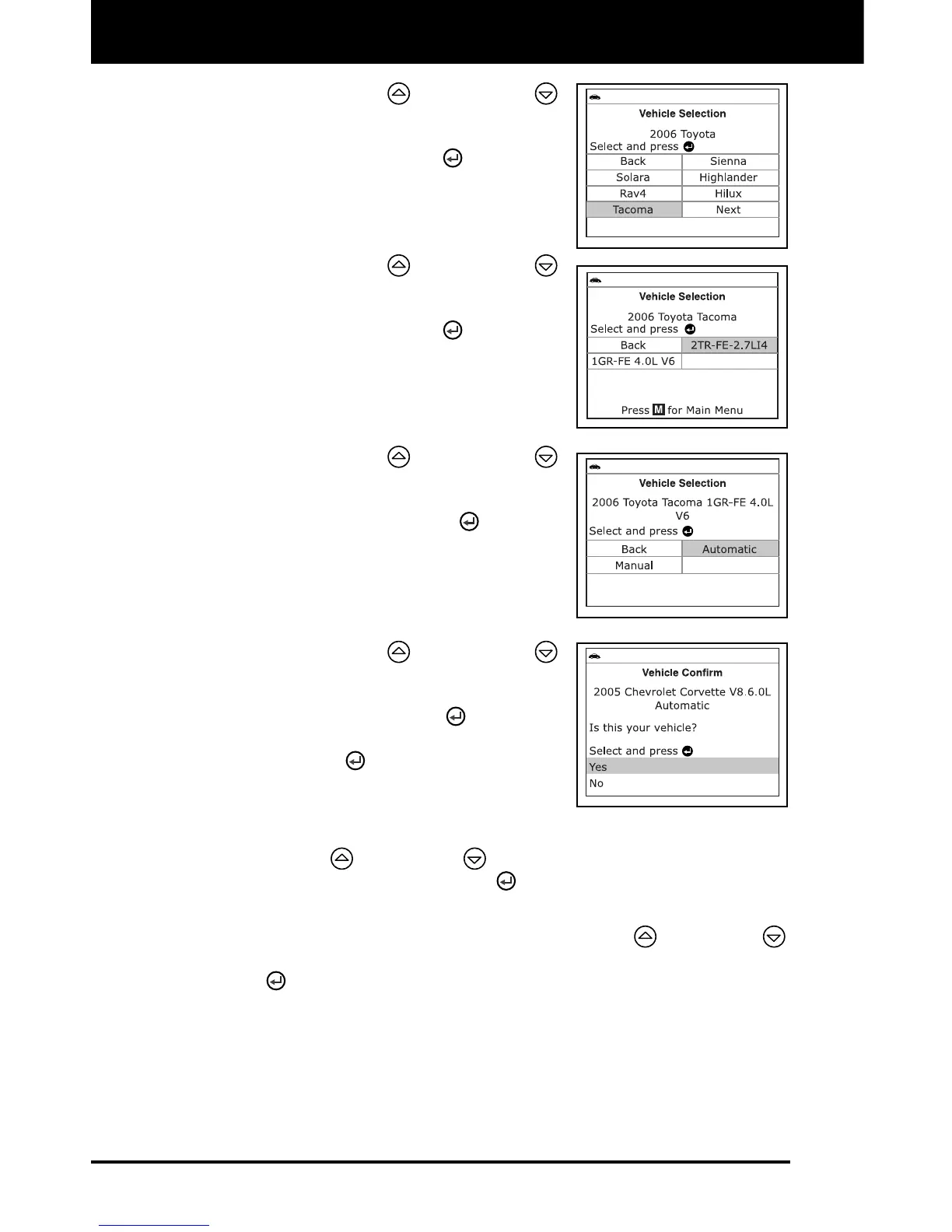
Use the UP and DOWN
buttons, as necessary, to highlight
the desired vehicle make, then
press the ENTER
button to
continue. If necessary, select Next
to view additional options.
- The Select Model screen displays.
Use the UP and DOWN
buttons, as necessary, to highlight
the desired vehicle model, then
press the ENTER
button to
continue. If necessary, select Next
to view additional options.
- The Select Engine screen
displays.
Use the UP and DOWN
buttons, as necessary, to highlight
the desired vehicle engine size,
then press the ENTER
button to
continue. If necessary, select Next
to view additional options.
- The Select Transmission screen
displays.
Use the UP and DOWN
buttons, as necessary, to highlight
the desired transmission type, then
press the ENTER
button to
continue. If necessary, select
ENTER
to view additional
options. The Vehicle Information
screen displays.
If the information shown is correct for the vehicle under test, use
the UP
and DOWN buttons, as necessary, to highlight
Yes, then press the ENTER
button. Proceed to step 10.
If the information shown is not correct for the vehicle under text,
or if you wish to reselect the vehicle, use UP
and DOWN
buttons, as necessary, to highlight No, then press the ENTER
button to return to the Select Year screen.
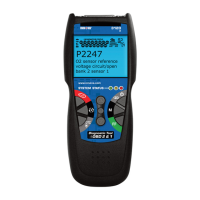
10. After approximately 10~60 seconds, the Diagnostic Tool will retrieve
and display any Diagnostic Trouble Codes, Monitor Status and
Freeze Frame Data retrieved from the vehicle’s computer memory.
The Diagnostic Tool is capable of retrieving and storing up to 32
codes in memory, for immediate or later viewing.
11. To read the display:


 To Next Page