EasyManua.ls Logo

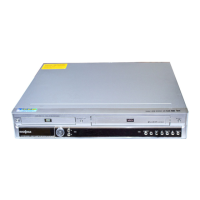
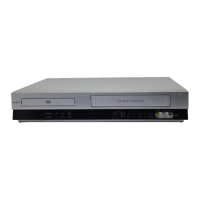
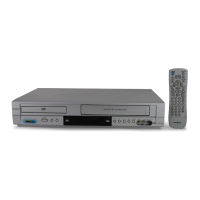
Insignia IS-DVD040924 - User Manual

Insignia IS-DVD040924
40 pages
Print Icon
To Next Page IconTo Next Page
Loading...
V9510MZ.NA1ULI_RV0016Q_ENG
Installation and Operating Guide | Warranty
Model Number | IS-DVD040924 | DVD Player + Video Cassette Recorder

Table of Contents

Questions and Answers

  • L
    Lucas WilliamsAug 17, 2025
    What to do if there is no picture on my Insignia DVD VCR Combo?
    • N
      newmanchristinaAug 17, 2025
      If there's no picture on your TV screen when using the Insignia DVD VCR Combo, first, make sure your TV is set to the correct video input mode to receive the signal from the DVD VCR Combo. Also, ensure the video cable is securely connected to the jacks. If the issue persists, double-check all connections to make sure they are correct.
  • P
    Patrick CharlesAug 20, 2025
    Why is there no sound from my Insignia IS-DVD040924 DVD VCR Combo?
    • N
      Nicole TranAug 20, 2025
      If you're not getting any sound from your Insignia DVD VCR Combo, check these things: * Make sure the equipment connected to the audio cable is set to receive the audio signal. * Ensure the audio cables are securely connected. * Verify that the connected equipment is powered on. * Confirm that the AUDIO options are set correctly.
  • C
    Carolyn BeanAug 22, 2025
    How to fix Insignia IS-DVD040924 remote control not working?
    • P
      Patricia PeckAug 22, 2025
      If the remote control isn't working correctly with your Insignia DVD VCR Combo, try the following: * Make sure there's nothing blocking the path between the remote and the unit. * Replace the batteries with fresh ones. * Point the remote directly at the DVD VCR Combo's remote sensor. * Ensure you're within 23 feet (7 meters) of the unit. * If using VCR functions, press the VCR button first; for DVD functions, press the DVD button first.
  • J
    Jonathan StephensAug 26, 2025
    How to troubleshoot no power on Insignia DVD VCR Combo?
    • A
      Anita RuizAug 26, 2025
      If your Insignia DVD VCR Combo has no power, ensure the power cord is securely plugged into the wall outlet.
  • J
    Joseph MccoyAug 27, 2025
    What to do if Insignia IS-DVD040924 DVD VCR Combo does not start playback?
    • C
      Carolyn KingAug 27, 2025
      If your Insignia DVD VCR Combo isn't starting playback, consider these possible reasons: * You might have inserted a disc that can't be played. Try a playable disc, checking its type and regional code. * The disc might be upside down. Place the disc with the playback side facing down. * The disc might not be correctly placed within the guide. Ensure it's properly positioned on the disc tray inside the guide. * The disc could be dirty. Clean the disc. * The rating level might be set. Cancel the rating function or adjust the rating level.
  • A
    Adriana WhiteAug 30, 2025
    Why is the playback picture poor on my Insignia DVD VCR Combo?
    • N
      nicoletuckerAug 30, 2025
      If the playback picture quality is poor on your Insignia DVD VCR Combo, try these solutions: * Clean the disc if it's dirty. * Check and retune the TV channels. * Clean the video heads. * If using a rental tape or one recorded on another VCR, use CH/TRK (v/V) for manual tracking adjustment during playback. * Ensure your TV supports 525p Progressive scan picture, or set Progressive scan to off.
  • P
    perkinsdonnaSep 1, 2025
    Why is my Insignia IS-DVD040924 not working?
    • M
      Michael BeltranSep 1, 2025
      If your Insignia DVD VCR Combo isn't working, make sure the DVD or VCR button is switched properly. Also, check if a disc or tape is inserted, and ensure the disc or tape indicator in the display window is lit.
  • T
    Timothy LucasSep 4, 2025
    How to fix timer recording not working on Insignia IS-DVD040924 DVD VCR Combo?
    • M
      Megan AtkinsSep 4, 2025
      If timer recording isn't working on your Insignia DVD VCR Combo, make sure the clock is set to the correct time. If that’s not the problem, try reprogramming the timer. Also, ensure the indicator light appears after programming the timer, and turn the DVD VCR Combo off to enable the timer.
  • A
    Anthony DanielsSep 6, 2025
    Why is the camcorder image not showing on Insignia IS-DVD040924?
    • S
      Sydney ThomasSep 6, 2025
      If the camcorder image isn't showing on your Insignia DVD VCR Combo, first, ensure that the camcorder is turned on and functioning correctly. Then, press the INPUT button to select the LINE input channel (LINE1 or LINE2), ensuring that the DVD VCR Combo SOURCE SELECT is set to LINE1 or LINE2.
  • H
    harrisonalexSep 9, 2025
    How to clear 'PROGRESSIVE SCAN MODE' message on Insignia DVD VCR Combo?
    • A
      Angela DixonSep 9, 2025
      If the “PROGRESSIVE SCAN MODE” message persists on your Insignia DVD VCR Combo, and the DVD VCR Combo was turned off while setting the Progressive scan mode, keep pressing the STOP button for more than 5 seconds.

Summary

Introduction to the DVD+VCR

Moisture Condensation Precautions

Prevents damage from temperature changes when moving the unit.

Manual Symbols and Tips

Explains symbols like Note, Tip, and hazard warnings.

Disc Handling and Care

Covers handling, storing, and cleaning discs to maintain quality.

Playable Discs and Terms

Types of Playable Discs

Lists supported disc formats like DVD and Audio CD.

Disc-Related Terms

Defines terms like MP3, WMA, JPEG, Title, Chapter, Track.

DVD Information and Remote Control

Regional Code, Copyrights, and Progressive Scan

Covers region codes, copyright, and progressive scan compatibility.

Remote Control Basics

Details operation range, battery, and source selection.

Front Panel Overview

Component Identification

Identifies and describes front panel buttons and displays.

Display Window Indicators

Explains the meaning of various indicators on the display.

Remote Control Functions

Button Operations

Details the function of each button on the remote control.

Special Button Functions

Explains specific button actions like DISC MENU, AUDIO, SUBTITLE.

Rear Panel Connections

Terminal Identification

Identifies and describes all input/output terminals on the rear panel.

Antenna and Cable TV Connections

Antenna Setup

Guides connecting an antenna for TV reception.

Cable TV Setup

Guides connecting cable TV, with or without a converter.

Basic TV Connection Options

Shows common video/audio connections to a TV.

Advanced TV Connectivity

RF Coaxial Connection

Details connecting via RF out and changing output channels.

Optional TV Connections

Covers Component Video/Progressive Scan and audio connections.

Audio Connection for DVD

Explains connecting to amplifiers for DVD audio.

Audio System Connections

Digital Audio Connections

Guides connecting to amplifiers for digital stereo or multi-channel sound.

Connecting External Components

Shows how to connect audio/video sources to the DVD+VCR.

VCR Initial Setup

General VCR Operation

Basic steps for navigating VCR setup menus.

Clock Setting Options

Explains Auto Clock Set and Manual Clock Set features.

PROGRAM Menu

Introduces the timer recording function.

VCR Tuning and Setup

Tuning Options

Covers channel tuning and Auto Channel Programming.

Add or Erase Channels

Manual process for managing stored channels.

Setup Menu Options

Details FUNCTION OSD, AUDIO MODE, BROADCAST TYPE, and AUDIO OUTPUT settings.

DVD Initial Setup

General DVD Operation

Steps for accessing and navigating the DVD setup menu.

Language Settings

Explains how to set menu, audio, and subtitle languages.

DVD Display Settings

TV Aspect Ratio

Sets aspect ratio for 4:3 or 16:9 TVs.

Display Mode Options

Explains Letterbox and Panscan display modes.

Progressive Scan Setup

Guides enabling progressive scan for higher resolution.

DVD Audio and Other Settings

Audio Output Options

Configures audio output for Dolby Digital, DTS, MPEG, and PCM.

Other DVD Settings

Covers Auto Play and Black Level Expansion (B.L.E.).

DVD Parental Control and Security

Rating and Parental Lock

Sets parental control ratings to block content.

Password and Security Code Management

How to set, change, or reset the security code.

Area Code Configuration

Sets the DVD's area code for disc compatibility.

VCR Operation

Basic Tape Playback

Steps for playing a video cassette.

Auto and Manual Tracking

Adjusts tape tracking for picture clarity.

Tape Search Functions

Locates specific parts of a tape.

Still and Frame-by-Frame Playback

Pauses tape playback and advances frame by frame.

Advanced VCR Playback Features

Slow Motion Playback

Plays tape at a slower speed with visual aids.

Commercial Skip (CM SKIP)

Fast-forwards past commercials automatically.

VHS Hi-Fi Stereo and MTS Broadcast

Explains Hi-Fi stereo sound and MTS stereo/SAP reception.

VCR Tape Recording

Basic Recording Instructions

Steps for direct recording onto a VHS tape.

Simultaneous Recording;Viewing

How to record one program while watching another.

Timer Recording Setup

Guides setting up unattended recordings.

VCR Timer Recording Details

Recording Channel, Speed, and Repeat

Sets recording channel, speed, and repeat options.

Managing Timer Programs

Checks and erases programmed recordings.

Program Priority Rules

Explains how overlapping timer recordings are handled.

VCR Instant Recording

Instant Timer Recording

Records for a preset duration without timer setup.

Extending Recording Time

Adds time to an ongoing recording.

Recording External Sources

Records from connected devices like camcorders or VCRs.

Checking Recording Time

Displays remaining recording time.

DVD to VCR Copying

DVD to VHS Tape Transfer

Steps for copying DVD content to a VHS tape.

VCR Operation Displays

On-Screen Display Functions

Explains functions shown during VCR operation.

Tape Time Counters

Details Real-Time Counter, Counter Memory, and Tape Remaining displays.

Additional VCR Features

Automatic Tape Handling

Behavior at end of tape, rewinding, and ejecting.

VCR Auto Play System

Automatic playback when a tape is loaded.

S-VHS Quasi Playback (SQPB)

Capability to play S-VHS tapes.

Extended Data Service (XDS)

Displays program details from broadcast signals.

DVD Playback

Playback Setup

Initial steps for playing a DVD, including source selection.

General Playback Features

Navigating titles, chapters, and basic playback controls.

Slow Motion Playback

How to play DVDs in slow motion.

Advanced DVD Playback Controls

Still and Frame-by-Frame Playback

Freezing frames and advancing one by one.

DVD Search Functions

Searching by time, markers, or speed.

Repeat Playback Options

Repeating chapters, titles, or sequences.

Zoom Feature

Enlarging the video image during playback.

DVD Playback Memory and Features

Last Scene Memory and Screen Saver

Remembers last viewed scene and activates screen saver.

DVD Disc Menu Navigation

Accessing and using disc menus for special features.

Playback Customization

Adjusting camera angle, audio language, and subtitles.

DVD On-Screen Display

Displaying Playback Status

Shows current playback information on screen.

Maintenance and Service

Unit Handling and Cleaning

Proper procedures for shipping, cleaning, and maintenance.

Audio CD and MP3;WMA Playback

Audio CD Playback

Playing standard audio CDs.

MP3;WMA Disc Compatibility

Details compatibility requirements for MP3/WMA files.

ID3 Tag Information

Displays song, artist, and album info from files.

Audio CD;MP3;WMA Control Features

Playback Controls

Pause, track skipping, and repeat functions for audio discs.

Random and Sequence Playback

Random playback and A-B sequence repeat.

Disc Search Function

Searching within audio CDs or MP3/WMA discs.

Programmed Playback

Creating a Program List

Storing favorite tracks into a program.

Managing Programmed Tracks

Repeating programmed tracks and erasing entries.

JPEG Photo Disc Viewing

JPEG Disc Navigation and Viewing

Browsing folders and viewing JPEG files.

Slide Show and Still Picture

Features for automated or single-image viewing.

JPEG File Compatibility

Requirements and limitations for JPEG file playback.

Reference Information

Language Code List

List of codes for setting language preferences.

Area Codes List

List of area codes for DVD region compatibility.

Troubleshooting Guide

Power, Picture, and Sound Issues

Solutions for no power, no picture, no sound.

Picture Quality and Progressive Scan Problems

Addresses poor picture and progressive scan display issues.

Troubleshooting Common Issues

Playback and Remote Control Problems

Solutions for discs not playing, remote not working.

Recording and Timer Issues

Troubleshooting timer recording and camcorder input problems.

Product Specifications

General and Input;Output Specs

Details power, dimensions, signal systems, and connections.

VCR and DVD Specifications

Technical details for VCR and DVD functions.

Limited Warranty Information

Warranty Terms and Conditions

Details coverage, exclusions, and claims process.

Customer Service and Contact

Information for obtaining warranty service and support.

Insignia IS-DVD040924 Specifications

General IconGeneral
BrandInsignia
ModelIS-DVD040924
TypeDVD VCR Combo
DVD PlayerYes
VCR PlayerYes
Playable Media FormatDVD, VHS
VCR TypeVHS
Region Code1
Video OutputComposite Video
Playback FormatsDVD, VHS
Recording FormatsVHS
Output Resolution480i
Remote ControlYes
Audio OutputStereo
ConnectivityComposite

Related product manuals