EasyManua.ls Logo

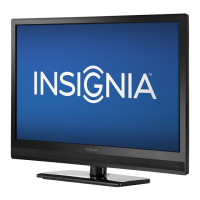
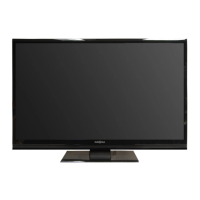
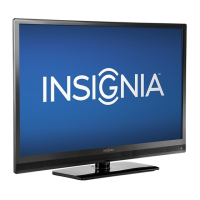
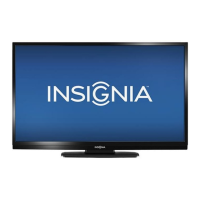
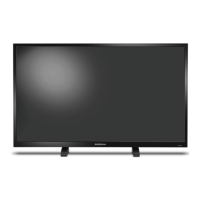
Insignia NS-32D420NA16 - User Manual

Insignia NS-32D420NA16
79 pages
Print Icon
To Next Page IconTo Next Page
Loading...
USER GUIDE
Before using your new product, please read these instructions to prevent any damage.
32" 1080p 60Hz LED TV
NS-32D420NA16

Table of Contents

Other manuals for Insignia NS-32D420NA16

Questions and Answers

  • K
    Kimberly ButlerSep 23, 2025
    Why does my Insignia NS-32D420NA16 cabinet creak?
    • B
      Bradley JacksonSep 23, 2025
      When the Insignia TV is in use, the temperature rises naturally and may cause the cabinet to expand or contract, which can cause a creaking noise. This is not a malfunction.
  • P
    perezemilyAug 23, 2025
    What to do if my Insignia NS-32D420NA16 has no picture and sound?
    • B
      Brandon HunterAug 23, 2025
      If your Insignia TV has no picture (screen is not lit) and no sound, try the following: - Press the power button on the TV or remote. - Ensure 'Audio Only' is off. - Check that video cables are correctly and securely connected. - Adjust contrast and brightness. - Verify the power adapter is plugged into a working outlet. - Press INPUT to select the correct video source. - Try another channel. - Ensure the incoming signal is compatible. - Check the antenna or cable TV connection. - Review closed caption settings to ensure TEXT modes aren't blocking the screen.
  • M
    Michael RoblesAug 25, 2025
    Why does my Insignia NS-32D420NA16 have picture but no sound?
    • J
      Joshua CarlsonAug 26, 2025
      If your Insignia TV has a good picture but no sound, try these steps: 1. Increase the volume and make sure the sound isn't muted. 2. Ensure headphones are disconnected. 3. Press AUDIO to change the audio mode. 4. If using a home theater system or sound bar, ensure it's on, not muted, and the correct output mode is selected. 5. For digital optical cable connections, set the Audio Format option to PCM in the Audio menu. 6. Check that the audio cables, antenna, and cable TV are securely connected. 7. If you are using an antenna, the digital channel signal may be low. 8. Try a new set of audio cables.
  • M
    mcarrollAug 27, 2025
    Why does my Insignia TV have no power?
    • M
      Melissa WilliamsAug 27, 2025
      If your Insignia TV has no power, ensure the power adapter is plugged into a working outlet. Unplug the power adapter, wait 60 seconds, then plug it back in and turn on your TV. Also, other devices may be interfering with your TV. Try turning off one device at a time to determine which device is causing interference. After you have determined which device is causing interference, move it further from the TV to eliminate the interference.
  • A
    April TurnerAug 27, 2025
    Why is my Insignia NS-32D420NA16 TV screen dark but sound is good?
    • D
      Dana Rodriguez DDSAug 27, 2025
      If your Insignia TV has dark, poor, or no picture (but the screen is lit) and the sound is good, try changing channels to rule out station issues. Ensure the antenna or cable TV is securely connected. Adjust the brightness settings or change the picture mode. If you are using an antenna, the digital channel signal may be low. Also, check that the video cables are properly connected or try a new set of video cables.
  • J
    Juan Rollins DDSSep 16, 2025
    Why can't I access some settings on my Insignia NS-32D420NA16?
    • M
      michael03Sep 16, 2025
      If some settings are grayed out on your Insignia TV, they are not available in the current video input mode (for example, TV mode). Change to a different video input source.
  • D
    Dustin HudsonSep 13, 2025
    What to do if Insignia NS-32D420NA16 control buttons don't work?
    • R
      Ronald HornSep 13, 2025
      If the control buttons on your Insignia TV do not work, ensure that the Button Lock option is set to Off. You can also try unplugging the power adapter, waiting a few seconds, then plugging it back in and turning on your TV.
  • J
    Joseph BrooksSep 14, 2025
    How to reset parental control password on Insignia NS-32D420NA16?
    • B
      barbara40Sep 15, 2025
      If you've lost the password for your Insignia TV, enter 9999 to access parental controls, then set a new password.
  • A
    andrearobinsonSep 5, 2025
    How to improve color on Insignia NS-32D420NA16 TV?
    • D
      Daniel KnightSep 6, 2025
      If your Insignia TV has good sound but poor color, adjust the contrast, color, and brightness settings.
  • R
    Rebecca GentrySep 3, 2025
    Why is my Insignia NS-32D420NA16 showing only snow?
    • Q
      qmunozSep 3, 2025
      If your Insignia TV screen only shows snow (noise), try changing to another channel as the station may be experiencing problems. Also, make sure that the antenna or cable TV is connected correctly and securely. If you are using an antenna, the digital channel signal may be low. If you are using an antenna and the signal strength is low, adjust the antenna or use a highly directional outdoor antenna or set-top antenna with a built-in amplifier.

Summary

Child Safety Guidelines

Proper Television Placement Matters

Guidelines for safely placing televisions to prevent tip-over injuries.

Tune In to Safety Recommendations

General safety recommendations for TV installation and use.

Wall or Ceiling Mount Your Television

Instructions and warnings for mounting a TV on a wall or ceiling.

Important Safety Instructions

General Safety Precautions

Covers numbered safety instructions from points 1-18.

Handling the LCD Panel

Precautions for safely handling the glass LCD panel and its liquid contents.

Lightning Protection Measures

Steps to take during lightning storms to protect the TV.

Power Line Safety Warnings

Warnings about positioning antennas near power lines.

Product Servicing and Operation Safety

Replacement Parts and Servicing Guidelines

Guidelines for replacement parts and servicing by qualified personnel.

Power Source and Operation Precautions

Ensuring correct power source and precautions for operation.

Damage Requiring Service and Grounding

Conditions requiring service and outdoor antenna grounding.

Installing TV Stands or Wall-Mount Bracket

Installing the TV Stands

Step-by-step guide to attach the TV stands to the television.

Wall-Mount Bracket Preparation

Notes regarding stand installation when planning for wall mounting.

Installing a Wall-Mount Bracket

Warning for Secure TV Mounting

Critical warning about securely attaching the bracket using all four holes.

Attaching the Wall-Mount Bracket

Securing the Bracket to the TV

Procedure for attaching the wall-mount bracket using mounting holes.

Remote Control Guide

Remote Control Buttons and Functions

Explanation of each button's purpose on the remote control.

Remote Control Operation

How to turn the TV on/off, enter numbers, and use other functions.

Connecting a Cable or Satellite Box - HDMI

Connecting a Cable or Satellite Box - Component Video

Connecting a Cable or Satellite Box - AV Composite

Connecting a Cable or Satellite Box - Coaxial

Connecting a DVD or Blu-ray Player - HDMI

Connecting a DVD or Blu-ray Player - Component Video

Connecting a DVD or Blu-ray Player - AV Composite

Connecting a Game Console - HDMI

HDMI Connection Steps

Steps for connecting a game console using an HDMI cable.

Connecting a Game Console - Component Video

Connecting a Game Console - AV Composite

Connecting a Computer

HDMI Connection for Computer Use

Instructions for connecting a computer to the TV using HDMI.

Connecting the TV to Power

Power Adapter Connection Procedure

Procedure for connecting the power adapter to the TV and a power outlet.

Power Connection Cautions

Important notes on power source and unplugging the adapter.

Using the Remote Control

Installing Remote Control Batteries

Guide to inserting AAA batteries into the remote control.

Initial TV Setup Wizard

First-Time Power On and Setup

Guide for turning on the TV for the first time and using the Easy Setup wizard.

Choosing Setup Mode (Home vs. Store)

Selecting between Home Use Mode and Store Display Mode.

Initial TV Setup Wizard (Continued)

Customizing Setup Options

Configuring language, time zone, and input labels during initial setup.

Adjusting Picture Settings

Adjusting TV Picture Quality

Guide to modifying picture settings for optimal viewing.

Adjusting Picture Settings (Continued)

Aspect Ratio Adjustment

Changing how the picture fills the screen using various aspect ratio options.

Setting Power-On Picture Mode

Adjusting Sound Settings

Customizing audio modes, balance, bass, treble, and TV speakers.

Adjusting Sound Settings (Continued)

Selecting Audio Output Mode

Choosing how audio is outputted when headphones or external speakers are connected.

Setting Parental Controls

Setting or Changing the Password

Procedure to set or change the parental control password.

Setting Parental Controls (Continued)

Blocking Unrated TV Programs

Configuring the TV to block programs without ratings.

U.S. and Canadian Rating Locks

Detailed options for locking movie and TV ratings.

Setting Parental Control Levels

Adjusting rating levels for U.S. and Canadian content.

Locking Control Buttons

Troubleshooting Common Problems

Troubleshooting Common Problems (Continued)

Updating TV Firmware

Procedure for updating the TV's software via USB.

Restoring Settings to Defaults

Resetting all customized settings to factory defaults.

Video and Audio Troubleshooting

Solutions for common picture and sound issues.

Customizing TV Settings (Easy Setup)

Rerunning the Easy Setup wizard to configure settings.

Insignia NS-32D420NA16 Specifications

General IconGeneral
Screen Size32 inches
Display TechnologyLED
Refresh Rate60Hz
Smart TVNo
HDMI Ports3
USB Ports1
Backlight TypeLED
InputsHDMI, USB, Composite
Resolution720p (HD)
Audio Output10W x 2

Related product manuals