EasyManua.ls Logo

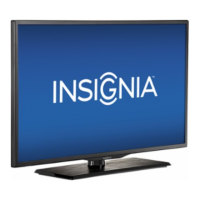
Insignia NS-32E440A13 - User Manual

Insignia NS-32E440A13
58 pages
Print Icon
To Next Page IconTo Next Page
Loading...
NS-32E440A13
User Guide
32" 1080p LED TV

Table of Contents

Other manuals for Insignia NS-32E440A13

Questions and Answers

  • D
    Dustin GlennSep 9, 2025
    Why does my Insignia NS-32E440A13 show only snow?
    • M
      Melissa PhillipsSep 10, 2025
      If your Insignia LED TV displays only snow (noise) on the screen, try another channel as the station may be experiencing problems. Make sure that the antenna or cable TV is connected correctly and securely. If you are using an antenna, the digital channel signal may be low. If you are using an antenna and the signal strength is low, adjust the antenna or use a highly directional outdoor antenna or set-top antenna with a built-in amplifier.
  • K
    Kevin FreemanSep 8, 2025
    Why does my Insignia NS-32E440A13 LED TV have no picture and sound?
    • J
      Jackie AllenSep 8, 2025
      If your Insignia LED TV has no picture (screen is not lit) and no sound, press the power button on the TV or the remote control. Make sure that the Audio Only option is set to Off. Ensure that the video cables are connected securely to your TV. Adjust the contrast and brightness. Also, make sure that the power cord is plugged in and that the correct video input source is selected. Try another channel as the station may be experiencing problems. Make sure that the incoming signal is compatible. Check the closed caption settings, as some TEXT modes can block the screen. Make sure that the antenna or cable TV is connected correctly and securely.
  • M
    Matthew KempSep 7, 2025
    What to do if my Insignia NS-32E440A13 says no signal?
    • K
      Kimberly ShawSep 7, 2025
      If your Insignia LED TV displays a 'No Signal' error, first, press the INPUT button to ensure you've selected the correct input for your device or service. If you're using a cable or satellite box, use its remote to change channels. Also, verify that you've selected the correct input to view channels from the cable or satellite box.
  • A
    Anthony MaynardAug 22, 2025
    Why is my Insignia NS-32E440A13 LED TV remote not working?
    • G
      Gabriel DominguezAug 22, 2025
      If your Insignia LED TV remote control isn't working, ensure the power cord is correctly connected to both the TV and the power outlet. Remove any obstructions between the remote and the sensor on the front of the TV, and point the remote directly at the sensor. Also, make sure you've removed any plastic wrapping from the batteries, that the batteries are installed correctly, and replace dead batteries with new ones.
  • J
    Jennifer ThorntonSep 4, 2025
    How to improve Insignia LED TV picture quality?
    • A
      Austin RobbinsSep 5, 2025
      If your Insignia LED TV has a poor picture, make sure that the room is not too bright, as light reflecting off the screen can make the picture difficult to see. If an S-VHS camera or a camcorder is connected while another connected device is turned on, the picture may be poor, so turn off one or more devices.
  • L
    lcarrSep 3, 2025
    How to adjust Insignia NS-32E440A13 screen size?
    • H
      hannahprinceSep 3, 2025
      If the picture on your Insignia LED TV does not fill the screen and there are black bars around it, change the aspect ratio. An increasing amount of digital TV and movies are presented in wide screen (16:9).
  • G
    ghodgeSep 2, 2025
    Why is there no sound from one speaker on my Insignia NS-32E440A13 LED TV?
    • E
      Erik AdamsSep 2, 2025
      If your Insignia LED TV has no output from one of the speakers, adjust the audio balance. Make sure that the audio cables are connected correctly and securely to your TV.
  • C
    Christopher BakerSep 1, 2025
    Why is the color bad on my Insignia NS-32E440A13 LED TV but the sound is good?
    • R
      Robin MataSep 1, 2025
      If your Insignia LED TV has good sound but poor color, adjust the contrast, color, and brightness settings.
  • T
    Timothy CookAug 31, 2025
    Why is Insignia NS-32E440A13 picture quality poor on some channels?
    • B
      Brittany RileyAug 31, 2025
      If your Insignia LED TV picture quality is good on some channels but poor on others and the sound is good, the problem may be caused by a poor or weak signal from the broadcaster or cable TV provider. If you connect to cable or satellite TV without a set-top box and experience poor picture quality, you may need to install a set-top box to improve signal reception and picture quality. Contact your cable or satellite TV provider about upgrading to a set-top box.
  • S
    shawnaguilarAug 29, 2025
    Why is the color off on my Insignia NS-32E440A13 LED TV?
    • S
      Sarah CannonAug 30, 2025
      If your Insignia LED TV has no color, dark picture, or the color is not correct, try another channel as the station may be experiencing problems. Adjust the color settings. Make sure that the video cables are connected correctly and securely to your TV. Make sure that the antenna or cable TV is connected correctly and securely. If you are using an antenna, the digital channel signal may be low. If you are using an antenna and the signal strength is low, adjust the antenna or use a highly directional outdoor antenna or set-top antenna with a built-in amplifier.

Summary

Safety and Installation

Child Safety and TV Mounting

Safety tips for preventing tip-overs and proper wall mounting.

Initial TV Setup and Remote

Guide for first-time setup and remote control battery installation.

Picture and Sound Settings

Adjusting TV Picture

Fine-tune brightness, contrast, color, and other visual parameters.

Channel and Content Management

Changing Channel Settings

Manage TV channels, including scanning, hiding, and favorites.

Advanced Features and Media

INlink Feature Management

Manage HDMI CEC device control settings and auto power options.

USB Media Playback

Access and view media files from a USB flash drive.

Troubleshooting Common Issues

Safety and Installation

Child Safety Guidelines

Safety tips for preventing tip-overs and proper wall mounting.

Wall Mounting Safety

Safety considerations and instructions for mounting the TV on a wall.

Important Safety Instructions

Electrical Safety Precautions

Key precautions for preventing electric shock and fire hazards.

Appliance Handling and Placement

Guidelines for safe operation, ventilation, and placement of the TV.

Operational and Environmental Precautions

Power Source and Servicing

Information on correct power connection and when to seek professional service.

Environmental Considerations

Advice on operating conditions, condensation, and interference.

TV Installation Procedures

Attaching the TV Stand

Step-by-step guide to securely attach the TV stand.

Mounting the TV Bracket

Instructions for attaching a wall-mount bracket to the TV.

TV Components and Front Controls

Package Contents

Lists all items included in the product packaging.

Front Panel Controls

Identifies and explains the functions of the TV's front panel buttons.

Rear Panel Connections Guide

Remote Control Operations

Choosing the Best Connection Type

Connecting Power and Satellite Box

Connecting the TV Power

Step-by-step instructions for connecting the TV to a power outlet.

Connecting a Cable or Satellite Box via HDMI

Guide for connecting a cable/satellite box using the HDMI interface.

Connecting Devices via DVI and Component Video

Connecting via DVI

Instructions for connecting devices using a DVI interface for video and audio.

Connecting via Component Video

Steps for connecting devices using component video cables for better quality.

Connecting Devices via Composite and Coaxial

Connecting via Composite Video

Guide for connecting devices using composite video (AV) cables.

Connecting via Coaxial Cable

Instructions for connecting an antenna or cable TV using a coaxial cable.

Connecting Antenna or Cable TV (No Box)

Connecting DVD and Blu-ray Players

Using HDMI Connection

Steps for connecting disc players using HDMI for superior video and audio.

Using DVI Connection

Instructions for connecting disc players via DVI with audio considerations.

Connecting Other AV Devices

Connecting Component and Composite Video

Guide for connecting players using component/composite video for enhanced quality.

Connecting Legacy and Gaming Devices

Connecting a VCR

Steps for connecting older VCR devices to the TV.

Connecting Camcorders and Game Consoles

Guide for connecting multimedia devices like camcorders and consoles.

Connecting a Computer to the TV

Connecting via VGA

Instructions for connecting a computer using a VGA cable.

Connecting via HDMI

Guide for connecting a computer using HDMI for higher quality display.

Connecting USB and Audio Devices

Connecting a USB Flash Drive

How to connect and use a USB drive for media playback.

Connecting Headphones

Instructions for connecting headphones for private listening.

Connecting Home Theater Systems

Using Digital Audio Connection

Guide for connecting audio systems via digital optical cable.

Using Analog Audio Connection

Instructions for connecting audio systems via analog 3.5mm cable.

Advanced Remote Control and System Connections

Connecting Multiple Devices to Home Theater

Guidance on connecting various devices to a home theater system.

Remote Control Battery Installation

Steps for correctly inserting batteries into the remote control.

Initial TV Setup Wizard

Channel Setup and Scanning

Basic TV Operations and Input Selection

Selecting Video Input Source

How to switch between different connected video sources.

Navigating TV Menus

Selecting Channels

Procedures for tuning to specific channels or browsing lists.

Adjusting Volume

How to increase, decrease, or mute the TV's audio volume.

Viewing TV Information

Channel Information Display

How to view details about the current channel and program.

Adjusting TV Picture Settings

Advanced Picture Adjustments

Aspect Ratio Options

Explanation of different aspect ratio settings (Normal, Zoom, Wide, Cinema, Auto).

Adjusting Computer Image Settings

Configuring Computer and Component Video Settings

Computer Settings Configuration

Adjusting settings specific to computer input, like auto-adjust and position.

Setting Power-On Picture Mode

Resetting TV Settings and Banner Display

Resetting to Default Settings

Restoring all customized TV settings to their factory default values.

Adjusting Audio Settings

Advanced Audio Options

Playing TV Audio Only Mode

Managing Channel Settings

Automatic Channel Scanning

Performing an automatic scan to find and organize TV channels.

Hiding Channels

Favorite Channels and Channel Labeling

Setting Up Favorite Channels

Creating a personalized list of preferred channels for quick access.

Checking Digital Signal Strength

Parental Control Setup

Setting and Changing the Password

Establishing or modifying the parental control access code.

Downloading Rating Information

Locking TV Buttons and Blocking Content

Locking Control Buttons

Disabling physical buttons on the TV to prevent unauthorized use.

Blocking Unrated TV Programs

Restricting access to programs that do not have a content rating.

Setting Parental Control Levels

Configuring Parental Locks

Managing Closed Captioning

Enabling;Disabling Closed Captioning

Activating or deactivating the closed captioning feature for dialogue display.

Closed Captioning Modes and Styles

Selecting Analog Captioning Mode

Choosing display styles for analog closed captions (CC1-CC4, Text1-Text4).

Customizing Digital Caption Styles

Tailoring the appearance of digital closed captions (size, font, color).

Digital Closed Captioning Customization

Setting the TV Clock

Configuring Time and Sleep Timer

Setting the Sleep Timer

Scheduling the TV to automatically turn off after a set period.

Adjusting Menu Language

Labeling Input Sources

Restoring Default Settings

INlink Feature Management

INlink Control Settings

Manage HDMI CEC device control settings and auto power options.

Viewing INlink Compatible Devices

Using USB Flash Drive for Media

Switching to USB Mode

Selecting the USB input source to access connected flash drives.

Browsing USB Photos

Navigating and viewing image files from a connected USB drive.

Viewing and Managing USB Photos

Viewing Favorite USB Photos

Accessing photos previously marked as favorites from a USB drive.

Viewing Photos in Slideshow

Playing image files automatically in a slideshow format.

Customizing Slideshow and TV Maintenance

Customizing Slideshow Settings

Adjusting slideshow parameters like repeat, shuffle, speed, and transition effects.

Troubleshooting Video and Audio

Troubleshooting Common Problems

Picture and Sound Issues

Addressing problems like no picture, poor picture, or no sound.

Troubleshooting Remote Control and General Issues

Remote Control Not Working

Steps to resolve issues with the TV's remote control.

General TV Problems

Solutions for common issues like no power or "no signal" messages.

Product Specifications

Programming Universal Remotes

Legal and Compliance Notices

One-Year Limited Warranty Information

Insignia NS-32E440A13 Specifications

General IconGeneral
Screen Size32 inches
Display TypeLED
Resolution1366 x 768
Refresh Rate60Hz
HDMI Ports3
USB Ports1
Smart TVNo
Built-in Wi-FiNo
Energy Star CertifiedYes

Related product manuals