
 Need help?
Do you have a question about the Insignia NS-PU99501 and is the answer not in the manual?
Details the technical specifications and capabilities of the USB to Serial Adapter Cable.
Lists all items included in the product packaging.
Outlines the hardware and software prerequisites for using the adapter.
Step-by-step instructions for automatic driver installation on Windows 7/8.
Steps to download and install the driver for Mac OS X.
Procedure to confirm the adapter is detected and installed correctly on Mac.
Details compliance with FCC rules for radio frequency emissions.
Information regarding Canadian compliance standards (ICES-003).
Defines key terms used in the warranty policy.
Specifies the length of the warranty period.
Explains what is covered and what is not covered by the warranty.
Details how to obtain service and where the warranty is valid.
Lists conditions and damages not covered by the warranty.
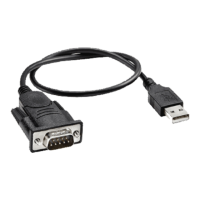
The Insignia USB to Serial Adapter Cable (models NS-PU99501 and NS-PU99501-C) acts as a bridge, enabling communication between a USB port on a computer, router, or hub and a standard serial (RS-232) device equipped with a DB9P male connector. This cable is designed to be plug-and-play compatible, adhering to the USB 1.1 specification, and offers a data transfer rate of 115 kbps. It also includes a Debug UART for debugging and code development, with readily available USB device drivers.
To ensure safe and proper operation, it is crucial to follow the important safety instructions provided in the user guide. Always keep the user guide for future reference and store the equipment away from humidity. When setting up the device, ensure it is placed on a reliable flat surface. In the event of any issues such as exposure to moisture, physical damage (e.g., being dropped, obvious signs of breakage), or if the equipment is not functioning correctly, it should be checked by a service technician. The user guide emphasizes that the equipment should not be used if it has been exposed to moisture, dropped, or shows signs of breakage, or if it fails to operate as described.
Installation of the driver varies depending on the operating system. For Windows 7 or Windows 8, the driver can be installed automatically via Windows Update. Users simply need to ensure an active internet connection, plug the adapter cable into a USB port, and Windows will search for, download, and install the necessary driver. If Windows Update doesn't automatically install the driver, users can manually update it through the Device Manager by right-clicking the USB-Serial Controller device and selecting "Update Driver." This process involves Windows searching online for the correct software and installing it automatically.
For other versions of Windows, the driver can be downloaded manually from the Insignia product support website. After navigating to www.insigniaproducts.com, users should go to the "Support & Service" section, enter the model number (NS-PU99501) to find the product page, and then download the "Driver - PC English" under "Drivers, Firmware and Software." If an internet connection is unavailable on the target computer, the driver can be downloaded to a USB flash drive using another computer and then run from the flash drive. Once downloaded, the driver installation wizard (e.g., PL2303_Prolific_DriverInstaller_vX.X.X.exe) should be executed. The wizard will guide the user through the installation process, which involves clicking "Next" to start the installation and "Finish" to complete it and restart the computer. After the driver is installed and the computer restarts, the RS-232 connector can be connected to the serial device, making it ready for use.
Linux users benefit from a simpler installation process, as no specific drivers are required for the Linux Operating System.
For Mac OS X, the driver installation also involves downloading the appropriate driver from the Insignia product support website. Similar to Windows, users should ensure an internet connection, visit www.insigniaproducts.com, and locate the "Driver - Mac English" under "Support/Downloads." After downloading, the file (e.g., md_PL2303_MacOSX10_6_dmg_vX.X.X) needs to be unzipped, and the .dmg file should be clicked to start the installation wizard. The wizard will present an "Install Prolific USB to Serial Cable Driver v1.4.0 for Mac OS X" screen. Users will click "Continue" to proceed with the installation, following the on-screen instructions. The installation process will involve clicking "Install" and potentially changing the installation location if desired. Once the software finishes installing, a prompt will appear to restart the computer. After closing all programs and clicking "Restart," the computer will reboot. To verify successful installation, users can connect the USB end of the adapter cable to an available USB port on their Mac and check the "USB Hardware" section within "System Profiler" for "USB-Serial Controller," "USB-Serial Controller D," or "IEEE-1284 Controller." A dialog box might also appear indicating that a new network interface has been detected.
The device is designed for ease of use and broad compatibility across various operating systems, making it a versatile tool for connecting legacy serial devices to modern USB-enabled systems. Its plug-and-play nature for Windows 7/8 and driver-free operation for Linux simplify the setup process, while clear instructions are provided for manual driver installation on other Windows versions and Mac OS X.
 General
| Type | Power Adapter |
|---|---|
| Connector A | NEMA 5-15P |
| Input Voltage | 100-240V AC |
| Output Voltage | 5V DC |
| Connector Type | Barrel |



 To Next Page