EasyManua.ls Logo

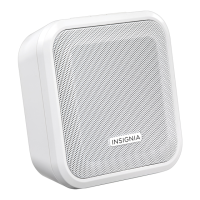
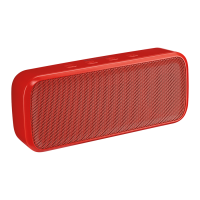
Insignia NS-SPBTBRICK - User Manual

Insignia NS-SPBTBRICK
2 pages
Print Icon
To Next Page IconTo Next Page
Loading...
Quick Setup Guide
|
NSSPBTBRICK
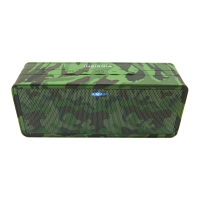
Bluetooth Stereo Speaker with Powerbank
Before using your new product, please read these instructions to prevent any damage.
CHARGING AN EXTERNAL DEVICE
1 Open the port cover on the back of the speaker.
2 Plug one end of a USB cable into your external device and the other
end into the DC OUT port on the speaker.
3 Switch the ON/OFF switch to . Your external device is being
charged.
CONNECTING WITH BLUETOOTH
1 Make sure that your Bluetooth device is turned on and within 33 feet
(10 meters) of your speaker.
2 On your speaker, press and hold the button. Your speaker enters
pairing mode, and the LED on your speaker blinks. Your speaker
remains in pairing mode until it pairs with a Bluetooth device.
Note: Press and hold the button to return to pairing mode.
3 Turn on your Bluetooth device and turn on Bluetooth. Set your device
to pairing mode, then select NS-SPBTBRICK. See the instructions that
came with your Bluetooth device for information about pairing.
4 If you are asked for a password, enter 0000. When pairing is
complete, the LED on your speaker lights solid blue.
5 To disconnect from the paired Bluetooth device, press and hold the
button on your speaker for three seconds. You will hear a beep. Your
speaker disconnects from the Bluetooth device and enters pairing
mode again.
SAFETY INSTRUCTIONS
Never expose the product to re as this could result in personal injury.
Do not store the product in an extremely cold or warm environment.
Never dismantle the product.
Never let children play with the product.
Do not expose the product to dampness or moisture.
The product should not be exposed to dripping or splashing.
CHARGING YOUR SPEAKER
1 Connect the small end of the charging cable to the micro USB port on
the back of your speaker.
2 Connect the other end to a USB port on your computer.
Note: When the battery is low, you will hear beeps. About ve minutes later, the
speaker will power o automatically.
TURNING YOUR SPEAKER ON AND OFF
Slide the ON/OFF to ON. The LED indicator blinks quickly and the
speaker enters pairing mode.
PACKAGE CONTENTS
• Bluetooth speaker
• USB cable
Quick Setup Guide
FEATURES
Wirelessly stream from any Bluetooth device
Rechargeable battery lasts up to 30 hours
Integrated power bank charges your mobile devices
• Water-resistant body
Top view
Back view
LED
Blinks blue
Solid blue
DESCRIPTION
Speaker is in pairing mode
Speaker is paired OR an AUX device is connected
CHARGING INDICATOR
Solid red
O
DESCRIPTION
Charging
Fully charged
Your speaker loses the
Bluetooth connection if you...
Turn o your speaker.
Move the Bluetooth device out
of range.
Turn o your Bluetooth device.
Turn o Bluetooth on your
Bluetooth device.
Connect your Bluetooth device
to another Bluetooth device.
To reconnect...
Turn on your speaker. Your speaker searches
for the last connected Bluetooth device and
reconnects.
Make sure that your Bluetooth device is
within 33 feet of your speaker.
Turn on your Bluetooth device, then make
sure that Bluetooth is on.
Turn on Bluetooth on your Bluetooth device.
Disconnect your Bluetooth device from the
other Bluetooth device, then set your device
to pairing mode. Select NS-SPBTBRICK on
your Bluetooth device.
Microphone
LED indicator
Play/pause/phone
Bluetooth pairing
Previous
Next
Volume down
Volume up
Charging indicator
AUX IN jackDC OUT
ON/OFF/000
switch
Micro USB charging port
RECONNECTING TO A PAIRED DEVICE
When your speaker is not paired to a device, the LED blinks blue.
Notes:
If a device does not automatically reconnect, you may need to reselect
NS-SPBTBRICK on your Bluetooth device.
If you move your device out of range, it will remain paired for 10 minutes, but
no sound will come from the speaker until you come back within range. After
10 minutes, the speaker will reenter pairing mode.
LISTENING TO MUSIC
1 Slide the ON/OFF switch to ON, then connect to your Bluetooth
device.
2 Begin playback on your Bluetooth device.
3 Adjust the volume on your speaker by pressing the + or - buttons.
Note: Press the to start playback. Press the and to go to the
next or previous track.

Questions and Answers

  • J
    Jill MorganAug 2, 2025
    Why is there no sound coming from my Insignia NS-SPBTBRICK, or why is the volume low?
    • S
      Shannon TuckerAug 2, 2025
      If you are experiencing low or no sound from your Insignia Speakers, there might be a few reasons. First, ensure that your Bluetooth device is turned on and that 'NS-SPB TBRICK' is selected. Also, check the volume levels on both your speaker and your Bluetooth device to make sure they are appropriately turned up, and that neither device is muted. Another potential issue could be that your speaker or Bluetooth device is paired with another device, so ensure that it is disconnected from other devices. Finally, try shortening the distance between your speaker and your Bluetooth device to improve the connection.
  • J
    jackiemannAug 8, 2025
    Why won't my Insignia NS-SPBTBRICK turn on?
    • S
      Shannon LeeAug 8, 2025
      If your Insignia Speakers are not turning on, ensure that the speaker’s battery is charged and that the speaker is turned on.
  • C
    crystal55Aug 14, 2025
    How to fix Insignia NS-SPBTBRICK Speakers when they won't connect via Bluetooth?
    • D
      Darren RobertsAug 14, 2025
      If your Insignia Speakers won't connect via Bluetooth, try the following steps: First, ensure that your speaker is in pairing mode. If it isn't, press and hold the button to re-enter pairing mode. Try shortening the distance between your speaker and your Bluetooth device. Turn your devices off, then on. Re-pair your speaker and your Bluetooth device. Make sure that your speaker is not paired to another Bluetooth device. Ensure that your speaker and Bluetooth device are both in pairing mode and that your Bluetooth device supports Bluetooth v4.0 and is not connected to any other device. Finally, disconnect the AUX cable and re-enter pairing mode.
  • C
    Crystal PughAug 26, 2025
    What to do if 'NS-SPBTBRICK' doesn't appear on my Bluetooth device when trying to connect to Insignia Speakers?
    • D
      Danielle RyanAug 26, 2025
      If 'NS-SPBTBRICK' does not appear on your Bluetooth device when trying to connect to your Insignia Speakers, try shortening the distance between your speaker and your Bluetooth device. You should also put your speaker into pairing mode, then refresh your list of Bluetooth devices.
  • A
    Amy SparksSep 10, 2025
    What to do if my Insignia NS-SPBTBRICK keep unpairing from my Bluetooth device?
    • M
      Mark RoseSep 12, 2025
      If your Insignia Speakers keep unpairing from your Bluetooth device, there are a few things you can try. First, shorten the distance between your speaker and your Bluetooth device. Also, check the battery levels of both your Bluetooth device and your speaker. If the battery on either device is low, recharge it.

Summary

Product Safety Instructions

Charging Functions

Charging Your Speaker

Connect speaker to USB port for charging. Low battery triggers beeps before auto power-off.

Charging an External Device

Use the speaker's DC OUT port and a USB cable to charge external USB devices.

Bluetooth Connectivity and Playback

Connecting with Bluetooth

Pair speaker by holding button; LED blinks blue. Device pairing requires selecting NS-SPBTBRICK.

Reconnecting to a Paired Device

Speaker automatically searches for last paired device. Guidance provided for manual reconnection.

Listening to Music via Bluetooth

Connect to device, start playback, adjust volume, and control tracks using speaker buttons.

External Sound Source Playback

Connecting External Devices

Use the AUX IN jack with a 3.5 mm plug for external audio sources. Pause Bluetooth when using AUX.

Taking Calls

Call Handling

Press the II/) button to accept or reject incoming calls, and press again to end a call.

Speaker Reset

Resetting Paired Devices

Hold previous and volume up buttons to clear paired devices and reset the speaker.

Troubleshooting Common Issues

No Power or No Sound

Check battery charge, power status, volume levels, and ensure device is not muted.

Bluetooth Connection Problems

Verify pairing mode, device proximity, and ensure no other devices are connected.

Device Unpairing or Not Appearing

Ensure speaker is in pairing mode, check distance, battery levels, and device compatibility.

Legal and Warranty Information

FCC Compliance Statement

Details device compliance with FCC rules for radio frequency emissions and interference.

IC Statement

Provides compliance information for Industry Canada licence-exempt radio standards.

One-Year Limited Warranty

Information on the limited warranty period and where to find details for support.

Insignia NS-SPBTBRICK Specifications

General IconGeneral
BrandInsignia
ModelNS-SPBTBRICK
CategorySpeakers
LanguageEnglish

Related product manuals