EasyManua.ls Logo

Insignia NS-SB216 - User Manual

Insignia NS-SB216
20 pages
Print Icon
To Next Page IconTo Next Page
Loading...
Before using your new product, please read these instructions to prevent any damage.
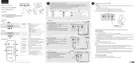
USER GUIDE
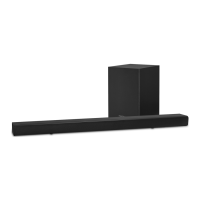
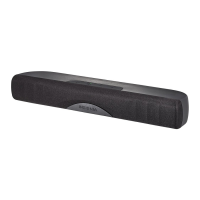
Mini 2.0 Soundbar with
Bluetooth
NS-SB216
NS-SB216_16-0248_MAN_V1_ENG.fm Page 1 Wednesday, July 6, 2016 11:42 AM

Other manuals for Insignia NS-SB216

Questions and Answers

  • D
    Darren MorganAug 4, 2025
    What to do if Insignia NS-SB216 Speakers won't connect to Bluetooth?
    • A
      Amanda NguyenAug 4, 2025
      If your Insignia soundbar isn't connecting to your Bluetooth device, consider these potential solutions: * Ensure the soundbar isn't paired with another Bluetooth device. * Confirm your Bluetooth device isn't connected to a different speaker. * Reduce the distance between the soundbar and your Bluetooth device. * Try turning both devices off and then on again, and re-pair them. * Verify both the soundbar and Bluetooth device are in pairing mode. * Make sure your Bluetooth device isn't connected to any other device. * Check that 'NS-SB216' is selected on your Bluetooth device.
  • R
    Rebecca BrownAug 8, 2025
    What to do if Insignia NS-SB216 Speakers have no sound in Bluetooth mode?
    • A
      amy35Aug 8, 2025
      If you're experiencing no sound or low volume in Bluetooth mode on your Insignia Speakers, try these steps: * Make sure your Bluetooth device is on, Bluetooth is enabled, and 'NS-SB216' is selected. * Increase the volume on your soundbar. * Increase the volume on your Bluetooth device. * Ensure your Bluetooth device isn't muted. * Confirm that music is playing from your Bluetooth device. * Verify that you've selected the Bluetooth source on your soundbar.
  • R
    Ryan GalvanAug 13, 2025
    How to fix Insignia NS-SB216 Speakers remote control not working?
    • A
      Ashley EllisAug 13, 2025
      If the remote control for your Insignia Speakers isn't working, try these steps: * Ensure there are no obstructions between the remote and the IR sensor on the soundbar. * Replace the battery in the remote. * Move closer to the soundbar, as the remote's effective range is about 23 ft (7 m).
  • J
    Jean PrattAug 17, 2025
    Why is the sound breaking up on Insignia NS-SB216 Speakers?
    • D
      david30Aug 17, 2025
      If the sound from your Insignia Speakers is breaking up or buzzing, try the following: * Ensure you're connected to an audio OUTPUT jack on your sound source, not an input jack. * Check that all connections are secure and cables are in good condition. * If using OPTICAL, verify the source device’s audio source is set to 'PCM' format. * Test with a different source device to isolate the issue. * Try a different connection method to ensure the jacks are working. * Make sure the audio cable is not damaged; try another one. * Turn off or mute your TV's internal speakers.
  • Z
    zachary78Aug 21, 2025
    Why does my Bluetooth device keep disconnecting from Insignia Speakers?
    • A
      Andrew TrevinoAug 21, 2025
      If your Bluetooth device keeps unpairing from your Insignia soundbar, try these suggestions: * Reduce the distance between your soundbar and your Bluetooth device. * If your Bluetooth device's battery is low, recharge it.
  • H
    htaylorAug 26, 2025
    Why 'NS-216' does not appear on my Bluetooth device for Insignia NS-SB216 Speakers?
    • M
      Matthew LopezAug 26, 2025
      If 'NS-216' isn't showing up on your Bluetooth device when trying to connect to your Insignia Speakers, try the following: * Put your soundbar into pairing mode, then refresh the list of Bluetooth devices on your device. * Make sure your Bluetooth device is set to be visible to other devices.
  • M
    marcomarshOct 30, 2025
    What to do if there is no sound from Insignia NS-SB216 Speakers?
    • M
      michaelpattersonOct 30, 2025
      If you're not getting any sound or the sound is very low from your Insignia Speakers, here are some things to check: * Ensure you're connected to an audio OUTPUT jack on your sound source, not an input. * Verify the soundbar's volume is at an audible level. * If using Bluetooth, increase the volume on your Bluetooth device. * Make sure the sound isn't muted by pressing the mute button on the remote. * Select the correct audio source by pressing the source button repeatedly. * Confirm the power is on and all connections are secure. * For 3.5 mm cable connections, ensure the volume on your sound source is turned up. * With OPTICAL connections, set the source device’s audio format to 'PCM'. * Try a different audio cable to rule out damage. * Unplug the AC adapter, wait 30...

Summary

Introduction

Important Safety Instructions

General Usage and Environmental Safety

Guidelines for reading instructions, proper handling, cleaning, and ventilation to ensure safe operation.

Important Safety Instructions

Electrical Safety and Appliance Placement

Covers heat sources, plug safety, power cords, overloading, naked flames, grounding, and ventilation.

Important Safety Instructions

Battery Safety and Handling Precautions

Details on battery exposure to heat, keeping away from children, compartment security, and ingestion risks.

Placement Guidelines

Environmental and Surface Placement

Instructions for positioning the soundbar considering temperature, humidity, liquids, and stable surfaces.

Proximity to Sensitive Electronics

Advice on avoiding interference with TVs or monitors due to magnetic sensitivity.

Package Contents

Soundbar Top View Features

Power Indicator Function

Explanation of the power indicator light's states and meanings.

Source Indicator Function

Details on the colors and states of the source indicator light.

Power Button Operation

How to turn the soundbar on and off using the power button.

Soundbar Controls and Ports

Device Controls

Operation of the source selection and volume adjustment buttons on the soundbar.

Back Panel Connections and Mounting

Identification of RCA, Optical, DC IN jacks and mounting points on the rear of the unit.

Remote Control Operation

Power and Source Selection

How to use the remote for powering on/off and selecting audio sources.

Volume and Mute Controls

Instructions for adjusting sound volume and muting the audio using the remote.

Digital Signal Processor (DSP) Modes

How to select different sound modes like Standard, Theater, and News.

Remote Control Usage Tips

Initial Setup and Aiming

Steps for preparing the remote (battery tab) and aiming it at the IR sensor.

Soundbar Setup Guide

Choosing Your Audio Connection

Guidance on identifying audio output ports and selecting the appropriate connection type.

Connecting Your Soundbar

Digital Optical Connection (Best)

Detailed steps for connecting the soundbar using a digital optical cable.

RCA Audio Connection (Good)

Instructions for connecting the soundbar via RCA audio cables.

Connecting Your Soundbar

3.5 mm Audio Connection (Good)

Steps for connecting the soundbar using a 3.5mm audio cable and adapter.

Connecting the AC Adapter

Procedure for connecting the soundbar to a power outlet using the AC adapter.

Bluetooth Connectivity

Pairing Your Bluetooth Devices

Step-by-step instructions for pairing your Bluetooth-enabled devices with the soundbar.

Bluetooth Connectivity

Disconnecting Bluetooth Devices

How to turn off or unpair a connected Bluetooth device from the soundbar.

Reconnecting Paired Devices

Steps to re-establish a connection with previously paired Bluetooth devices.

Bluetooth Connectivity

Connecting to a Different Device

Procedure to disconnect from a current Bluetooth device and connect to a new one.

Phone Call Handling During Playback

How music playback is managed when receiving a phone call via Bluetooth.

Soundbar Placement Options

Using Your Soundbar

Listening and Volume Adjustment

Steps to turn on the soundbar, select sources, and adjust volume for playback.

Soundbar Maintenance

Cleaning the Soundbar Exterior

Instructions for cleaning the surface of the soundbar with a soft, dry cloth.

Replacing Remote Control Battery

Step-by-step guide for safely replacing the battery in the remote control.

Troubleshooting Guide

Power and Remote Control Issues

Solutions for problems related to the soundbar not powering on or the remote not working.

Sound and Connectivity Problems

Troubleshooting steps for no sound, low volume, or connection issues.

General Operation Malfunctions

Guidance for resolving overall improper operation or unexpected behavior of the soundbar.

Troubleshooting Guide

Audio Distortion and Interference

Solutions for issues like sound breaking up, buzzing, or hearing TV audio simultaneously.

TV Audio and Remote Control Issues

Addresses simultaneous TV sound and clarifies TV remote control limitations.

Bluetooth Connection and Pairing Issues

Solutions for pairing failures, frequent unpairing, and device not appearing in lists.

Specifications

Legal Notices

FCC Part 15 Compliance

Information regarding compliance with FCC Part 15 rules for digital devices.

FCC Warning

A warning against making unauthorized modifications to the equipment.

Canada IC Statement

Compliance information related to Canadian Industry (IC) standards.

One-Year Limited Warranty

Warranty Definitions and Duration

Defines key terms and specifies the length of the warranty period.

Warranty Coverage and Exclusions

Details what is covered and what is not covered under the warranty terms.

Obtaining Warranty Service

Instructions on how to get the product serviced or repaired under warranty.

Warranty Validity Area

Specifies the geographic regions where the warranty is applicable.

One-Year Limited Warranty

Warranty Exclusions List

Lists common exclusions like modifications, misuse, unauthorized repairs, and specific damages.

Liability Limitations

States limitations on liability for incidental, consequential, or implied warranties.

Insignia NS-SB216 Specifications

General IconGeneral
BrandInsignia
ModelNS-SB216
Speaker TypeSoundbar
Channels2.1
BluetoothYes
Wireless SubwooferYes
ConnectivityAUX

Related product manuals