www.urcsupport.com
22
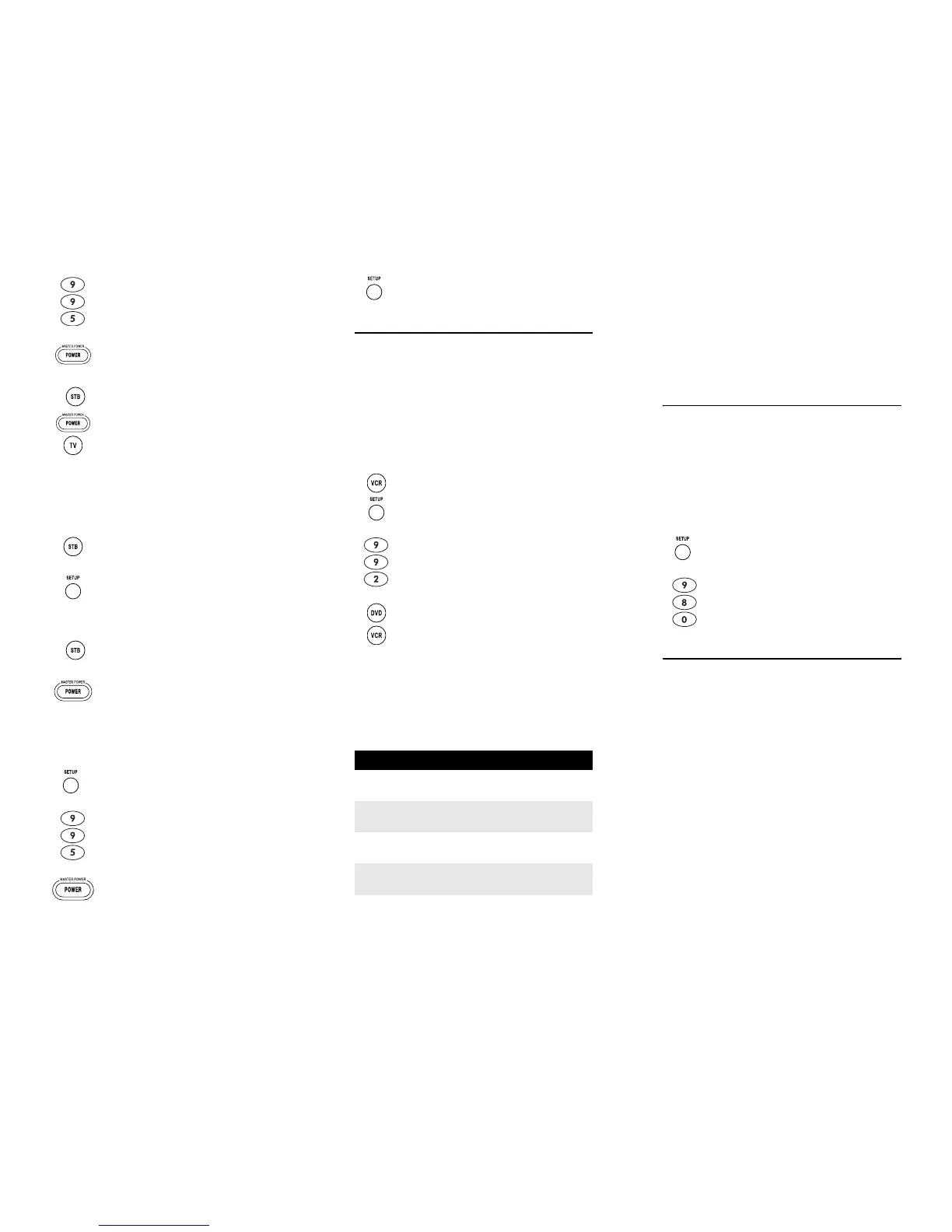
5. Repeat step 4 up to four more times to add the
second, third, fourth, and fifth device, as
desired.
6. To save the settings and exit the program:
Using the Master Power Key
You will see the devices turn on or off according to the
programmed sequence.
Clearing the Master Power Key
2. Enter 9 9 5. The last-selected device key
blinks twice.
3. Press POWER once.
4. For the first device you want in the power on
sequence, press a device key (e.g., STB) once.
Then press POWER once. For the second
device in the power sequence, press its key
once (e.g, TV). Then press POWER.
a. Press STB once.
b. Press and hold SETUP until the STB key blinks
twice.
1. After programming, point the remote control
at the devices. Press STB once.
2.
Press
POWER
once to sequentially turn the
programmed home entertainment devices on
or off.
1. On the remote control, press and hold SETUP
until the last-selected device key blinks twice.
2. Enter 9 9 5. The last-selected device key
blinks twice.
3. Press and release POWER.
Nebula Potenza ST.fm Page 22 Monday, October 15, 2007 4:55 PM
www.urcsupport.com
23
RE-ASSIGNING DEVICE KEYS
The Potenza ST Universal Remote Control can be set up
to control a second device of an already-assigned type.
For example, to have the unit control a TV, a set-top box,
and two audio devices (for example, two audio
receivers), re-assign the unused VCR key to operate the
second audio device as follows:
NOTE: VCR is preset at the factory to control an RCA
VCR. Performing the steps below will over-
write those settings.
The VCR key is now ready to be programmed for your
second audio device. See “Programming Device
Control” on page 9. To re-assign other device keys,
repeat these and substitute the key sequence using the
following chart:
NOTE: Only one device can be assigned to an unused
device key at a time.
4. Press and hold SETUP until the STB key blinks
twice.
1. On the remote control, press VCR once; it will
blink once. Then press and hold SETUP until
the VCR key blinks twice.
2. Enter 9 9 2. The VCR key will blink twice.
3. Press AUD once, then press VCR once. The VCR
key will blink twice.
To Re-Assign Perform Key Sequence
VCR as 2nd
AUD key
VCRÆSETUPÆ9Æ9Æ2ÆAUDÆVCR
VCR as 2nd
TV key
VCRÆSETUPÆ9Æ9Æ2ÆTVÆVCR
VCR as 2nd
STB key
VCRÆSETUPÆ9Æ9Æ2ÆSTBÆVCR
VCR back to
VCR
VCRÆSETUPÆ9Æ9Æ2ÆVCRÆVCR
Nebula Potenza ST.fm Page 23 Monday, October 15, 2007 4:55 PM
www.urcsupport.com
24
To re-assign another unused device key, substitute it for
the VCR key above and then perform the sequence. For
example, to re-assign an unused AUD key as a second
DVD key, perform
AUDÆSETUPÆ9Æ9Æ2ÆDVDÆAUD.
When a re-assignment is done, the selected device key
(e.g., AUD) will blink twice to confirm your choice. At
that time, you will need to program device control (see
“Programming Device Control” on page 9).
CLEARING CUSTOM PROGRAMMING
The Potenza ST Remote Control contains a Custom
Programming Reset program. You can use it to remove
all custom programming, except your setup codes and
reassigned device keys.
IMPORTANT: Executing this program will erase all cus-
tom settings for Volume Lock, Learned Keys,
Tune-In Keys, and Channel Lock. However,
your device programming remains.
TROUBLESHOOTING
PROBLEM: Device key does not blink when you press a
key.
SOLUTION: Replace the batteries with two (2) new AA
batteries (see “Installing Batteries” on page 9).
PROBLEM: Device key blinks when you press a key, but
home entertainment device does not respond.
SOLUTION: Make sure you are aiming the remote control
at your home entertainment device and that you are
within 15 feet of the device you are trying to control.
PROBLEM: The remote control does not control home
entertainment devices or commands are not performing
properly.
SOLUTION: Try all listed codes for the device brand
being set up. Make sure all devices can be operated with
an infrared remote control.
PROBLEM: TV/VCR Combo does not respond properly.
1. On the remote control, press and hold SETUP
until the last-selected device key blinks twice.
2. Enter 9 8 0. The last-selected device key
blinks twice, pauses, and blinks twice again to
confirm that all custom programming is
cleared.
Nebula Potenza ST.fm Page 24 Monday, October 15, 2007 4:55 PM


 To Next Page