24
Getting Started
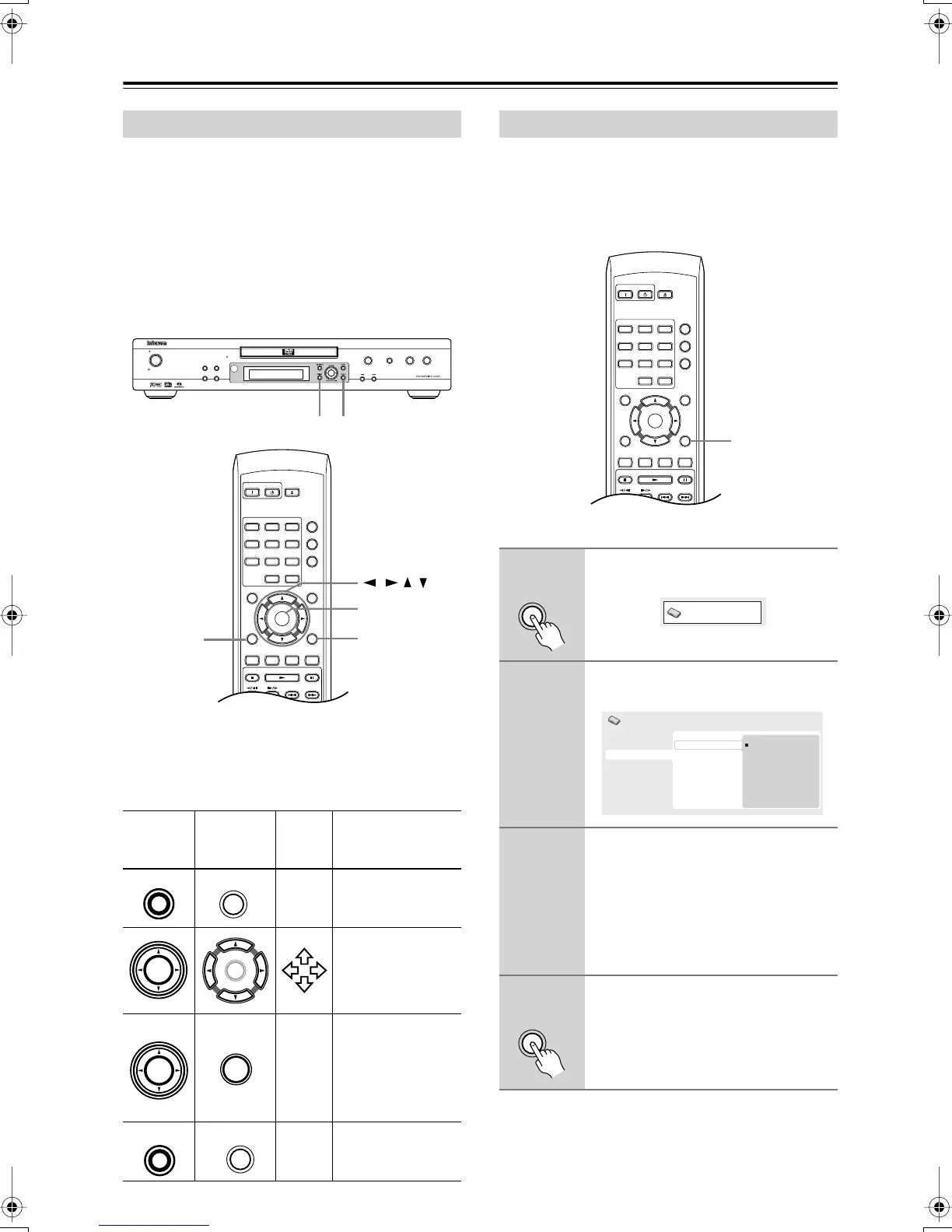
About the on-screen displays
Video, audio, and other settings can easily be set by
using the on-screen setup menus that appear on the con-
nected TV.
About the setup navigator and other displayed items
Operations related to the remote controller buttons are
displayed at the bottom of the screen, as shown below. In
addition, a brief explanation of the currently selected
item also appears at the bottom of the screen.
Note:
•From here on in this manual, the word “select”
generally means use the cursor buttons to highlight
an item on-screen, then press Enter.
If you have a widescreen (16:9) TV, you should setup the
player so that the picture will be presented correctly. If
you have a conventional (4:3) TV, you can leave the
player on the default setting and move on to the next sec-
tion.
Using the on-screen displays
DPS-6.5
buttons
Remote
controller
buttons
On-
Screen
What it does
HOME
MENU
Display/exit the on-
screen display.
Changes the high-
lighted menu item.
ENTER
Selects the high-
lighted menu item
(both Enter but-
tons on the remote
work in exactly the
same way).
—
Returns to the
main menu without
saving changes.
On
Standby
Open/
Close
Play Mode
Display
123
456
789
0
Clear
Dimmer
Top Menu Menu
Return Setup
Audio Angle Subtitle Zoom
Stop Play Pause
Down Up
T
V Control
Enter
Enter
///
SetupReturn
DPS
-
6.5
Open
/Close
Pause
Stop Play
Standby/On
Standby
Progressive
Play Mode
Clear
Display
Dimmer
Return Setup
Setup
Setup
Push To Enter
Cursor
Enter
Push To Enter
Cursor
Enter
Return
Return
Setting up the player for your TV
1
Press Setup and select “Initial Set-
tings”.
2
Select “TV Screen” from the
“Video Output” settings.
3
If you have a widescreen (16:9) TV,
select “16:9 (Wide)”.
If you have a conventional (4:3) TV, you
can change the setting from 4:3 (Letter
Box) to 4:3 (Pan & Scan) if you prefer.
See “Video Output settings” on page 43
for more details.
4
Press Setup to exit the menu
screen.
On
Standby
Open/
Close
Play Mode
Display
123
456
789
0
Clear
Dimmer
Top Menu Menu
Return Setup
Audio Angle Subtitle Zoom
Stop Play Pause
Down Up
T
V Control
T
V/
Video Channel
On/
Enter
Setup
Initial Settings
Digital Audio Out
Video Output
Language
Display
Options
Speakers
TV Screen
Component Out
4:3 (Letter Box)
4:3 (Pan&Scan)
16:9 (Wide)
Initial Settings
DPS-6.5.book Page 24 Thursday, August 5, 2004 3:27 PM


 To Next Page