Need help?
Do you have a question about the Intel NUC7i5BNHXF and is the answer not in the manual?
Critical warnings and general safety practices for using and modifying computer equipment.
Specific warnings to observe when installing and testing the Intel NUC hardware.
Importance of following safety and regulatory requirements to avoid risks.
Step-by-step instructions for opening the Intel NUC chassis.
Guide for selecting and installing DDR4 SO-DIMM memory modules.
Detailed steps for inserting a second memory module into the NUC.
Procedure for replacing or installing an M.2 Solid State Drive or Optane module.
Instructions for replacing or installing a 2.5-inch SSD or Hard Disk Drive.
Instructions for reassembling the Intel NUC chassis after component installation.
Steps to attach and use the optional VESA mount bracket for display mounting.
Guide to connecting the Intel NUC to AC power using appropriate country-specific plugs.
Guidance on initial Windows 10 setup and personalization steps.
Methods for updating device drivers, BIOS, and essential software.
Explanation of Refresh, Reset, and Restore options for Windows.
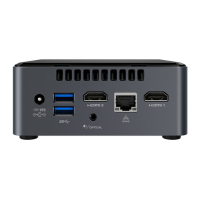
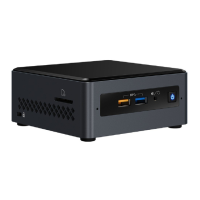
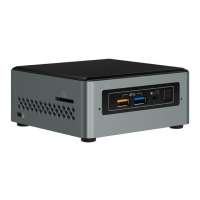
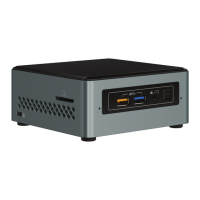
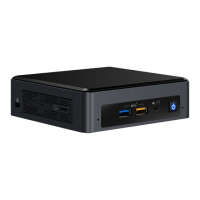
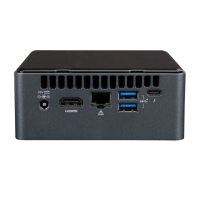
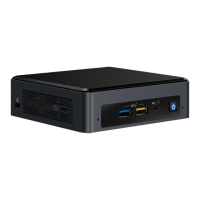
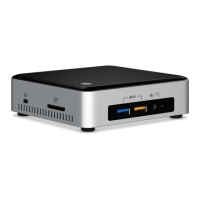
This document serves as a user guide for the Intel® NUC 7 series, specifically covering the NUC7i3BNHXF, NUC7i5BNHXF, and NUC7i7BNHXG models. These devices are described as Mini PCs running Windows® 10. The guide provides comprehensive instructions for various aspects of using and maintaining these compact computers, from initial setup to hardware upgrades and operating system recovery.
The primary function of these Intel NUC devices is to serve as a compact and versatile Mini PC, pre-installed with Windows 10. They are designed for users who require a small form factor computer for home use, with the NUC7i7BNHXG model being designated as an "Enthusiast" version, suggesting higher performance capabilities. The guide outlines how to set up the Microsoft® Windows® 10 operating system, including initial configuration steps such as selecting region and language, accepting license terms, personalizing Windows, assigning a PC name, connecting to a wireless network, choosing express settings or customizing, and assigning a user name and password. This indicates a user-friendly out-of-box experience, guiding users through the essential steps to get their new Mini PC operational.
A key aspect of the Intel NUC's usage features is its upgradability and modular design. The guide details how to open the chassis by unscrewing four corner screws on the bottom cover, allowing access to internal components for upgrades. This ease of access is a significant feature, enabling users to customize and enhance their system over time. The document provides instructions for upgrading system memory, changing or installing an M.2 SSD, and changing or installing a 2.5-inch SSD or hard drive.
For system memory, the Intel NUC Kits NUC7i3BNHXF, NUC7i5BNHXF, and NUC7i7BNHXG are equipped with two 260-pin DDR4 SO-DIMM sockets. The guide specifies the pre-installed memory configurations: one 4GB module for NUC7i3BNHXF and NUC7i5BNHXF, and one 8GB module for NUC7i7BNHXG. When upgrading, users are advised to select 1.2V low voltage, 2133 MHz SO-DIMMs that are non-ECC. Detailed steps are provided for both removing pre-installed memory and installing new modules, emphasizing proper alignment and securing the modules with retaining clips. A crucial note is included for users installing only one memory module, advising placement in the lower memory socket.
Regarding storage, the Intel NUC Kits support either an 80mm or 42mm M.2 SSD. The pre-installed M.2 component across all listed models is a 16GB Intel Optane Memory module. The guide provides clear instructions for changing an M.2 SSD or Intel Optane Memory module, including removing the small silver screw from the metal standoff, removing the pre-installed module, aligning the new M.2 SSD with the connector key, inserting it at a 45-degree angle, and securing it with the screw. A critical caution is provided for Intel Optane memory modules, stating that they must be disabled before removal, with a reference to a specific section for "Removing Intel Optane Memory." This highlights the importance of following specific procedures for certain components to prevent data loss or system issues.
Additionally, the Intel NUC Kits NUC7i3BNHX1, NUC7i5BNHX1, and NUC7i7BNHX1 (note the slight model number variation in this section, likely a typo or specific sub-variant) support an additional 2.5-inch Solid State Drive (SSD) or Hard Disk Drive (HDD). The guide outlines the process for changing these drives, which involves unscrewing the four screws holding the current drive, removing it, sliding the new 2.5-inch drive into the bay ensuring SATA connectors are fully seated, and then securing the drive bay bracket with the screws. This flexibility in storage options allows users to choose between faster M.2 drives for the operating system and larger 2.5-inch drives for bulk storage, catering to different needs.
Another practical usage feature is the optional VESA mount bracket. The guide explains how to attach the VESA bracket to the back of a monitor or TV using four small black screws provided in the box. Subsequently, two slightly larger black screws are attached to the bottom chassis cover of the Intel NUC, allowing the device to slide onto the VESA mount bracket. This feature enables users to mount the Mini PC discreetly behind a display, saving desk space and creating a cleaner setup.
Connecting power is also detailed, with country-specific power plug attachments included in the box. Users are instructed to choose the appropriate attachment for their region and slide it onto the power plug, ensuring it locks into place, before connecting the AC power. This global compatibility is a useful feature for users in different regions.
Maintenance features are primarily focused on software and operating system recovery. The guide emphasizes the importance of keeping device drivers current and offers two methods: using the Intel® Driver & Support Assistant (Intel® DSA) for automatic detection or manually downloading drivers, BIOS, and software from the Download Center. A comprehensive list of available drivers and software is provided, including Chipset Device Software, HD Graphics, Management Engine, Wireless, Bluetooth, Gigabit Ethernet, Thunderbolt™ Bus (for NUC7i5BNH and NUC7i7BNH only), Realtek* High Definition Audio, Realtek* Card Reader, ITE Tech* Consumer Infrared, Intel® Rapid Storage Technology, Intel® Software Guard Extensions, Thunderbolt™ 3 Controller Firmware, and HDMI Firmware. This extensive list ensures users can maintain optimal performance and compatibility for all hardware components.
For operating system recovery, the Intel NUC includes a Windows recovery partition. The guide explains three recovery actions: Refresh, Reset, and Restore. "Refresh" is for when the PC isn't performing well but personal files and settings should be retained; it resets PC settings to defaults, keeps Windows Store apps, and removes apps installed from disks or websites. "Reset" is a complete wipe, removing all personal files and apps, resetting PC settings, and reinstalling Windows, suitable for recycling or starting fresh. "Restore" allows users to revert Windows to an earlier restore point, useful for resolving issues caused by recently installed apps or drivers without affecting personal files. Crucially, a caution advises users to back up all personal data and remove any SD cards before performing a Refresh or Reset. Instructions are provided for accessing recovery media both when Windows starts (via "Recovery Options" in Windows Start) and when it doesn't (attempting to press F8 during boot).
Throughout the guide, safety and regulatory compliance are highlighted. A "Before You Begin" section includes important cautions, advising users to be familiar with computer terminology, safety practices, and regulatory compliance. It stresses the importance of disconnecting the computer from its power source and network before performing any procedures to prevent personal injury or equipment damage, noting that some circuitry can remain active even when the power button is off. Guidelines include following steps in order, creating a log of computer information, and taking precautions against electrostatic discharge (ESD) by using an antistatic wrist strap and conductive foam pad. Installation precautions also warn against sharp pins, rough edges, and hot components, and the risk of damaging wires. These safety measures are critical for users performing hardware maintenance.
In summary, the Intel NUC 7 series Mini PCs are designed as versatile, user-upgradable, and maintainable computing solutions. The user guide effectively communicates how to set up, customize, and troubleshoot these devices, empowering users to manage their hardware and software effectively while adhering to important safety guidelines.
 General
| Processor | Intel Core i5-7260U |
|---|---|
| Processor Cores | 2 |
| Processor Threads | 4 |
| Processor Base Frequency | 2.20 GHz |
| Processor Max Turbo Frequency | 3.40 GHz |
| Memory Slots | 2 |
| Max Memory Size | 32 GB |
| Graphics | Intel Iris Plus Graphics 640 |
| Graphics Base Frequency | 300 MHz |
| SATA Ports | 1 |
| Bluetooth | Bluetooth 4.2 |
| Dimensions | 115 x 111 x 51 mm |
| Cache | 4 MB |
| Storage Interface | PCIe NVMe |
| USB Ports | 4 (USB 3.0) |
| HDMI Ports | 1 |
| DisplayPort | 1 |
| Thunderbolt Ports | 1x Thunderbolt 3 |
| Ethernet | Gigabit Ethernet |
| Wireless | Intel Wireless-AC 8265 |
| Audio | HDMI audio |
| Operating System Support | Windows 10 |
| Power Supply | 65W external power adapter |
| Included | VESA Mounting Bracket |
| Memory Type | DDR4-2133 |


 To Next Page