Need help?
Do you have a question about the Intel NUC8 Home and is the answer not in the manual?
Observe warnings and cautions during installation and testing procedures.
Follow instructions to increase safety and ensure compliance with laws.
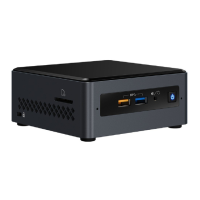
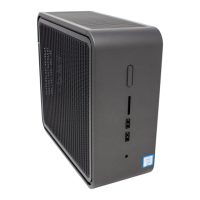
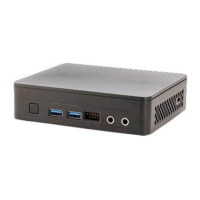
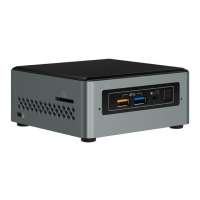
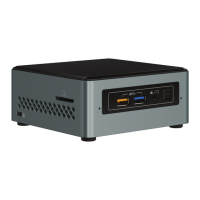
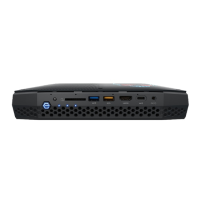
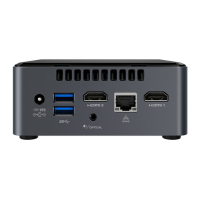
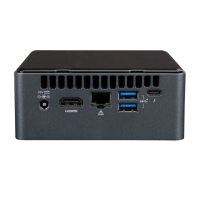
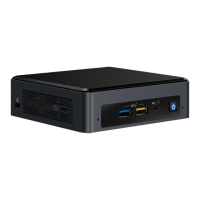
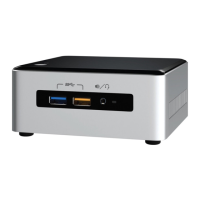
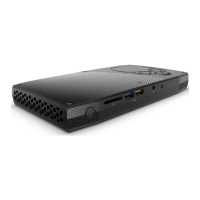
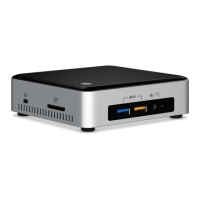
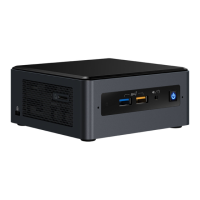
This document serves as a user guide for the Intel® NUC8 Enthusiast and Intel® NUC8 Home Mini PCs, specifically covering models NUC8i7BEHGA, NUC8i5BEHFA, and NUC8i3BEHFA. It provides comprehensive instructions for various tasks, from initial setup and hardware upgrades to software installation and operating system recovery. The guide emphasizes safety precautions and regulatory compliance throughout, ensuring users can confidently and safely manage their Intel NUC devices.
The primary function of these Intel NUC Mini PCs is to provide a compact yet powerful computing solution, pre-installed with Microsoft® Windows® 10. They are designed for users who need a small form factor PC for various applications, whether for enthusiast-level performance (NUC8i7BEHGA) or general home use (NUC8i5BEHFA and NUC8i3BEHFA). The pre-installed operating system simplifies the initial setup process, allowing users to get started quickly with their new device.
One of the key usage features highlighted in the guide is the ability to upgrade system memory (RAM). The Intel NUC Mini PCs come equipped with two 260-pin DDR4 SO-DIMM sockets. The NUC8i7BEHGA model is pre-installed with one 8GB DDR4 2400 MHz SO-DIMM, while the NUC8i5BEHFA and NUC8i3BEHFA models come with one 4GB DDR4 2400 MHz SO-DIMM. The guide provides detailed, step-by-step instructions for both upgrading existing memory and installing additional memory modules. It specifies that users should select 1.2V low voltage, 2400 MHz SO-DIMMs that are non-ECC for compatibility. The process involves unscrewing the four corner screws on the bottom of the chassis to lift the cover, then carefully spreading retaining clips to remove existing modules or inserting new modules at a 45-degree angle until the clips snap into place. This modular design allows users to customize their system's performance based on their specific needs, extending the lifespan and utility of the device.
Another significant usage feature is the flexibility in storage options. The Intel NUC Mini PCs support both M.2 SSDs and 2.5-inch SSDs or Hard Disk Drives (HDDs). The NUC8i7BEHGA supports an 80mm or 42mm M.2 SSD and is pre-installed with a 32GB Intel Optane Memory module, along with an additional 2.5-inch 2TB HDD. The NUC8i5BEHFA and NUC8i3BEHFA models also support 80mm or 42mm M.2 SSDs, pre-installed with a 16GB Intel Optane Memory module, and include a 2.5-inch 1TB HDD. The guide provides clear instructions for changing an M.2 SSD or Intel Optane Memory module, emphasizing the need to disable the Optane memory first if it's being replaced. The process involves removing a small silver screw, detaching the old module, aligning the new module with the connector's key, inserting it, and then securing it with the screw. For 2.5-inch drives, users are instructed to unscrew the existing drive, remove it, and then slide the new drive into the bay, ensuring the SATA connectors are fully seated before securing it. These options allow users to expand their storage capacity or upgrade to faster storage solutions, enhancing the overall responsiveness and data handling capabilities of their Mini PC.
The guide also covers the optional use of a VESA mount bracket, which is a practical usage feature for integrating the Intel NUC into various setups, such as behind a monitor or TV. This allows for a cleaner, more organized workspace. The instructions detail how to attach the VESA bracket to the back of a monitor or TV using small black screws, then attach two slightly larger black screws to the bottom chassis cover of the Intel NUC, and finally slide the Intel NUC onto the mounted bracket. This feature underscores the device's versatility and its ability to blend seamlessly into different environments.
Connecting power is a fundamental usage aspect. The guide clarifies that each Intel NUC model includes either a region-specific AC power cord or no AC power cord, in which case a C5 type connector power cord needs to be purchased separately. It lists various product codes corresponding to different power cord types (US, EU, UK, Australia/New Zealand), ensuring users can identify the correct power solution for their region.
Initial setup of Microsoft® Windows® 10 is another crucial usage feature. Since Windows 10 is pre-installed, the first boot guides users through essential setup steps, including selecting region and language, accepting license terms, personalizing Windows, connecting to a wireless network (optional), choosing express settings or customizing, and assigning a user name and password. This streamlined process makes the device user-friendly right out of the box.
Maintenance features are well-addressed, particularly concerning software and operating system management. The guide advises users on how to install the latest device drivers and software, offering two methods: using the Intel® Driver & Support Assistant (Intel® DSA) for automatic detection of out-of-date drivers, or manually downloading drivers, BIOS, and software from the Intel Download Center. It provides direct links to the compatibility tool for each NUC model and lists the available drivers, including Bluetooth, Chipset, CIR (Infrared), Graphics, Intel® ME, Intel® Rapid Storage Technology, Intel® Ready Mode Technology, Intel® Software Guard Extensions (Intel® SGX), LAN (wired and wireless), Realtek Audio, Realtek Card Reader, Serial IO, and Thunderbolt. Keeping drivers updated is essential for optimal performance, security, and compatibility with new hardware and software.
Operating system recovery is a critical maintenance feature. The Intel NUC includes a Windows recovery partition that allows users to Refresh, Reset, or Restore Windows. The guide clearly explains what each action does:
The guide also provides instructions on how to access these recovery options, both when Windows starts normally (via the "Recovery Options" in Windows Start) and when it doesn't (by pressing F8 during boot to activate "Windows 8.1/10 Recovery Mode"). A crucial caution is included: users should always back up all personal data to external storage and remove any SD cards before performing a Refresh or Reset, to prevent data loss.
Throughout the document, safety is paramount. The "Before You Begin" section emphasizes critical precautions, such as familiarity with computer terminology, safety practices, and regulatory compliance. It strongly advises disconnecting the computer from its power source and any network before opening the chassis or performing any procedures, warning that failure to do so can result in personal injury or equipment damage. It also highlights that some circuitry can remain active even when the power button is off. The guide recommends following steps in order, creating a log of computer information, and taking electrostatic discharge (ESD) precautions, such as using an antistatic wrist strap and a conductive foam pad, to prevent damage to components. Installation precautions further warn about sharp pins, rough edges, and hot components, and the risk of damaging wires. These detailed safety guidelines ensure that users can perform maintenance and upgrades with minimal risk.
In summary, this user guide provides a comprehensive overview of the Intel NUC Mini PCs, focusing on their functionality, user-friendly features for upgrades and customization, and essential maintenance procedures. It empowers users to manage their devices effectively, from initial setup to advanced troubleshooting and recovery, all while adhering to important safety protocols.
 General
| Graphics | Intel Iris Plus Graphics 655 |
|---|---|
| Memory | Up to 32GB DDR4 |
| Storage | M.2 SSD, 2.5-inch HDD/SSD |
| Networking | Intel Wireless-AC 9560, Bluetooth 5.0, Gigabit Ethernet |
| Ports | HDMI 2.0a, Thunderbolt 3 |
| Dimensions | 117mm x 112mm x 51mm (4.6" x 4.4" x 2.0") |
| Power Supply | 90W power adapter |

 To Next Page