6
3. Installation
The following scenario describes the product installation for use in
Router
mode. For other scenarios, see the topic
Scenarios for Product Use
below.
Step 1
Step 2
Internet
Step 3
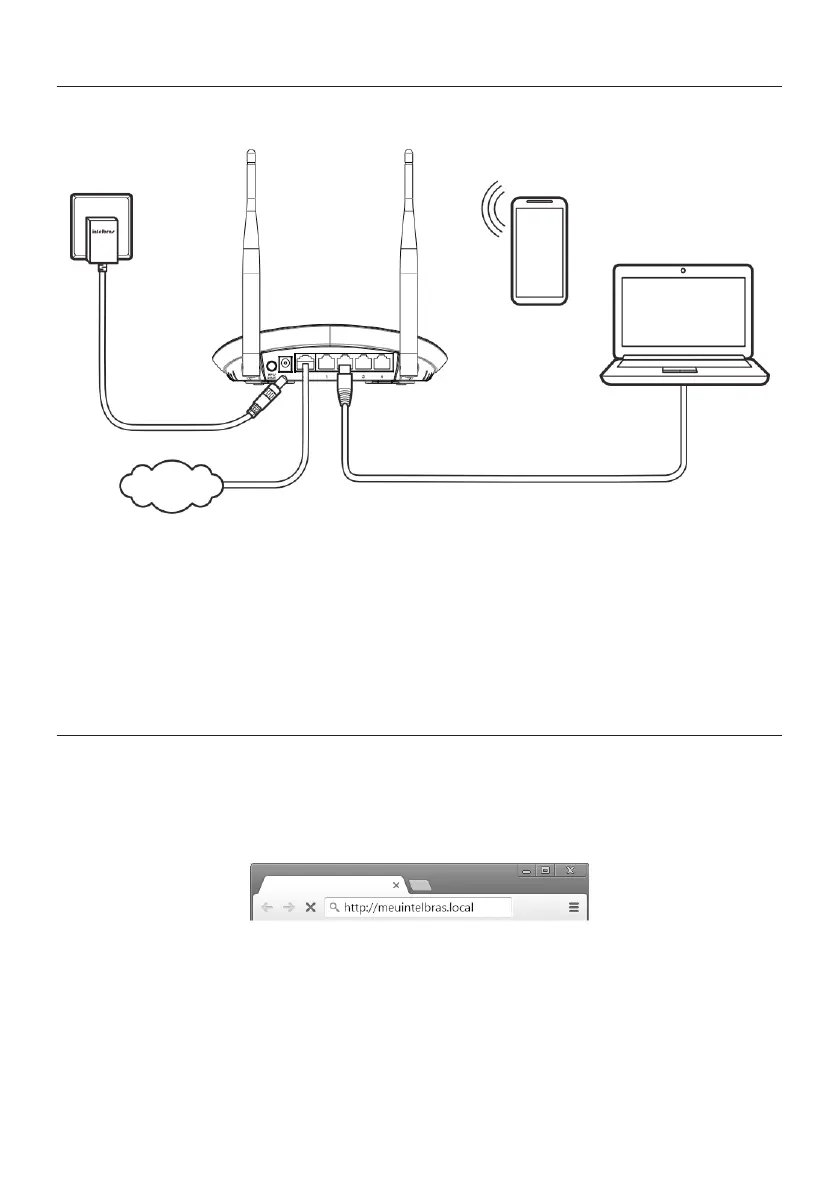
Example of Installation in Router mode
1. Connect the computer to one of the LAN (yellow) ports on the router using a network cable;
Note: if you wish to access your router via Wi-Fi, connect to the network under the INTELBRAS name, after
performing steps 2 and 3.
2. Connect the network cable from the Internet (for example, from your modem or other device) to the WAN port (blue)
of the router;
3. Connect the power supply to the router and then plug it into the electrical outlet. The LEDs will light up.
4. Conguration
Note: in this manual we will discuss the conguration done via computer. However, if you wish, you can perform the
process using other devices, for example tablets or smartphones.
To access the web interface, once connected to your router network via cable or Wi-Fi, open your internet browser and
type
http://meuintelbras.local
in the address eld, as shown below. Then press
Enter
. If the installation wizard page is
not displayed, try accessing
http://10.0.0.1.
Example of a web browser with the address lled in
We recommend using the latest versions of Google Chrome
®
, Mozilla Firefox
®
or Microsoft Edge
®
browsers to congure
your router.
4.1. Installation Wizard
When you access your router settings for the rst time, you will be directed to the installation wizard. It will assist you in
detecting your Internet type and guide you in dening the main settings necessary for you to quickly and easily create
your own Wi-Fi network.
The installation wizard’s home screen offers you three options:



 To Next Page